Ever had a folder full of PDFs that just won’t open? Maybe they got corrupted from a bad download, a failed export, or a system crash. Whatever the reason, fixing them one by one is a pain. This guide is for anyone who needs to repair several PDFs at once—whether you’re cleaning up after a project or salvaging important documents. By the end, you’ll have a batch repair workflow that lets you fix multiple PDFs in one go, saving you time and frustration.
We’ll use free tools that handle bulk processing, so you don’t need to buy expensive software. I’ll walk you through gathering your files, choosing the right tool, running the repair, and checking the results. You’ll also learn what can go wrong and how to avoid it. Ready to turn those broken files into working documents? Let’s dive in.
What You’ll Need
- A computer (Windows, Mac, or Linux) with internet access
- The PDF files you want to fix (keep a backup copy in another folder)
- A batch PDF repair tool—we’ll use the free PDF Repair Kit (desktop) or a reliable online service like RepairPDFOnline
- A few minutes of your time (the repair process is fast)
Step 1: Gather Your PDFs in One Folder
Before you start repairing, put all the PDFs you want to fix into a single folder. This makes it easy to select them all at once. Name the folder something like “To Fix” so you don’t lose track. If you have subfolders, copy everything into one place—batch tools usually don’t scan subdirectories.
Step 2: Choose Your Batch Repair Tool
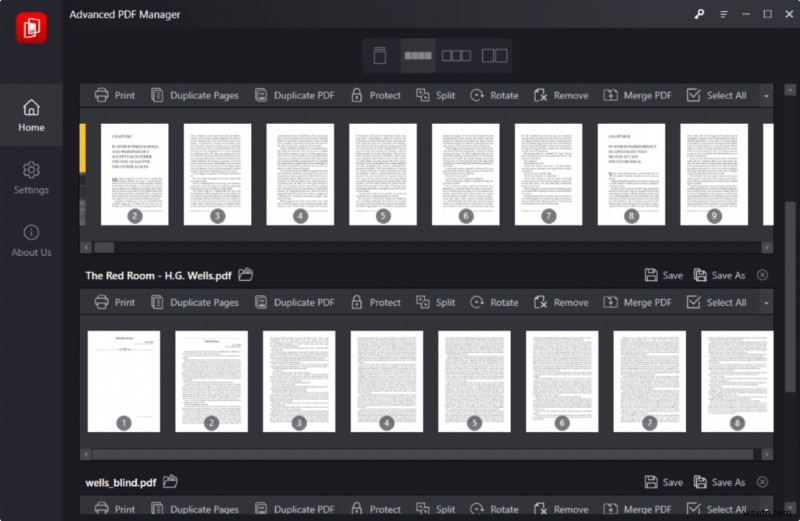
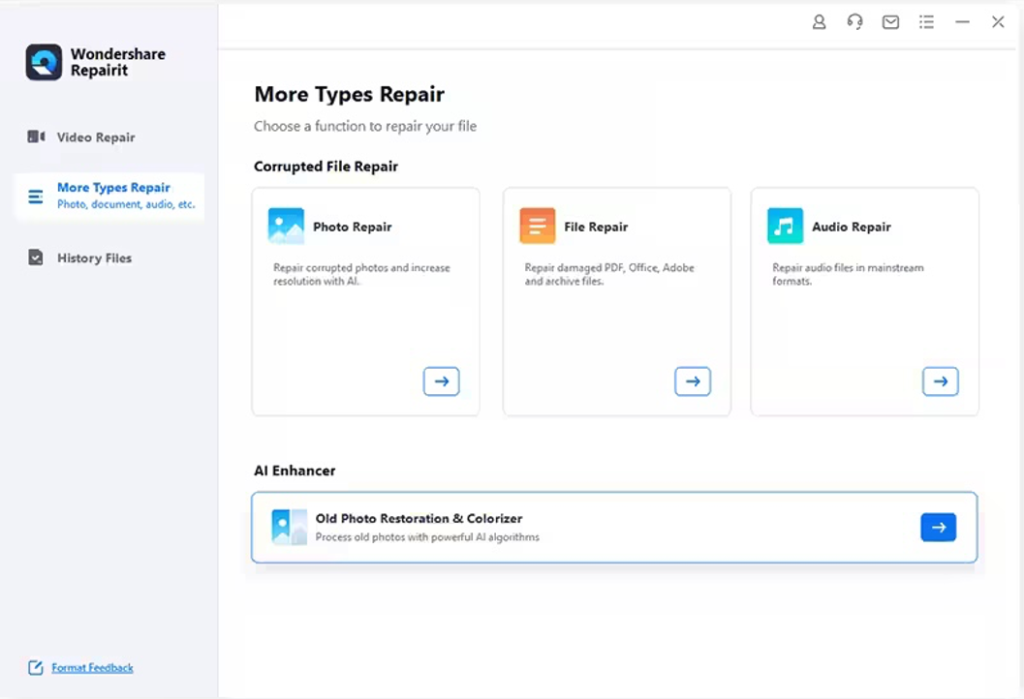
For batch repair, you have two good options: a desktop application or an online service. I recommend the desktop tool because it handles larger files and doesn’t require uploading. If you prefer online, choose a service that supports multiple files at once. For this guide, we’ll use PDF Repair Kit (free version handles up to 10 files per batch). If you’re dealing with a single file, you can also use our singular pdf corruption fix guide. For multiple files, stick with batch mode.
Step 3: Load Your PDFs into the Tool
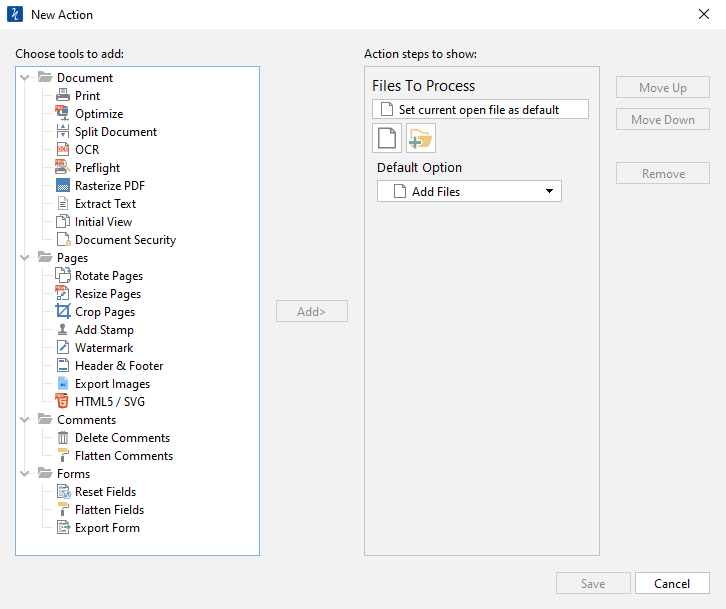
Open the PDF Repair Kit and click the “Add Files” button. Navigate to your “To Fix” folder, select all the PDFs (Ctrl+A on Windows or Cmd+A on Mac), and click Open. You’ll see them listed in the tool with their file sizes. Double-check that all files are there—sometimes hidden files can be missed.
Step 4: Start the Repair Process
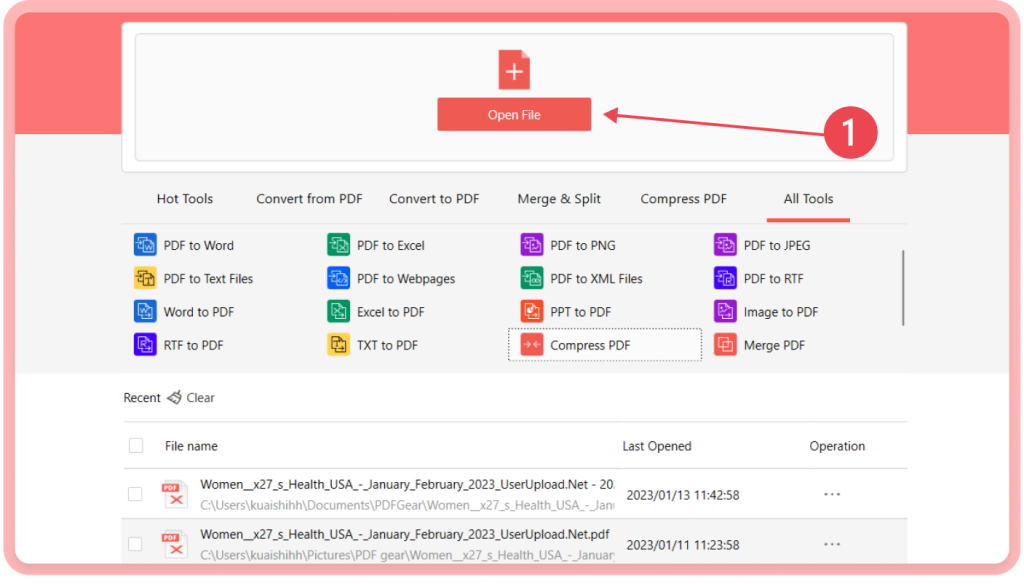
Once your files are loaded, click the “Repair All” button. The tool will process each PDF one by one. Depending on the number and size of files, this can take a few seconds to a couple of minutes. If you’re using an online service, upload them and hit “Repair All”—the site will process them and give you a download link when done. For instant results, check out our guide on how to repair PDF instantly.
Step 5: Download the Fixed Files
When the repair finishes, the tool will show a success status for each file. Desktop versions usually save the repaired PDFs in the same folder with “_fixed” appended to the filename. Online services provide a ZIP download containing all fixed files. Save them to a new folder like “Repaired” to keep them separate from the originals.
Step 6: Verify Each PDF
Don’t assume every file is perfect. Open each repaired PDF and check for errors: missing pages, garbled text, or broken images. If a file still has issues, try a different approach—like using a specialized tool to fix startxref PDF errors or to fix a file that isn’t a PDF or is corrupted. Sometimes one PDF needs individual attention while the rest are fine.
Common Pitfalls
- **Skipping backups.** Always keep a copy of the original PDFs before running any repair. If the tool makes things worse, you can start over.
- **Using an incompatible tool.** Not all PDF repair tools accept every file type or size. If you have huge files, check our guide on how to repair a huge PDF.
- **Not checking file sizes after repair.** A successfully repaired PDF should have a reasonable size. If it’s too small (e.g., 0 KB or a few bytes), the file might be empty or unrecoverable.
Where to Next
Now you can batch-fix PDFs like a pro. If you run into specific errors—like “startxref not found” or a file that isn’t a PDF at all—check our dedicated guides. For individual documents that need extra care, our single-file tutorials can help. Keep your workflow efficient, and never let a corrupted PDF slow you down again.




