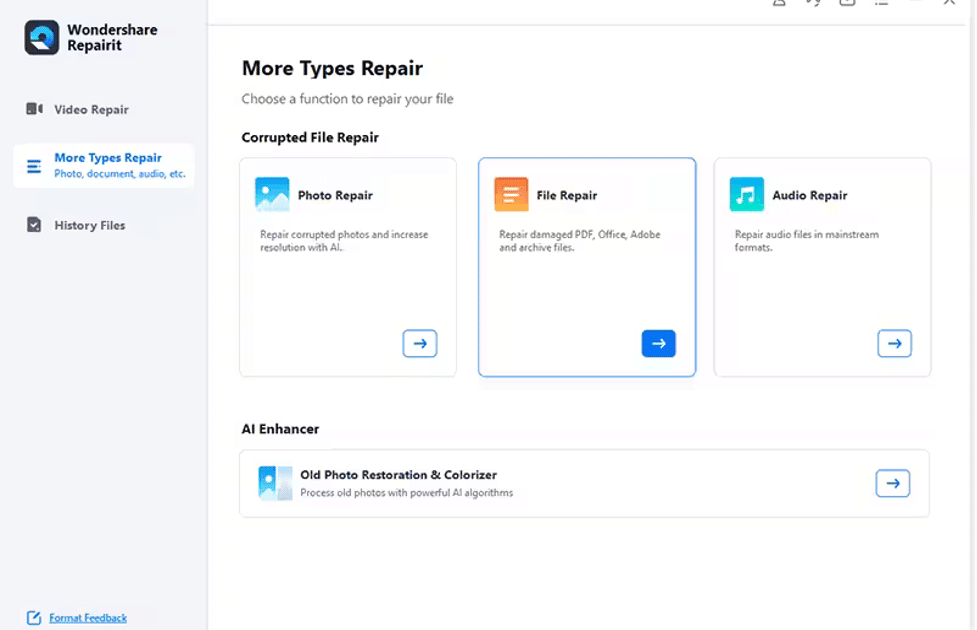
If you’ve ever tried opening a massive PDF — I’m talking hundreds of megabytes or thousands of pages — and watched your PDF viewer hang or spit out an error, you know the frustration. This guide is for anyone dealing with a huge, corrupted PDF that won’t open properly. By the end, you’ll have a repaired, working PDF file that you can open and edit normally.
We’ll go through three solid methods: using an online tool for a quick fix, using a professional desktop app for heavy lifting, and a manual text-editing approach for advanced users. I’ll also share how to avoid common pitfalls so you don’t lose any data.
What You’ll Need
- A corrupted huge PDF file (100+ MB or 500+ pages)
- A stable internet connection (for online methods)
- A PDF repair tool (I’ll recommend free options)
- Optional: A text editor like Notepad++ or Visual Studio Code
- 10–30 minutes of your time
Step 1: Try an online repair tool first
The quickest way to repair a huge PDF is to use an online service that supports large files. Go to a reputable site like PDFrepairs.click’s own tool — they have an option to repair pdf instantly even for big files. Upload your PDF and let the server work its magic. This method preserves most content and is perfect if you just need a quick fix.
Step 2: Use a desktop application for stubborn files
If the online tool fails (maybe the file is too big for the upload limit or the corruption is severe), switch to a desktop PDF repair program. I recommend software like Recovery Toolbox for PDF or SysInfoTools PDF Repair — both have free trials that handle up to 1 GB. Install the software, open your huge PDF, and run the repair. This method often recovers more data because it processes locally.
Step 3: Manually extract data with a text editor (last resort)
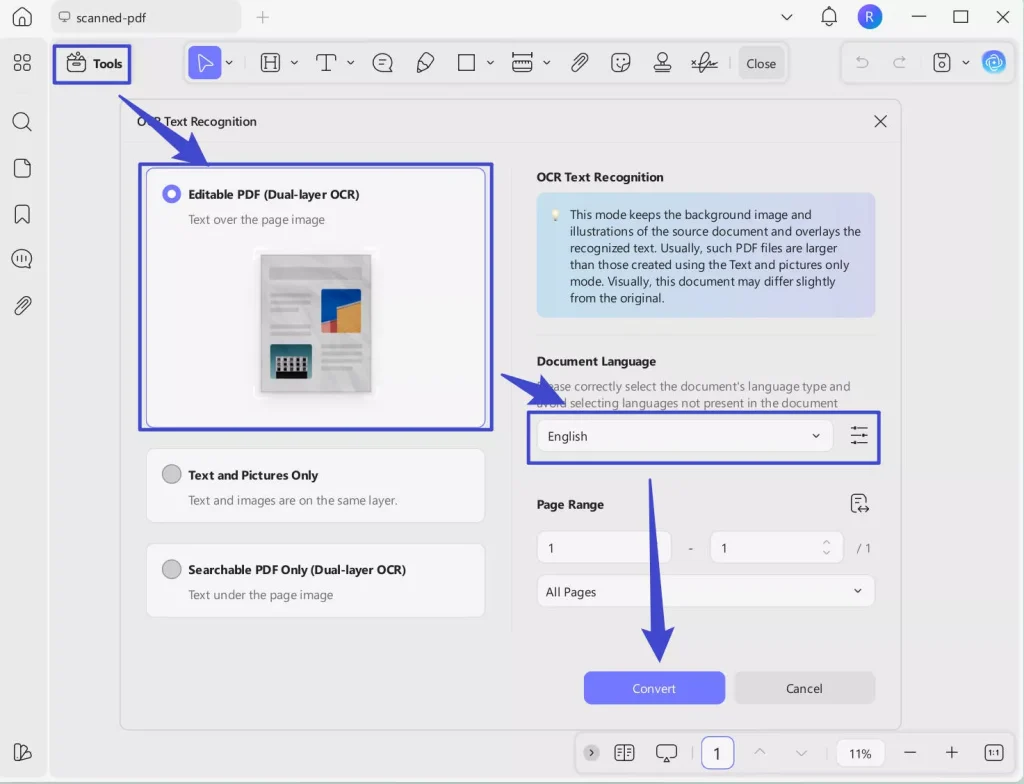
When no tool works, you can open the PDF in a text editor (like Notepad++) and manually extract readable content. Huge PDFs are often just a container; you might see plain text between PDF objects. Search for common words, copy the text sections, and paste them into a new document. This is tedious but can salvage critical text. For images, you’ll need specialized extraction tools.
Step 4: Shrink the PDF to reduce corruption risks
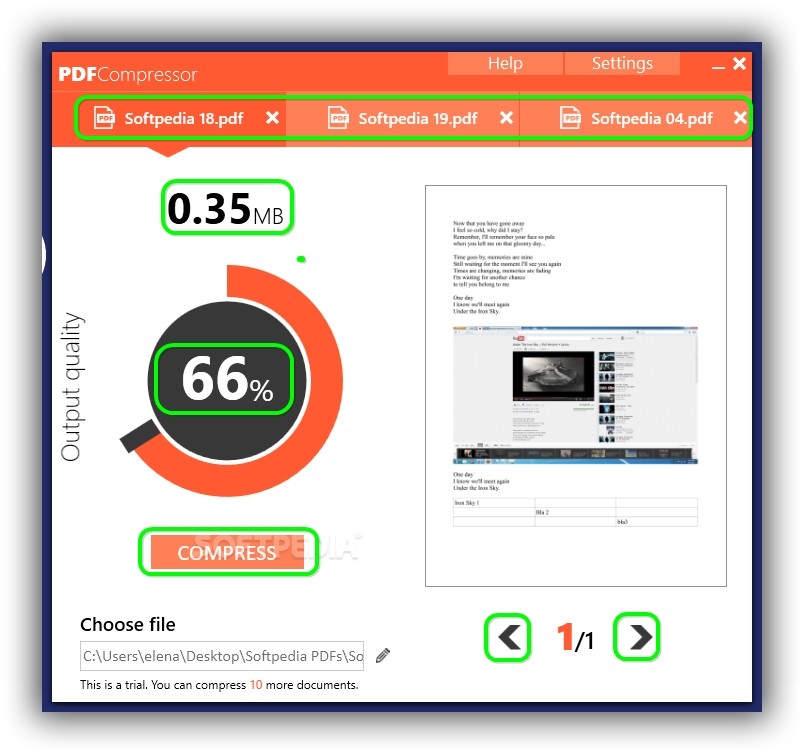
After repair, consider compressing the PDF to prevent future corruption. Use an online compressor or Adobe Acrobat’s ‘Reduce File Size’ feature. Smaller files are less prone to errors during transfers. If you need to fix damaged pdf for printing, a compressed repaired file works better.
Common Pitfalls
- Overwriting the original: Always work on a copy. If the repair fails, you’ll lose the original data.
- Using tools that can’t handle big files: Many online tools cap at 50 MB. Check limits before uploading, or use an online pdf recovery service that supports large uploads.
- Ignoring metadata loss: Some free repair tools strip metadata. Use a dedicated pdf repair online tool that promises metadata preservation.
Where to Next
Repairing a huge PDF can feel daunting, but with these steps, you’ll likely get your file back. If you still have issues, check out our guide on repair pdf for printing — sometimes the problem is specific to output. Or try a different approach with professional software. Good luck!




