We’ve all been there: you need to print an important PDF — a form, a contract, a ticket — and the printer either spits out gibberish or nothing at all. The file looks fine on screen, but the printer just won’t cooperate. If that sounds familiar, you’re in the right place. This guide is for anyone who’s dealing with a PDF that’s corrupted or subtly damaged, and who just wants a clean, printable copy without spending hours troubleshooting.
By the end of this tutorial, you’ll have a fully printable PDF. We’ll cover quick software-based fixes, online repair tools, and a few manual tricks that solve most printing issues. No expensive software needed — just free or built-in tools. Let’s get that document on paper.
What You’ll Need
- The damaged PDF file (original download or email attachment)
- Adobe Acrobat Reader (free) or your usual PDF viewer
- Internet connection (for online repair tools)
- A current printer driver (update if you haven’t in a while)
- Optional: Google Chrome, Microsoft Edge, or another browser
Step 1: Diagnose the Damage
Before fixing, figure out what’s wrong. Not every glitch is corruption. Try these quick checks:
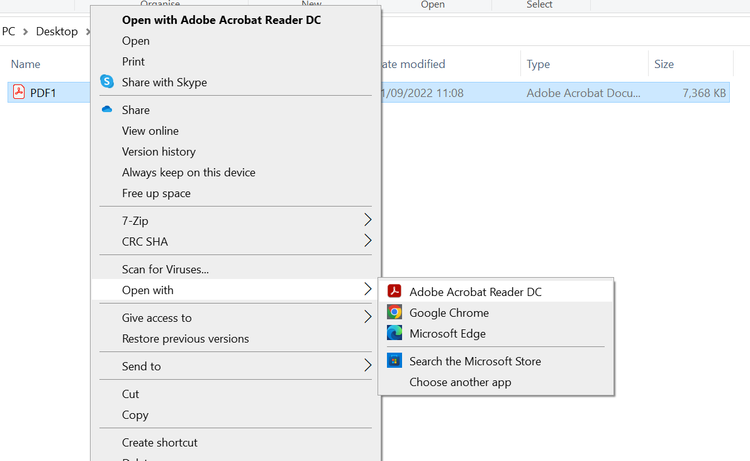
- Open the PDF in a different viewer (e.g., Chrome’s built-in PDF viewer). If it prints fine from there, the problem is your default viewer, not the file.
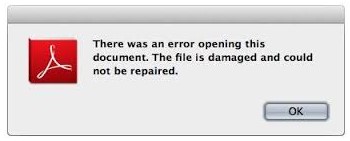
- Check if the file shows errors like ‘startxref not found‘ or ‘EOF marker missing’. Those are clear signs of corruption — we have a dedicated guide for fix pdf eof marker that you can follow if that’s the issue.
- Count the pages. If the PDF claims more pages than it actually shows, there may be hidden corrupt objects.
Step 2: Re-save the PDF as a New File
This simple trick fixes many mild corruptions. Open the PDF in Adobe Acrobat Reader, go to File > Save As, and save a copy with a new name. The re-save process often regenerates the file structure, removing small errors that prevent printing. Try printing the new copy.
Step 3: Print to PDF (Virtual Printer)
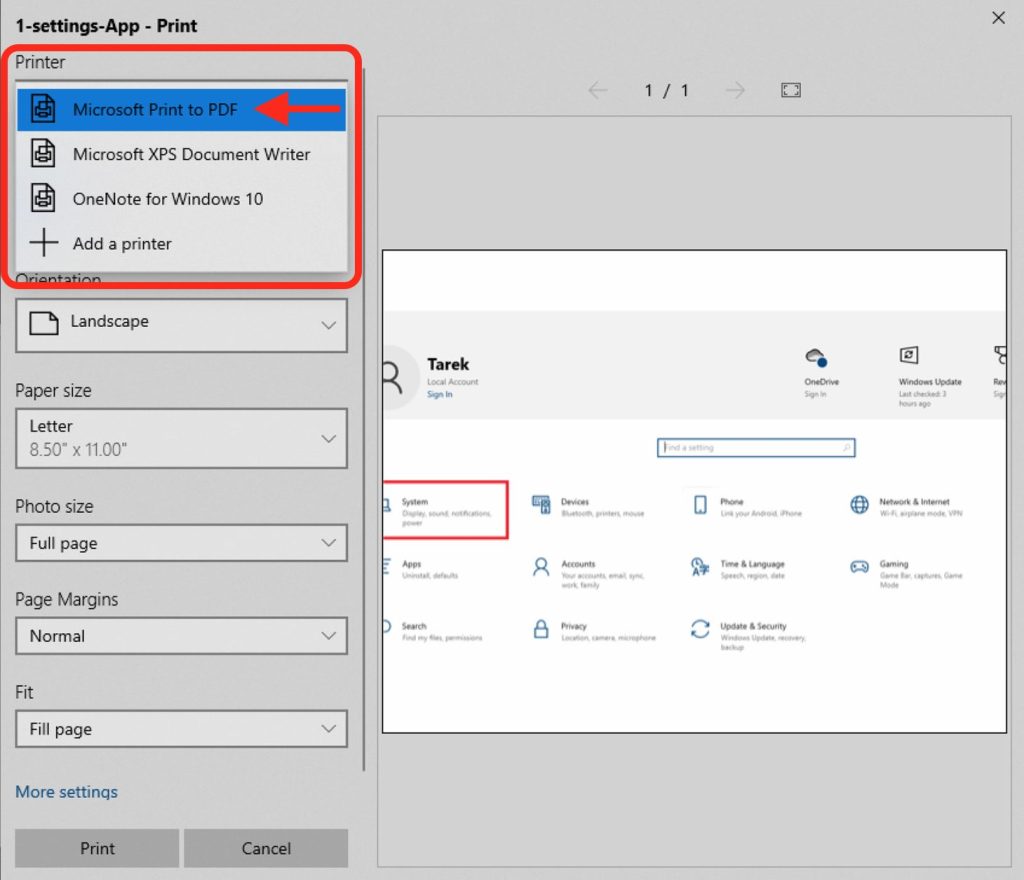
This creates a fresh, clean PDF from the damaged one — it’s like giving your file a photocopy. On Windows, use Microsoft Print to PDF (comes with Windows 10/11). On Mac, choose Save as PDF in the print dialog. Steps:
- Open the damaged PDF in any viewer.
- Press Ctrl+P (Windows) or Cmd+P (Mac) to open Print.
- Instead of your physical printer, select ‘Microsoft Print to PDF’ or ‘Save as PDF’.
- Click Print, then name the new file and save it. Try printing this new PDF.
Step 4: Use an Online Repair Tool
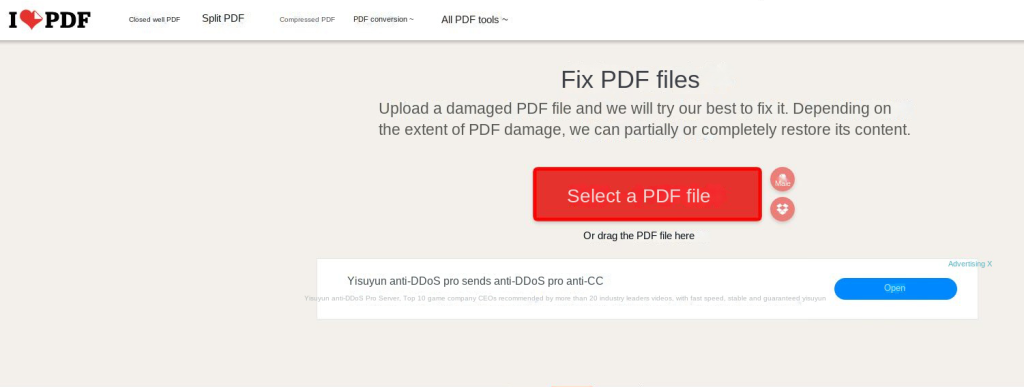
If re-saving and printing to PDF didn’t work, try a dedicated online repair service. These tools can recover pdf document from more severe corruption. Upload the file, let them fix it, and download a repaired version. Popular free options include:
- iLovePDF’s Repair PDF tool (up to 10 MB free)
- Smallpdf’s Repair PDF (free for one file per day)
- PDF24 Tools (free, no file size limit)
Most tools work the same: upload, wait a few seconds, download. The repaired file is usually stripped of corrupt objects and ready to print.
Step 5: Convert PDF to Another Format and Back
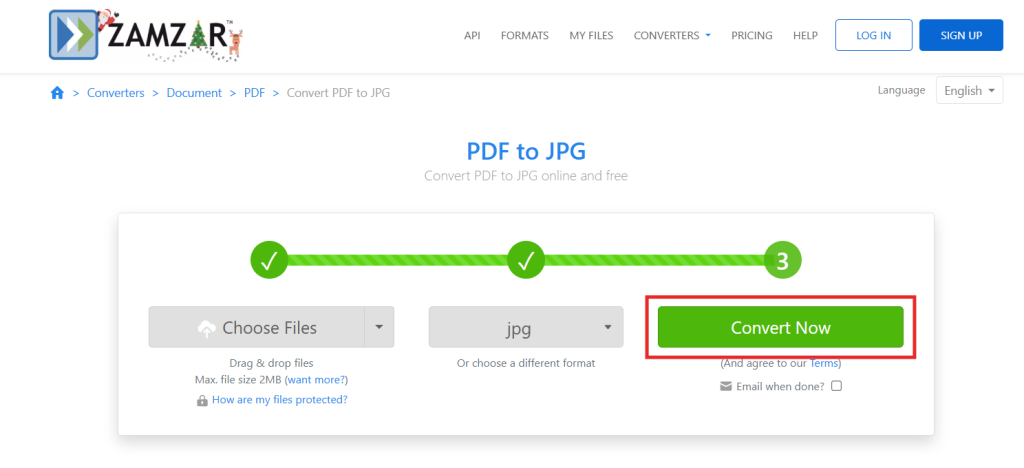
A more nuclear option: convert the PDF to a different format (like JPG or Word) and then back to PDF. This removes any hidden corrupt data. Use a free converter like:
- Zamzar (PDF to JPG, then JPG to PDF)
- Smallpdf’s PDF to Word converter (then save as PDF from Word)
Note: This works best for image-heavy PDFs. If your PDF has selectable text, converting to JPG will rasterize the text, making it unsearchable but perfectly printable.
Step 6: Update Your Printer Driver
Sometimes the problem isn’t the PDF — it’s your printer driver acting up. Outdated or incompatible drivers can cause print jobs to fail. Visit your printer manufacturer’s website (HP, Canon, Epson, etc.), download the latest driver for your model and OS, and install it. Then try printing again.
Common Pitfalls
- Ignoring the viewer – You might spend hours fixing a PDF that would print fine from Chrome. Always try a different viewer first.
- Using the wrong ‘Print to PDF’ target – If you’re printing from a PDF to another PDF, make sure you’re selecting ‘Microsoft Print to PDF’ or ‘Save as PDF’, not your physical printer.
- Assuming all online tools are safe – Stick to well-known services (iLovePDF, Smallpdf, PDF24) to avoid malware. Avoid uploading sensitive documents to unknown sites; use local methods instead.
Where to Next
You’ve successfully printed your damaged PDF. If you frequently encounter this issue, it’s worth learning how to detect damaged pdf early to avoid surprises. And remember, for really stubborn files, you can always fall back on our recover pdf document guide for more advanced techniques. Happy printing!




