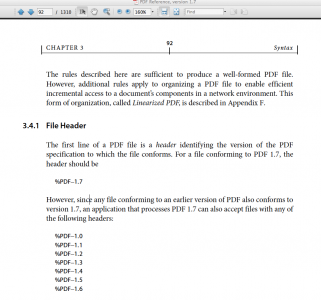
Ever tried to open a PDF and got hit with ‘EOF marker not found’? That little error usually means the file’s end-of-file marker got corrupted or chopped off. This guide is for anyone who’s stuck with a PDF that won’t open because of that missing marker—maybe you downloaded it, restored it from a backup, or it came from a weird source. By the end, you’ll have that PDF fixed and opening normally again, using nothing more than a free hex editor.
We’re going to dive into the raw bytes of your PDF, find the %%EOF marker at the end, and either add it back or repair it. It sounds technical, but trust me—it’s a simple copy-paste job once you know where to look. I’ll walk you through every click so you don’t break anything else. Ready? Let’s fix that PDF.
What You’ll Need
- Your corrupted PDF file (make a backup first!)
- A hex editor (I recommend HxD – it’s free and lightweight)
- A text editor like Notepad for reference (optional)
- Basic file navigation skills
Step 1: Back Up Your PDF
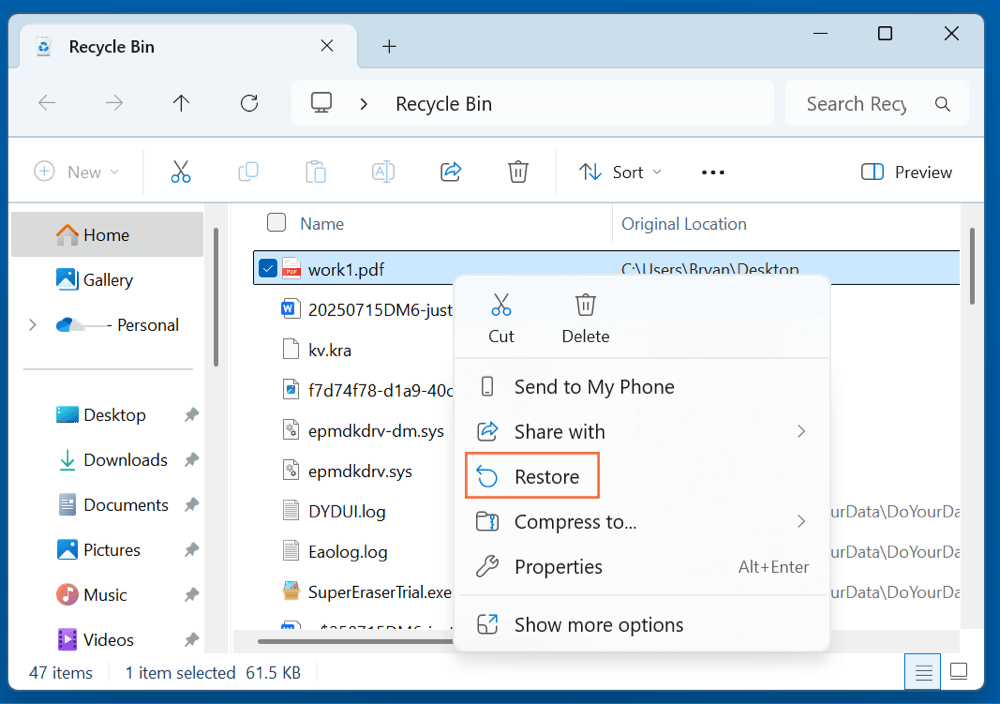
Before we start poking around in the raw data, make a copy of your original file. That way, if something goes sideways, you’re not stuck with a completely broken file. Just right-click the PDF, select ‘Copy’, then paste it somewhere safe (like a new folder). Rename it something like ‘original_backup.pdf’ so you don’t confuse it with the one we’ll fix.
Step 2: Open the PDF in a Hex Editor
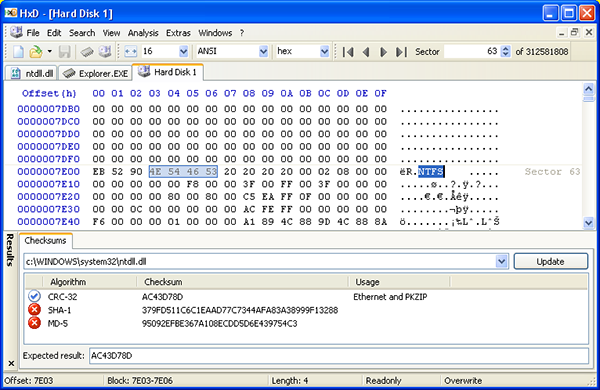
Download and install HxD (or any hex editor you like). Open HxD, then go to File > Open and select the PDF you want to fix. You’ll see a grid of hex numbers on the left and the corresponding ASCII text on the right. Don’t panic—we’re only going to touch the very end of the file.
Step 3: Find the EOF Marker
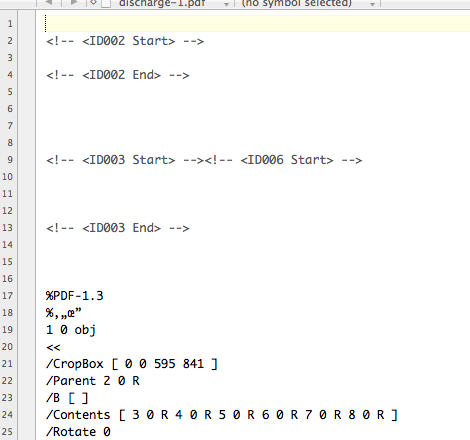
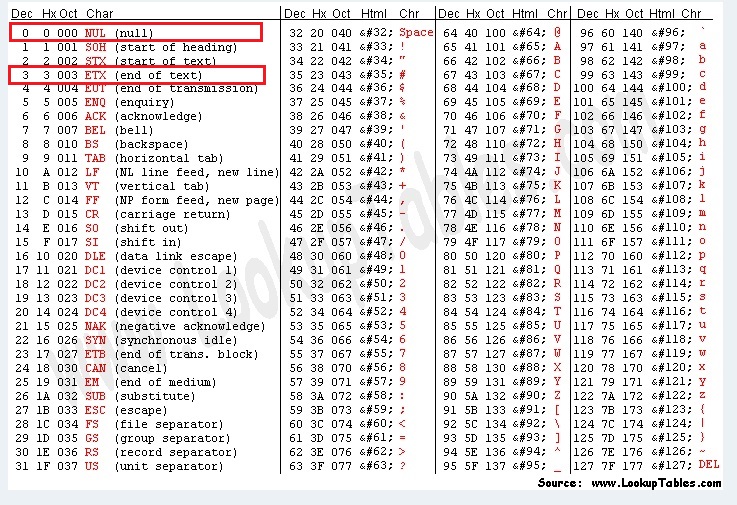
Scroll all the way to the bottom of the hex editor window. A healthy PDF ends with a line containing exactly ‘%%EOF’ (the five characters: percent, percent, E, O, F). In hex, that’s 25 25 45 4F 46. In the ASCII column, you should see ‘%EOF’ plain as day. If it’s missing or looks garbled, that’s your problem. If it’s there but the PDF still won’t open, you might have a different issue—check out our guide to detect damaged PDF.
Step 4: Fix or Add the EOF Marker
If the ‘%%EOF’ marker is missing entirely, go to the very last byte in the file and make sure you’re at the end of the last line. Then type (or paste) ‘%%EOF’ directly into the ASCII column of the hex editor. Make sure it’s EXACTLY those five characters—no extra spaces, no newline (though a newline after it is fine). If the marker is there but corrupt (like ‘%%F’ or ‘%%E0F’), simply overwrite it with the correct bytes. In hex, that’s 25 25 45 4F 46. Be careful not to delete any bytes that come before it. After editing, the file should end with clean ‘%%EOF’.
Step 5: Save and Test the PDF
In HxD, go to File > Save to write your changes. Now try opening the PDF in your usual reader (Adobe, browser, whatever). If it opens, congrats—you just performed pdf header repair at the byte level. If it still won’t open, the problem may be deeper than just the EOF marker. You might need to recover text from corrupted pdf or use a dedicated tool. But this simple fix works for a surprising number of cases.
Common Pitfalls
- Adding the marker in the wrong location – The %%EOF must be the very last thing in the file, right after the last object. If you put it in the middle, the PDF reader won’t see it.
- Including extra whitespace or hidden characters – Some editors add line feeds or carriage returns automatically. Make sure you only write the five bytes. A single trailing newline is okay, but nothing else.
- The file is corrupted beyond the marker – The EOF marker is just a pointer. If the internal structure (like the cross-reference table) is damaged, fixing the marker alone won’t help. In that case, try the best free PDF repair tool or look into repair PDF and recover pages.
Where to Next
Now that you’ve got the PDF open, you might want to explore other fixes. If you often deal with broken headers, check out our pdf header repair guide. For extracting content from really mangled files, see how to recover text from corrupted pdf. And if you prefer automated solutions, the best free PDF repair tool can handle most common issues in one click. Happy repairing!




