So your PDF won’t open, shows gibberish, or gives you an error message on your Mac. Don’t panic — you’ve come to the right place. This guide is for anyone who needs to get a corrupted PDF back to working order, whether it’s a scanned document, a fillable form, or a bank statement. By the end, you’ll have a repaired PDF that you can open, read, and even edit as normal.
We’ll cover four methods: using the built-in Preview app, re‑exporting the file, using an online tool for tough cases, and a Terminal hack for power users. No need to buy expensive software — most of these are free. Let’s dive in.
What You’ll Need
- Your Mac (any model running macOS 10.13 or later)
- The corrupted PDF file (keep the original as a backup!)
- An internet connection (for the online method)
- Optional: Terminal app (for the command-line method)
Step 1: Open the PDF in Preview
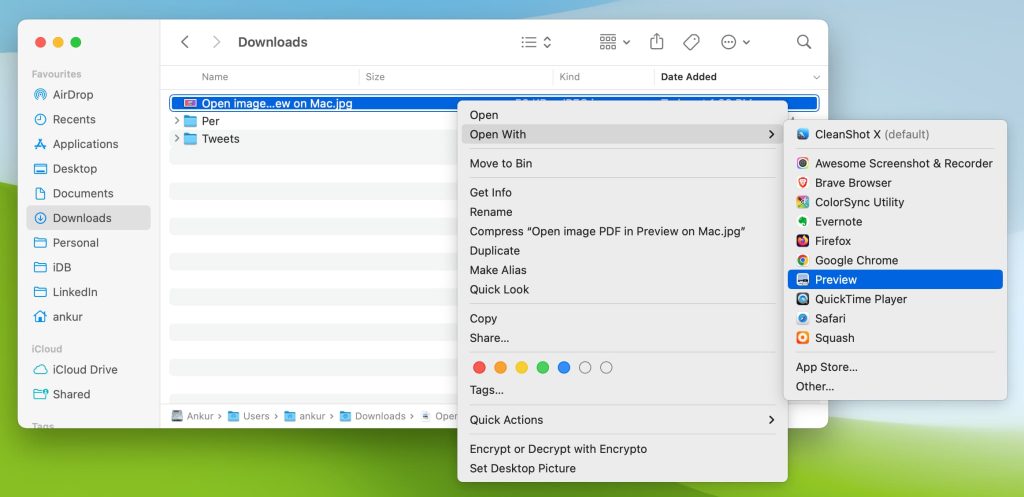
Sometimes a PDF isn’t truly corrupted — it’s just not rendering properly in your browser or a third-party app. The simplest fix is to open it in Apple’s Preview app. Preview handles PDFs natively and often works where other apps fail. Just right‑click (or two‑finger tap) the file and choose Open With > Preview. If it opens, you can skip to Step 4 to save a clean copy. If not, move on to Step 2.
Step 2: Export as PDF from Preview
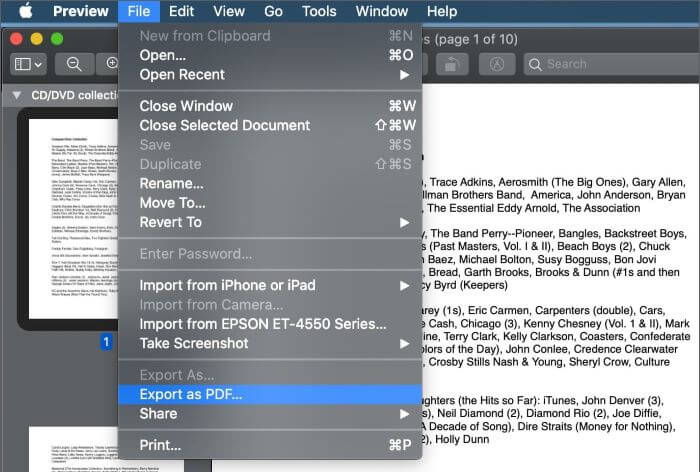
Even if Preview can’t display the file correctly, it might be able to re‑encode it. With the PDF open in Preview (even if it looks weird), go to File > Export as PDF… (or File > Export… and choose PDF format). Give it a new name and save. This forces Preview to rebuild the internal structure of the PDF, which often fixes corruption. Try opening the new file. If it works, you’re done. If not, proceed to Step 3.
Step 3: Use an Online PDF Repair Tool
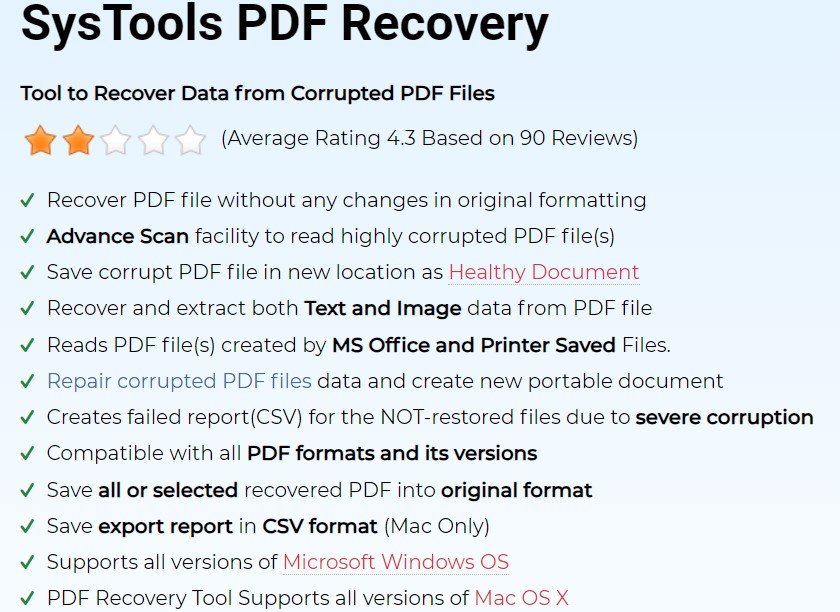
If the free methods above fail, an online PDF repair tool can work wonders. These services upload your file, analyze the corruption, and send back a repaired version. They’re especially good for issues like an invalid header or blank pages. We’ve got a full guide on using an online PDF repair tool that walks you through the process step by step. It’s secure, works in any browser on your Mac, and handles files up to a certain size. For larger files, consider the free corrupted PDF recovery options mentioned in our other article.
Step 4: Repair with Ghostscript via Terminal (Advanced)
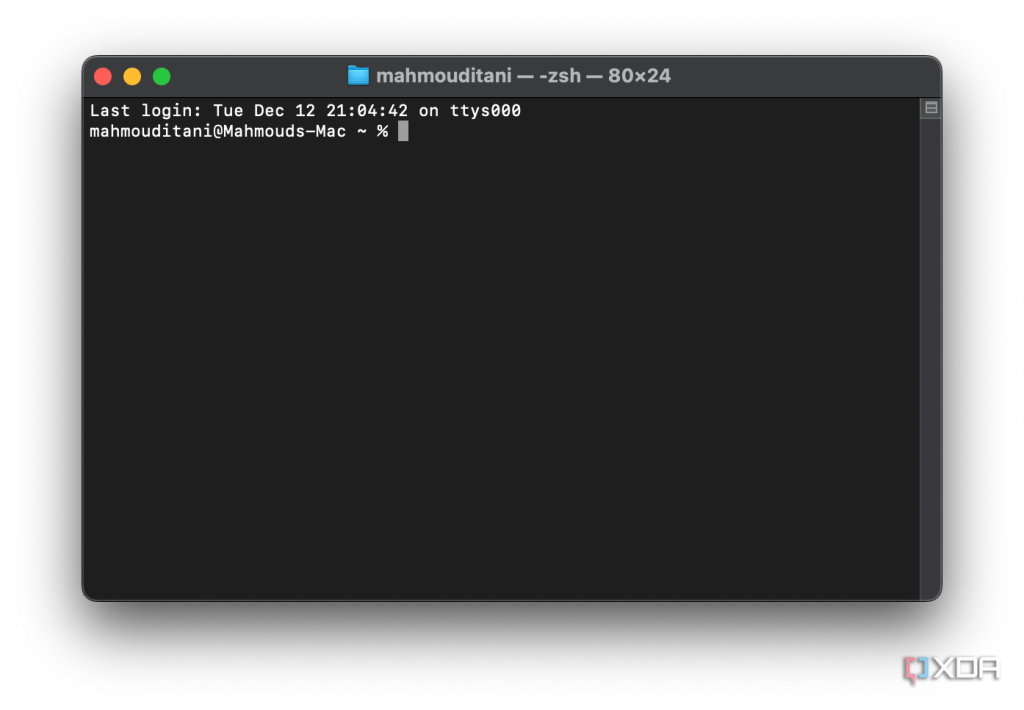
For stubborn PDFs, you can use Ghostscript — a powerful command-line tool available for free. First install Ghostscript via Homebrew: open Terminal and run ‘brew install ghostscript’. Then navigate to your file’s folder and run: ‘gs -o repaired.pdf -sDEVICE=pdfwrite -dPDFSETTINGS=/prepress corrupted.pdf’. This re‑processes the PDF from scratch. It’s especially useful for fixing a PDF with invalid header or other structural problems. If you’re not comfortable with Terminal, skip this step and use the online method.
Common Pitfalls
- Working on the original file without a backup — always keep the original untouched.
- Ignoring the cause of corruption — if it’s from a malware infection, use a proper antivirus first (see our guide on repair PDF after malware).
- Using a sketchy online tool that doesn’t encrypt your file — stick to trusted services or the methods above.
Where to Next
Now that your PDF is repaired, you might want to understand why your PDF shows blank pages or check out our general PDF repair guide for more tips. For bank statements or contracts, see our dedicated guide to recover bank statement PDFs. Happy reading!




