You just tried to open that important PDF and got nothing but jumbled symbols or a blank screen. I’ve been there too. Whether it’s a work report, a study guide, or a legal document, losing access to the text is frustrating. But don’t panic — even when the PDF looks completely trashed, the text might still be hiding inside, waiting to be pulled out.
In this guide, I’ll walk you through three methods to recover text from a corrupted PDF — no technical degree required. By the end, you’ll have a plain text file with all the readable content, ready to copy, edit, or save. We’ll use free tools that work on Windows, Mac, and even in your browser. Let’s get that text back.
What You’ll Need
- Your corrupted PDF file (keep the original safe)
- A computer with internet access (for methods 1 and 3)
- A Google account (free, for method 1)
- Adobe Acrobat Reader DC (free, for method 2) or a subscription to Acrobat Pro (if you have it)
- A web browser (Chrome, Firefox, Edge — any will do)
Step 1: Upload the PDF to Google Docs
Google Docs is surprisingly good at extracting text from damaged PDFs. It ignores most structural corruption and focuses on the raw text. Here’s how:
First, sign in to your Google account and open Google Drive. Drag and drop your corrupted PDF file into the Drive window. Once uploaded, right‑click the PDF and select Open with > Google Docs. Give it a few seconds — Google will try to convert the PDF into an editable document. If it works, you’ll see the text appear, possibly with some formatting missing. Go to File > Download > Plain Text (.txt) to save the recovered text. If you get an error or the document is blank, move to the next method.
Step 2: Use Adobe Acrobat’s Export Feature
Adobe Acrobat Pro has a built-in tool that can extract text from even severely corrupted files. If you don’t have Acrobat Pro, you can try the free Acrobat Reader — it might still open the file and let you copy text manually.
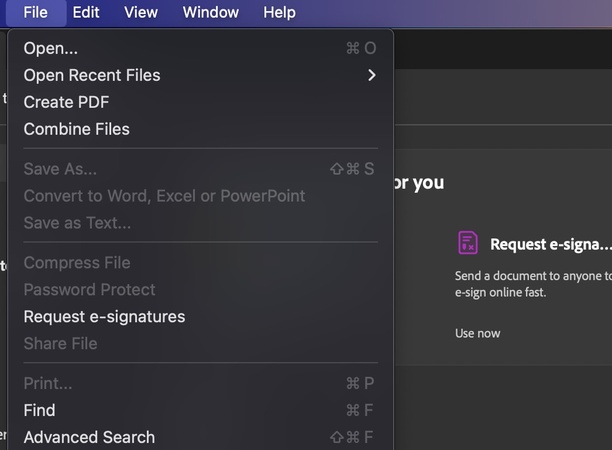
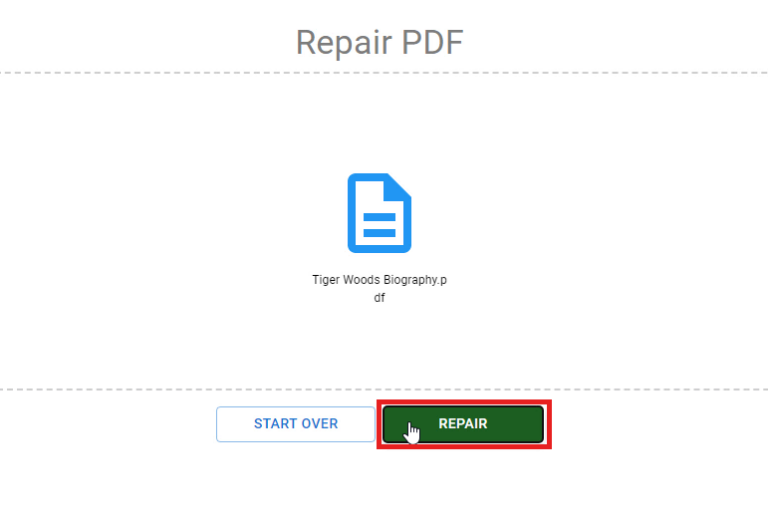
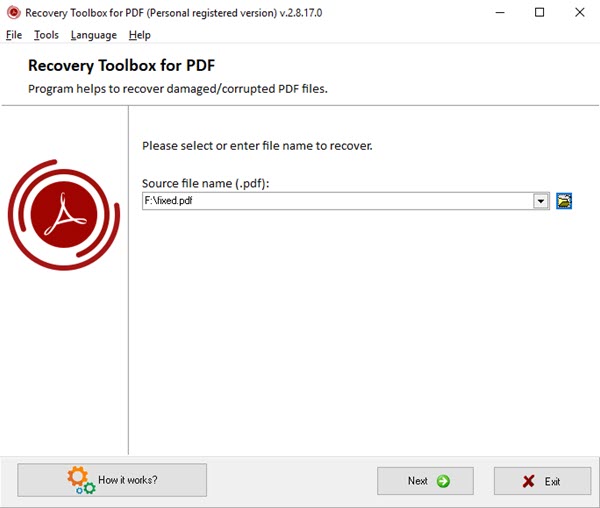
Open the corrupted PDF in Acrobat Reader or Pro. If the file opens at all, go to File > Export To > Text (in Pro) or simply select all the text with Ctrl+A and copy it into a text editor. If the file doesn’t open, try a repair first: In Acrobat Pro, go to Tools > Repair PDF and let it fix minor issues. Then export. For a more thorough approach, check our guide to recover a PDF file for additional steps.
Step 3: Try a Free Online PDF Text Extractor
When desktop methods fail, online tools can sometimes work magic. Many free services are designed specifically to extract text from damaged PDFs. One of the most reliable is PDF24’s online tool — it’s free and doesn’t require an account.
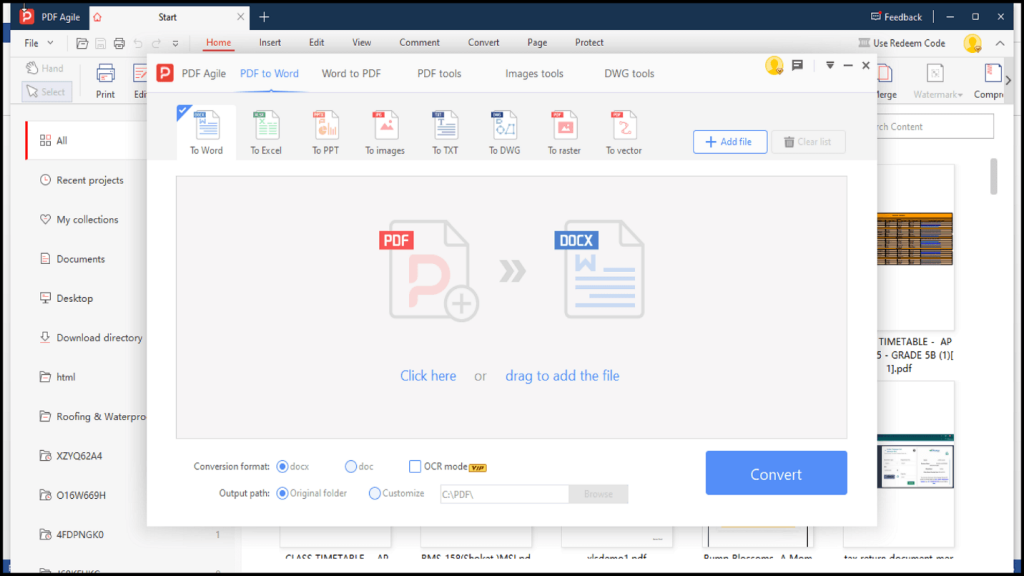
Go to the PDF24 website and select the PDF to Text tool. Upload your corrupted PDF — the file size limit is generous. Click Convert and wait a moment. When done, download the resulting text file. If the PDF is password-protected or encrypted, you’ll need to remove the password first. For other online options, our guide on corrupted PDF repair online covers more services.
Common Pitfalls
- Image-based PDFs: If the PDF is a scan or contains only images of text, none of these methods will recover text directly. You’ll need OCR software. You can try Google Docs (it does basic OCR), or use a dedicated tool like Adobe Acrobat Pro’s OCR.
- Password-protected files: A corrupted PDF might still have an edit or open password. You’ll need to remove the password first using a tool like PDF24’s unlock feature, or refer to our best free PDF repair tool guide.
- File size or complexity: Very large PDFs or those with complex formatting may time out online. Try splitting the PDF into smaller parts using a tool like PDFsam, then work on each piece separately.
Where to Next
You’ve successfully pulled text from a tricky PDF. Now that you have the content, you might want to rebuild the document in Word or Google Docs. If the original PDF is still unusable, consider exploring other repair techniques such as repairing the PDF header or using a dedicated tool. Good luck, and may your documents always be readable!




