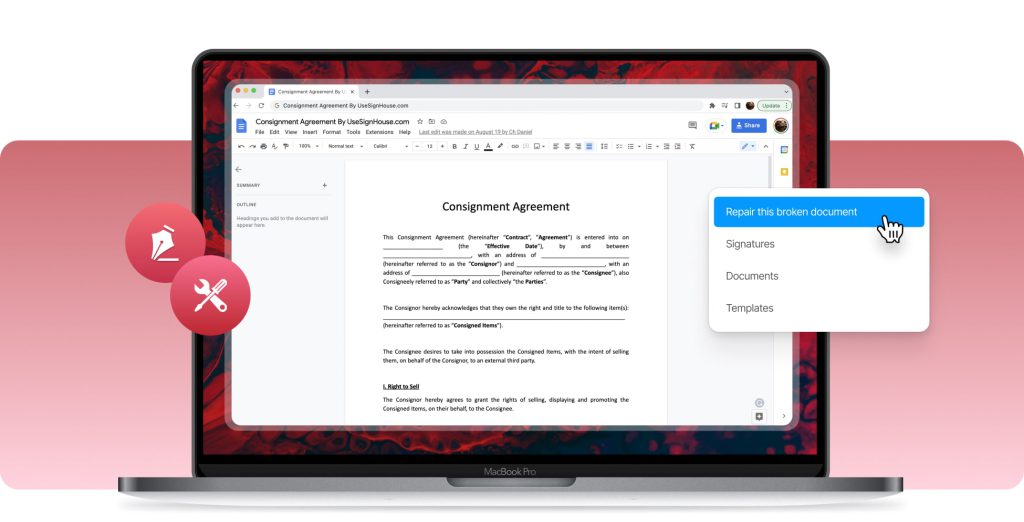
Ever opened a PDF only to see gibberish, missing pages, or a dreaded error message? You’re not alone. Corrupted PDFs happen more often than you’d think—whether it’s a bad download, an interrupted transfer, or a software glitch. The good news? You don’t need expensive software to fix them. This guide is for anyone with a corrupted PDF and a web browser. By the end, you’ll have a clean, readable PDF that works like new.
We’ll walk through the entire process using free online tools—no installation, no technical skills required. Whether your file has jumbled text, broken images, or won’t open at all, these steps will help you recover it. Let’s get that PDF back in shape.
What You’ll Need
- A corrupted PDF file (the one you want to repair)
- A computer or mobile device with internet access
- A modern web browser (Chrome, Firefox, Edge, or Safari)
- A few minutes of time (most repairs take under 5 minutes)
- Optionally, a backup of the original file (just in case)
Step 1: Identify the Corruption Symptoms
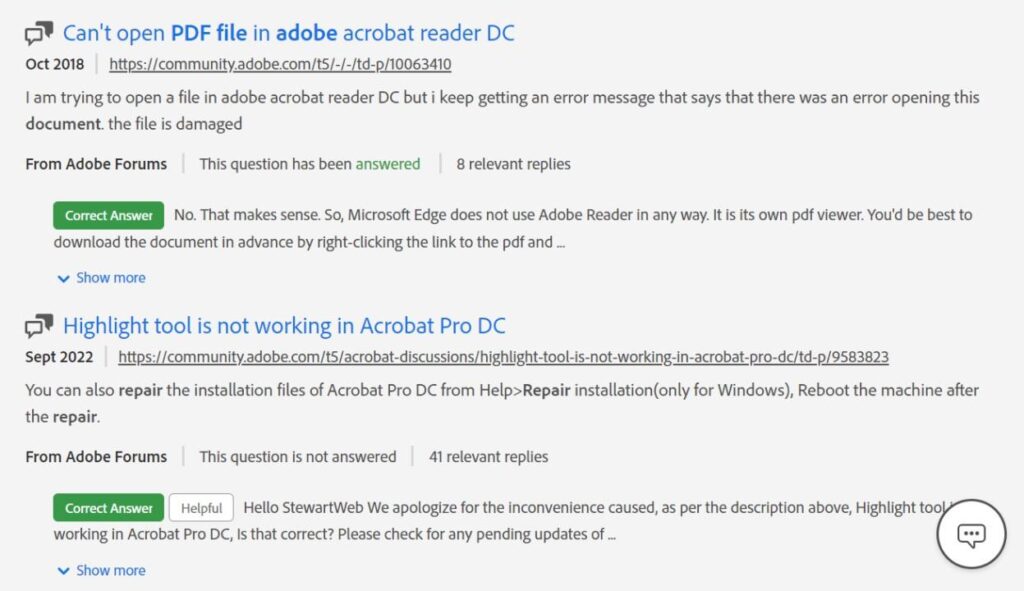
Before jumping into repair, take a quick look at what’s wrong. Different symptoms may require slightly different approaches. Common signs include: the PDF won’t open at all; text appears as random symbols; images are missing or distorted; pages are blank; or you get an error like ‘PDF file is invalid.’ Knowing the symptoms helps you choose the right tool and know what to expect. If your PDF won’t open, try a few different readers first—sometimes the issue is the viewer, not the file.
Step 2: Choose an Online PDF Repair Tool
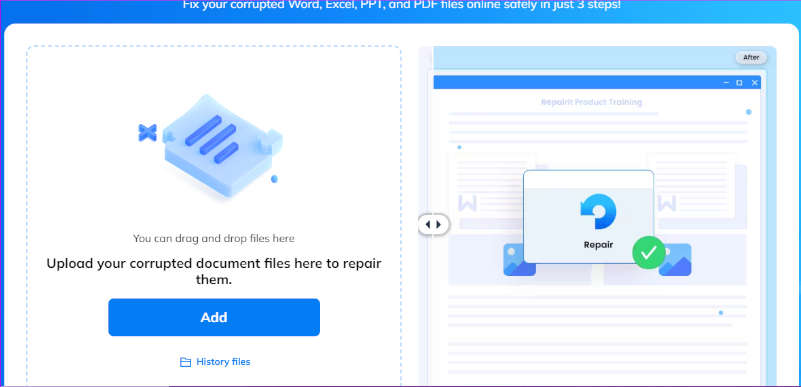
There are several free online tools that can repair corrupted PDFs. Some popular and trustworthy options include iLovePDF, Smallpdf, PDF24 Tools, and Sejda. For this guide, we’ll use PDF24’s online repair tool because it’s free, requires no sign-up, and handles many corruption types. Open your browser and go to the PDF24 PDF repair page (or any tool you prefer). Avoid shady sites that ask for payment or personal info—stick to well-known services.
Step 3: Upload Your Corrupted PDF
Click the ‘Choose file’ or ‘Upload’ button on the tool’s page. Select your corrupted PDF from your computer or device. Some tools also allow drag-and-drop. The upload might take a moment depending on file size and your internet speed. If the file is very large (over 100 MB), you may need a tool that handles big files—PDF24 supports up to 100 MB for free. After uploading, the tool will analyze the file.
Step 4: Run the Repair Process
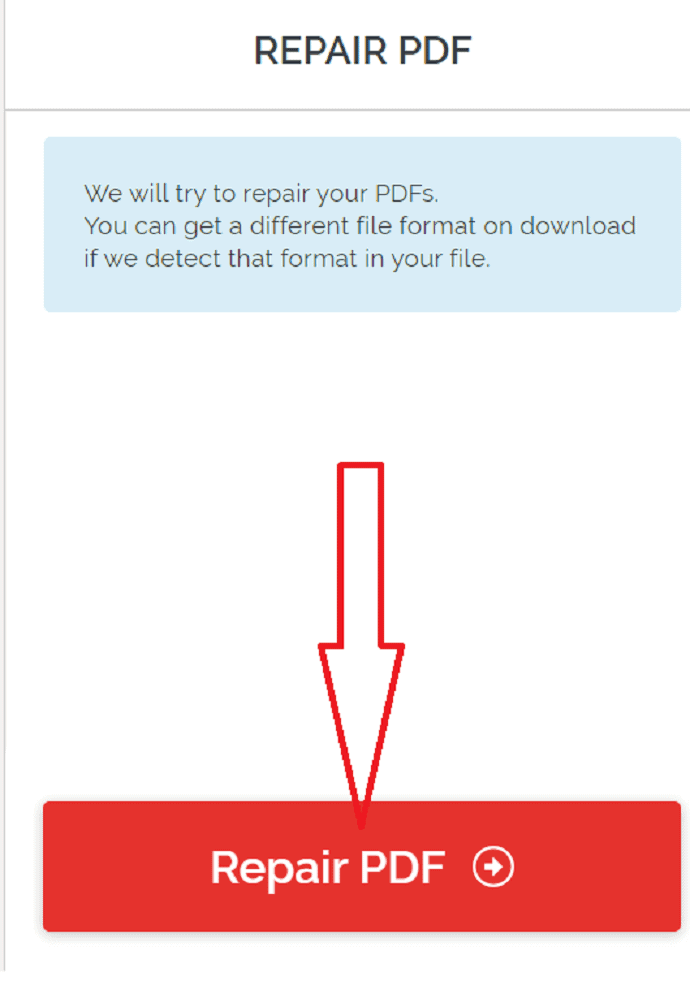
Once uploaded, look for a ‘Repair’ or ‘Start’ button. Click it to begin the repair. The tool will attempt to fix corruption by rebuilding the file structure, recovering text and images, and removing damaged parts. This usually takes a few seconds to a minute. Don’t refresh the page or navigate away while it’s processing. Some tools show progress bars or logs—if you see an error, try a different tool (e.g., if you get a ‘pdf error 109 fix‘ situation, switch to a tool that specializes in that error).
Step 5: Download and Verify the Repaired PDF
After repair, the tool will offer a download button for the corrected file. Download it to your computer. Before celebrating, open it in your usual PDF reader. Check all pages for missing content, garbled text, or broken images. If the file still looks bad, try a different online tool—each uses different algorithms and may have varying success. For especially stubborn corruption, consider a dedicated desktop tool or a professional service. But for many common issues, this step restores your PDF.
Common Pitfalls
- **Tool Limitations:** Free online tools often have file size limits (e.g., 100 MB). If your PDF is larger, you may need to split it first or use a paid service. Also, some tools add watermarks or require registration for full features. Check the tool’s terms before uploading sensitive documents.
- **Irreversible Damage:** Severe corruption (e.g., from a failing hard drive) may not be fixable online. The tool might output an empty PDF or fail completely. In that case, try recovering from a backup or using specialized software like a pdf repair sdk.
- **Security Concerns:** Uploading confidential PDFs to online tools carries privacy risks. Use tools that offer encrypted uploads and automatic file deletion after processing. For sensitive documents, consider using a local tool instead of an online service.
Where to Next?
Once your PDF is repaired, you might want to learn more about preventing future corruption. Check out our guide on how to repair pdf after zip extraction to avoid common compression issues. If you frequently deal with error messages, the pdf error 109 fix article can help with specific errors. And if you’re concerned about security, our tips for a repair pdf online safe approach will keep your data protected. Happy reading!




