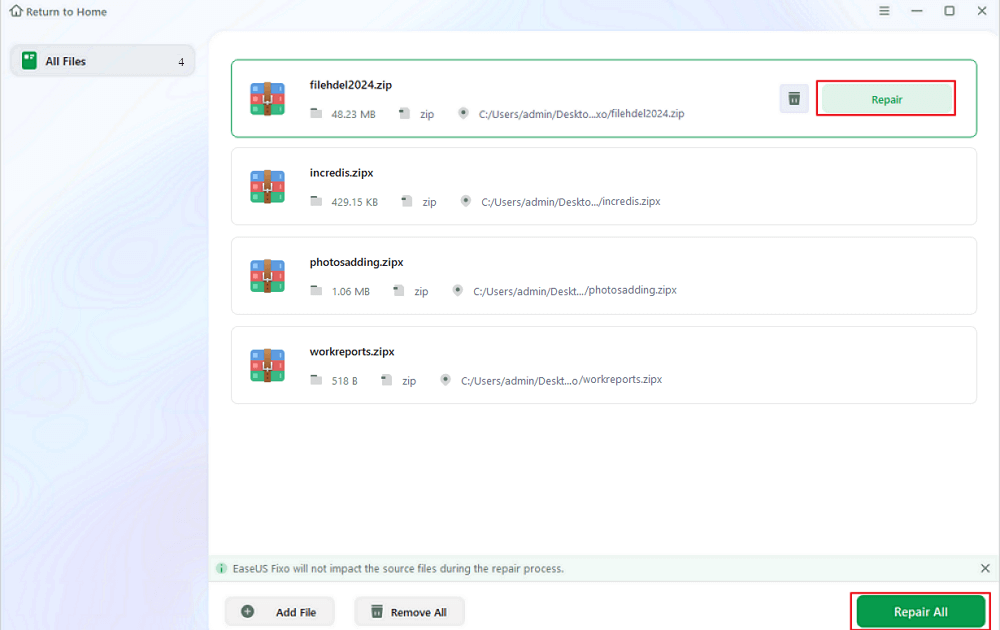
Hey, so you downloaded a zipped PDF, extracted it, and now it won’t open? Annoying, right? Maybe the file looks intact but your PDF viewer gives an error, or the pages are garbled. This happens more often than you’d think—corruption during zip extraction is a real pain. But don’t worry, we’ve got your back. By the end of this guide, you’ll have a fully repaired PDF that opens perfectly, and you’ll know exactly what to do if it happens again.
This tutorial is for anyone who’s ever unzipped a folder and found their PDF broken. No tech wizardry required—just a few simple tools and steps. Whether you’re dealing with a work document, a bank statement, or an ebook, these methods work. Let’s get your PDF back in shape.
What You’ll Need
- The corrupted PDF file (the one that came out of the zip)
- A reliable zip extraction tool like 7-Zip or WinRAR (avoid the default Windows extractor for sensitive files)
- A PDF repair tool: Adobe Acrobat (if you have it) or a free online PDF repair tool
- A PDF viewer like Adobe Reader or your browser to test the repaired file
Step 1: Re-Extract the PDF the Right Way
Before jumping to repair, let’s make sure the extraction itself didn’t mess things up. A lot of corruption happens because the zip was extracted with a faulty tool or was interrupted. Download a dedicated extraction tool like 7-Zip (it’s free, open-source, and handles archives like a champ). Re-extract the entire zip file into a fresh folder. Make sure the extraction completes without errors—watch for warnings like “file name too long” or “data error.” If you get those, the zip itself might be damaged, but try this: use 7-Zip’s “Test archive” feature to check integrity. If it passes, re-extract and then try opening the PDF.
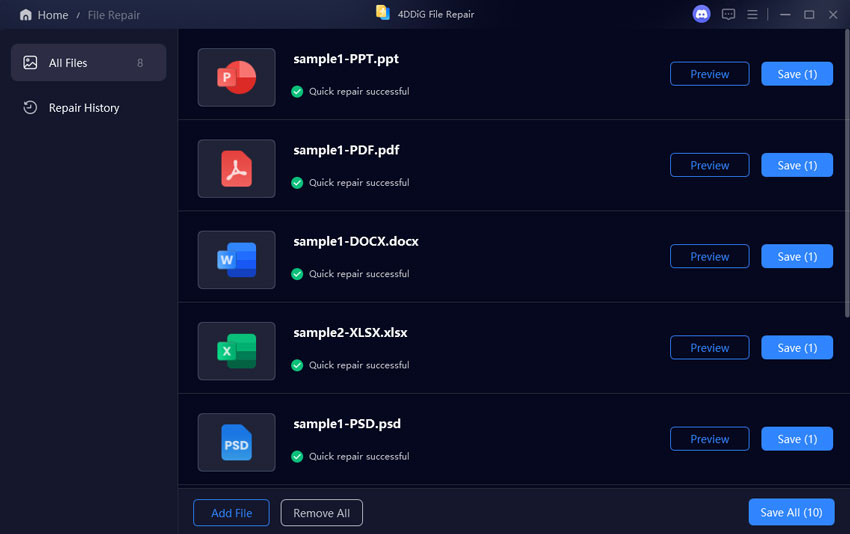
Step 2: Use a PDF Repair Tool
If re-extracting didn’t help, it’s time to bring in the big guns. If you have Adobe Acrobat Pro, open the PDF, then go to File > Save As Other > Optimized PDF. This can fix some structural issues. Alternatively, use an online PDF repair tool—it’s easier and often works. Head over to a trusted site like PDF Repair Online (we have a guide on how to use an online PDF repair tool safely) and upload your broken PDF. The tool will scan and rewrite the file. Download the repaired version and open it. This step resolves most corruption caused by zip extraction.
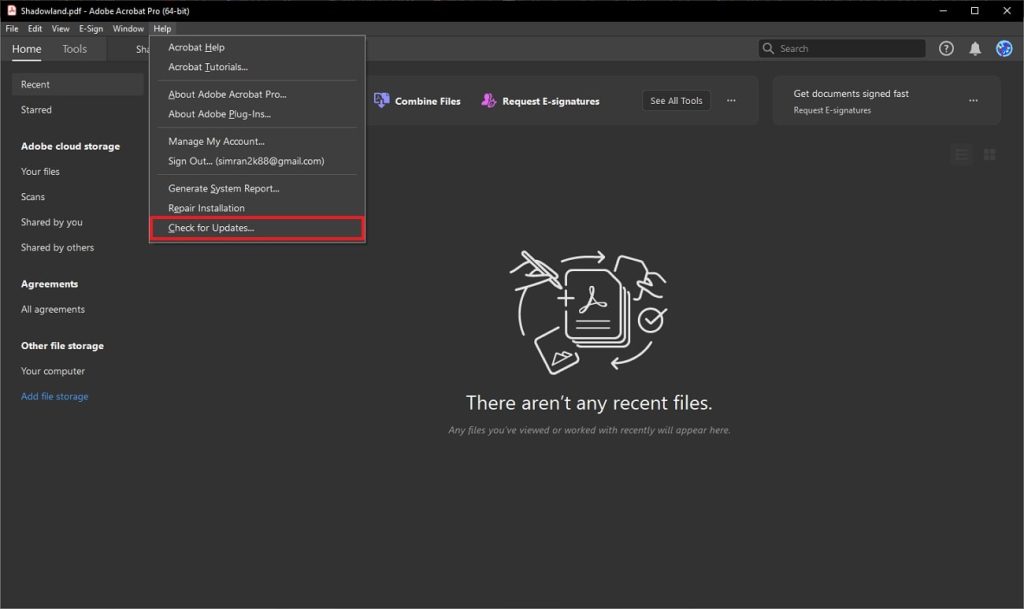
Step 3: Try a Dedicated PDF Repair Utility
Still no luck? Some PDF corruption is stubborn and needs a specialized tool. For example, the instant PDF fixer is a desktop app designed to repair severely damaged files. It scans the binary structure and recovers what it can. Download it, run it, and point it to your corrupted PDF. The processing takes a minute, and you’ll get a new, clean file. This is especially useful if the PDF was partially written or if the zip compression introduced errors. After fixing, open the output to verify.
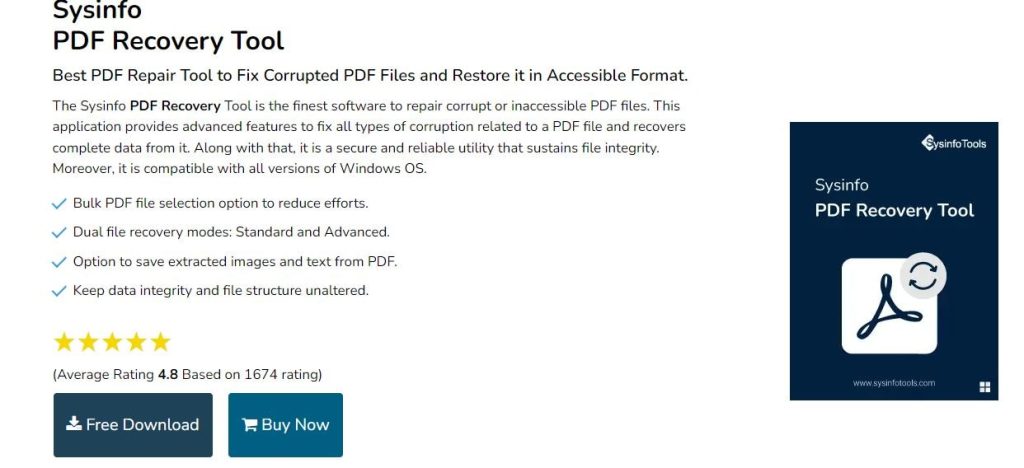
Step 4: Verify the Repaired PDF
Once you have a supposedly fixed file, don’t just stop there. Open it in your favorite PDF viewer (Adobe Reader, Chrome, etc.). Scroll through every page—check for missing text, broken images, or garbled characters. If it looks good, try saving and reopening a couple of times to ensure stability. If the PDF still doesn’t open or shows errors, you may be facing a completely broken file, in which case you might need to recover it from the original source. But in most cases, this last step will confirm success.
Common Pitfalls
- Using the default Windows Zip extractor: It’s convenient but can truncate long filenames or mishandle special characters, corrupting the PDF. Always use 7-Zip or WinRAR for important documents.
- Skipping the re-extraction step: Many people go straight to repair, but often the file simply wasn’t unzipped correctly. Re-extracting fixes it in a few seconds.
- Assuming a 0-byte PDF is repairable: If the extracted PDF size is 0 KB, the file is empty—no repair tool can bring back data that was never there. Check the zip file size first.
Where to Next
You’ve fixed your PDF—awesome! Now, if this wasn’t your first rodeo, you might want to dive deeper into PDF repair. Check out our guides on how to repair a corrupted PDF for more strategies, or if your PDF still won’t open, learn what to do when your PDF viewer can’t open the file. Also, if you ever get an unreadable PDF, we have a dedicated unreadable PDF repair guide. Keep these bookmarked, and you’ll never be stuck with a broken PDF again.




