You’ve just received an important PDF, but when you try to open it, nothing happens — or you see a jumbled mess of text and missing images. Frustrating, right? This guide is for anyone who needs a quick, no-fuss solution to get their PDF working again. By the end, you’ll have a fixed file that looks exactly like it should, using a free online tool that works on any device.
We’ll walk through the fastest method: an instant PDF fixer that repairs corruption, missing pages, and display errors within minutes. No software installation, no technical skills required. Just a few clicks and your PDF is back in action.
What you’ll need
- A corrupted or damaged PDF file (keep a backup just in case)
- A stable internet connection
- A modern web browser (Chrome, Firefox, Edge, or Safari)
- Access to a free online PDF repair tool (we’ll use Smallpdf as an example, but any similar service works)
Step 1: Identify the problem and choose an online tool
Before fixing, quickly check the symptoms: does the file open at all? Are certain pages missing? Is content garbled? This helps you know what to expect. For a comprehensive fix, a dedicated online repair tool is your best bet. We recommend the free pdf repair tool from Smallpdf or iLovePDF — both are reliable and require no sign-up.
Step 2: Upload your PDF
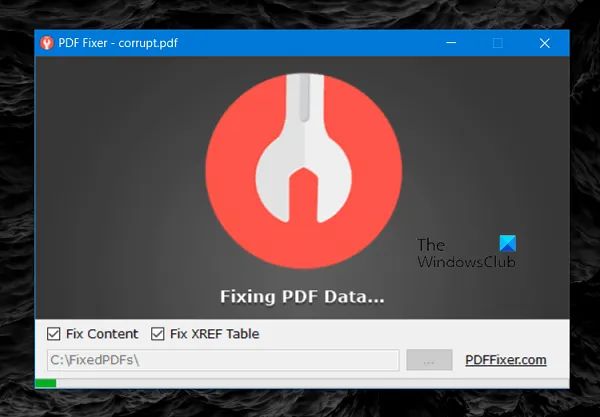
Go to the tool’s website and look for the “Upload” or “Choose File” button. Click it and select your corrupted PDF from your computer. Some tools also let you drag and drop the file directly onto the page. Wait for the upload to finish — it usually takes only a few seconds for files under 50 MB.
Step 3: Run the repair
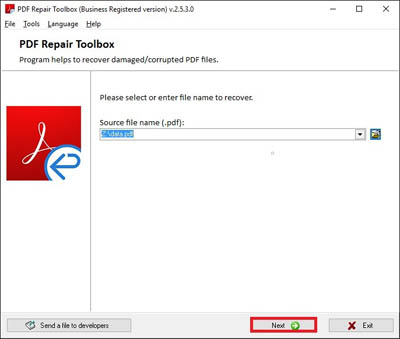
Once uploaded, the tool will automatically start analyzing and fixing the file. You might see a loading bar or a “Repair” button — click it if needed. This process scans for corruption, re-encodes data, and tries to restore the original structure. For most files, it takes less than a minute.

Step 4: Download the fixed PDF
After the repair completes, a download link or button will appear. Click it to save the repaired file to your computer. Name it something like “fixed_report.pdf” so you don’t confuse it with the original. The tool may also offer to preview the result before downloading — take that look to confirm.

Step 5: Verify the file
Open the downloaded PDF with your usual reader (Adobe Acrobat, browser, etc.). Scroll through all pages to check that text, images, and formatting are intact. If something still seems off — like missing pages or broken links — you can try another tool or a more advanced method. For persistent issues, learn how to repair pdf or fix missing pdf pages with targeted techniques.
Common pitfalls
- File too large: Many free online tools have size limits (commonly 100 MB). If your PDF exceeds that, compress it first or use a desktop tool like qpdf (see our pdf file repair guide).
- Upload fails: Sometimes the browser or network can cause a glitch. Try a different browser or clear your cache. Also, check that the file isn’t password-protected — you’ll need to remove the password first (check how to recover pdf signature for related tips).
- Partial repair: The tool might not restore every element perfectly. Corrupted images or fonts may still show errors. In that case, try a different online tool or use a dedicated desktop application.
Where to next
Your PDF is fixed — nice work! If you run into other issues like broken signatures or a PDF that won’t open at all, we’ve got you covered. Check out our guides on how to repair pdf and free pdf repair tool for even more solutions. And if you’re dealing with a disk error or 0KB file, our recovery articles can help bring your data back.




