Ever tried to open a PDF and got nothing but an error message? Or maybe the file opens but looks like a jumbled mess of characters and missing pages. Don’t panic — most corrupted PDFs can be fixed with a few simple tricks. This guide is for anyone who’s dealing with a broken PDF, whether it’s a critical work document or a personal file. By the end, you’ll have a working PDF again, using free tools that are easy to run on any computer.
We’ll cover five methods, from quick checks to command-line fixes, and point out common pitfalls so you don’t accidentally make things worse. The tools we’ll use — qpdf, mutool, and online repair services — have saved my bacon more times than I can count. Let’s get that file back in shape.
What You’ll Need
- The corrupted PDF file (make a backup copy before trying anything)
- A computer with internet access (for downloading tools and using online services)
- Basic familiarity with the command line (Terminal on macOS/Linux, Command Prompt on Windows) — don’t worry, I’ll walk you through the commands
- Optional: qpdf installed (we’ll cover installation), mutool, or Adobe Acrobat (if you have a license)
Step 1: Try Opening the PDF in a Different Viewer
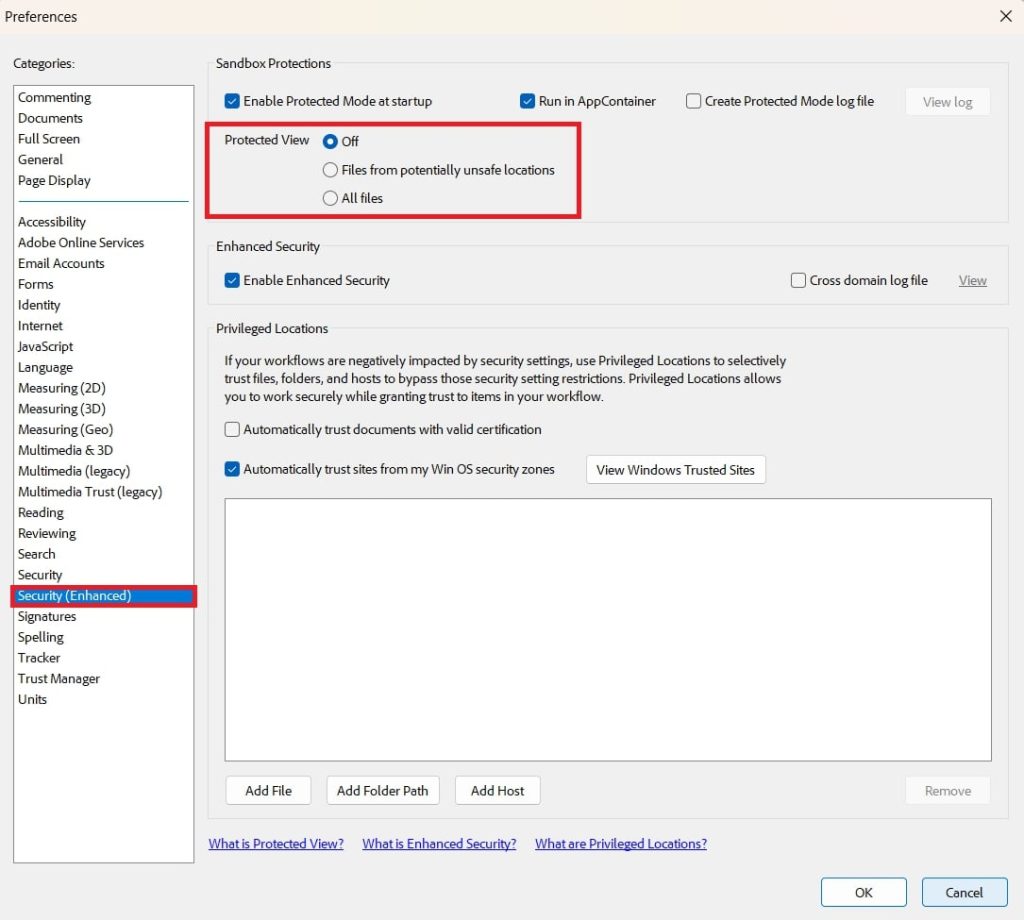
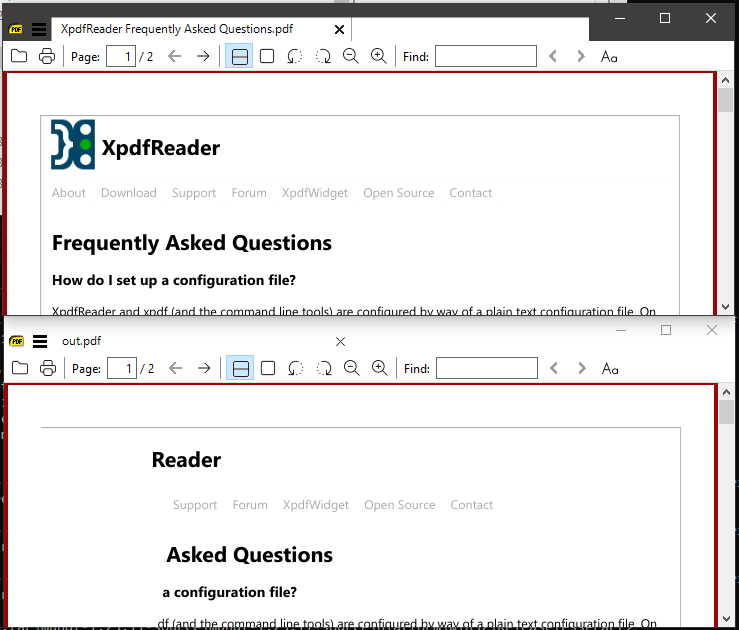
Before diving into repairs, rule out a viewer issue. If Adobe Acrobat can’t open it, try a lightweight alternative like SumatraPDF (Windows), Preview (Mac), or even your web browser (Chrome, Firefox, Edge all have built-in PDF viewers). Sometimes the problem is with the viewer, not the file itself.
Step 2: Use qpdf to Linearize the PDF
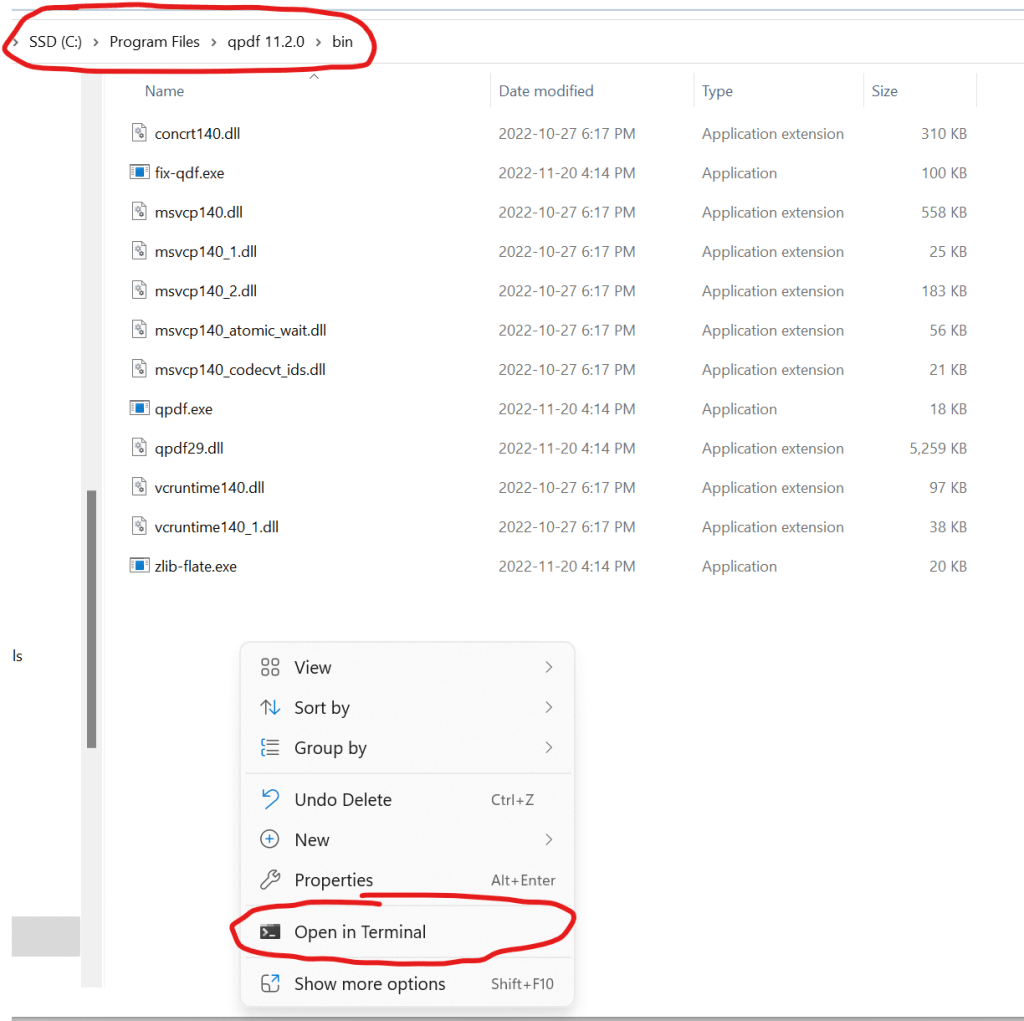
qpdf is a command-line tool that can fix many structural issues. If you don’t have it, download it from the official site and install it. Then open your terminal or command prompt and run:
This creates a new file, repaired.pdf, that is linearized (optimized for fast web viewing) and often resolves cross-reference table errors. If you get an error about encryption, you may need to remove the password first — check our guide on how to fix password protected pdf.
Step 3: Use mutool Clean to Rewrite the PDF
mutool, part of the MuPDF suite, is another powerful command-line tool. It can ‘clean’ a PDF by recompressing and rewriting it, which often removes corruption. Install MuPDF from the Artifex website. Then run:
This creates a clean copy. If the file has font issues, try adding the -f flag to flatten fonts. For more details, see our dedicated guide on mutool.
Step 4: Use an Online PDF Repair Service
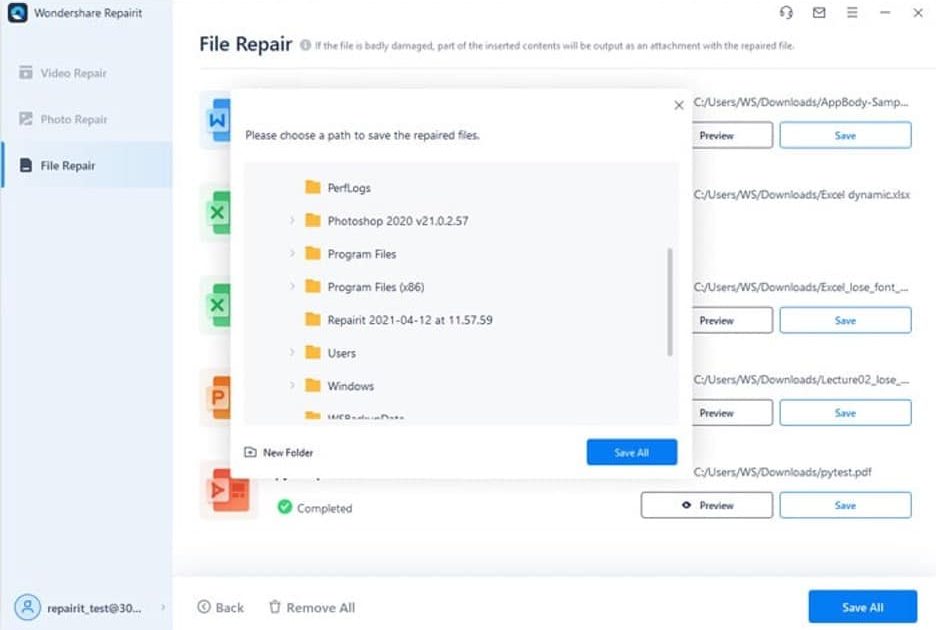
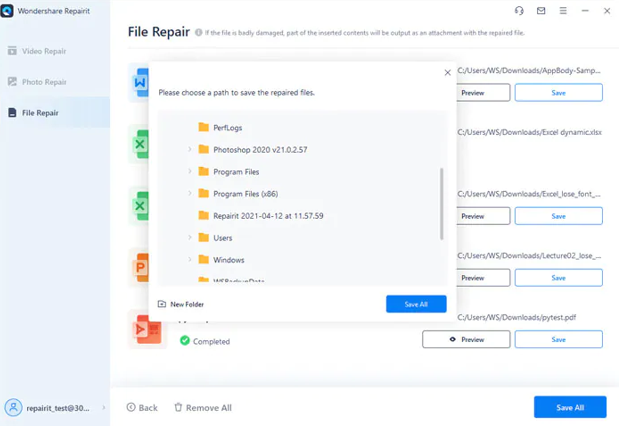
If command-line tools aren’t your thing, there are free online services that can repair PDFs. Upload your file to sites like ilovepdf.com, pdf2go.com, or smallpdf.com. They run similar fixes in the background. Keep in mind that sensitive documents might have privacy risks, so avoid using these for confidential files. Our recommended free PDF repair tool is a solid option for basic fixes.
Step 5: Use Adobe Acrobat’s Built-in Repair (Pro Only)
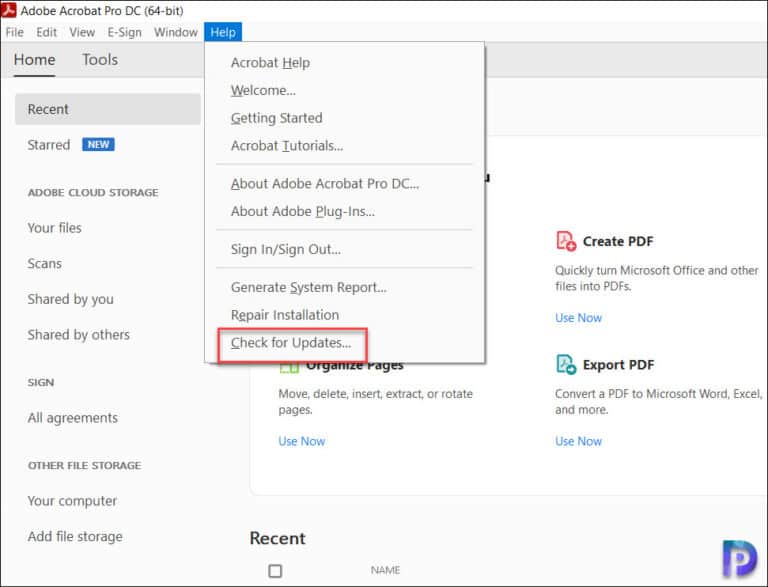
If you have Adobe Acrobat Pro (not just Reader), open the file and go to File > Open. Locate the corrupted PDF, click the arrow next to the Open button, and choose ‘Repair from file…’. Acrobat will attempt to rebuild the file structure. This works for many common issues like broken links or missing fonts. If that fails, you can also try ‘Save As Other > Optimized PDF’ and check ‘Clean up’ options.
Common Pitfalls
- Overwriting the original file — always work on a copy so you can try again if a method fails.
- Ignoring encryption — if the PDF is password-protected, you’ll need to remove the password first. Try our guide on how to fix password protected pdf.
- Using an incompatible tool version — some older tools can’t handle modern PDF features. Always use the latest version of qpdf or mutool.
Where to Next
Now that you have a working PDF, you might want to check if it’s truly fixed by running a validation. For recurring issues like missing pages or font errors, check out our guides on unreadable PDF repair and repair PDF after failed download. If you’re still stuck, the command-line tools qpdf and mutool have extensive documentation. Happy repairing!




