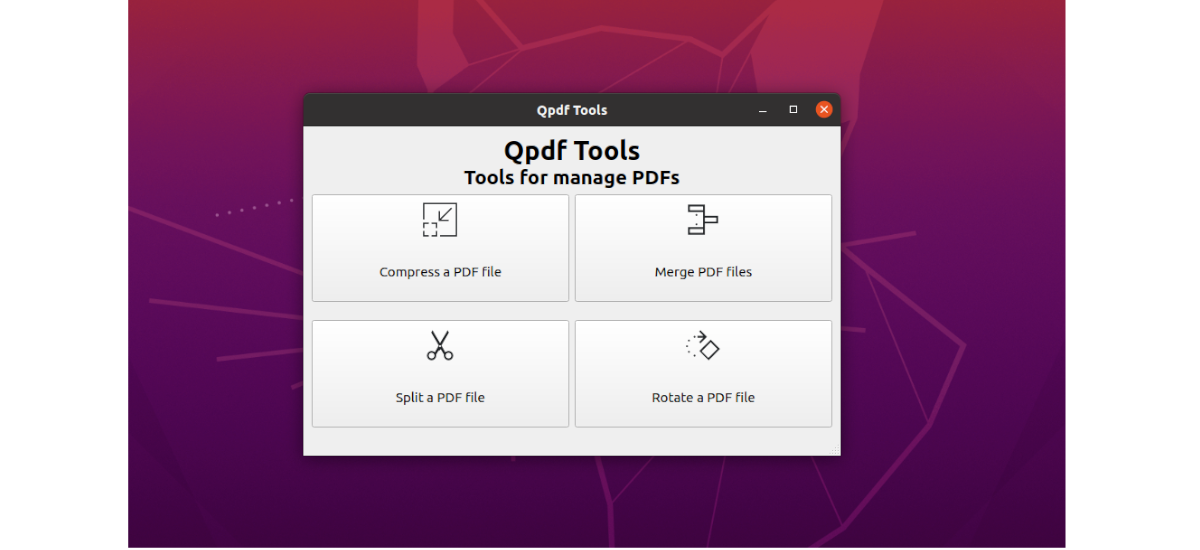
If you’ve ever double-clicked a PDF only to see an error message or a blank page, you know the sinking feeling. Maybe you downloaded an important report or a tax document, and now it’s corrupted. Before you panic, know this: there’s a powerful, free command-line tool called qpdf that can repair a wide range of PDF issues. This guide is for anyone—no coding experience needed—who wants to fix a broken PDF without spending money on expensive software.
By the end of this tutorial, you’ll have a repaired, linearized PDF that opens smoothly in any viewer. You’ll also learn how to check a PDF’s integrity and extract pages if needed. All you need is a computer with a terminal (Command Prompt on Windows, Terminal on macOS/Linux) and qpdf installed. Let’s get started.
What You’ll Need
- A corrupted PDF file (we’ll call it broken.pdf)
- qpdf installed on your system (see Step 1)
- A terminal or command prompt
- Basic comfort typing commands
Step 1: Install qpdf
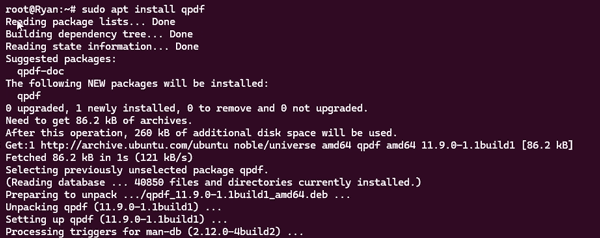
First, you need qpdf on your machine. It’s available for macOS (via Homebrew), Linux (via apt, yum, etc.), and Windows (precompiled binaries). Open your terminal and run the appropriate command:
- macOS: brew install qpdf
- Linux (Ubuntu/Debian): sudo apt install qpdf
- Windows: Download from qpdf.sourceforge.net and add to PATH
Step 2: Check Your PDF’s Structure
Run qpdf’s check mode to see what’s wrong. In the terminal, navigate to the folder containing your PDF and type:
qpdf –check broken.pdf
This scans the file and reports errors, warnings, or a clean bill of health. If you see ‘no errors found,’ your PDF might not be corrupt—try opening it in another viewer or check if you need to fix locked pdf issues. Otherwise, note the errors shown.

Step 3: Repair with Linearization
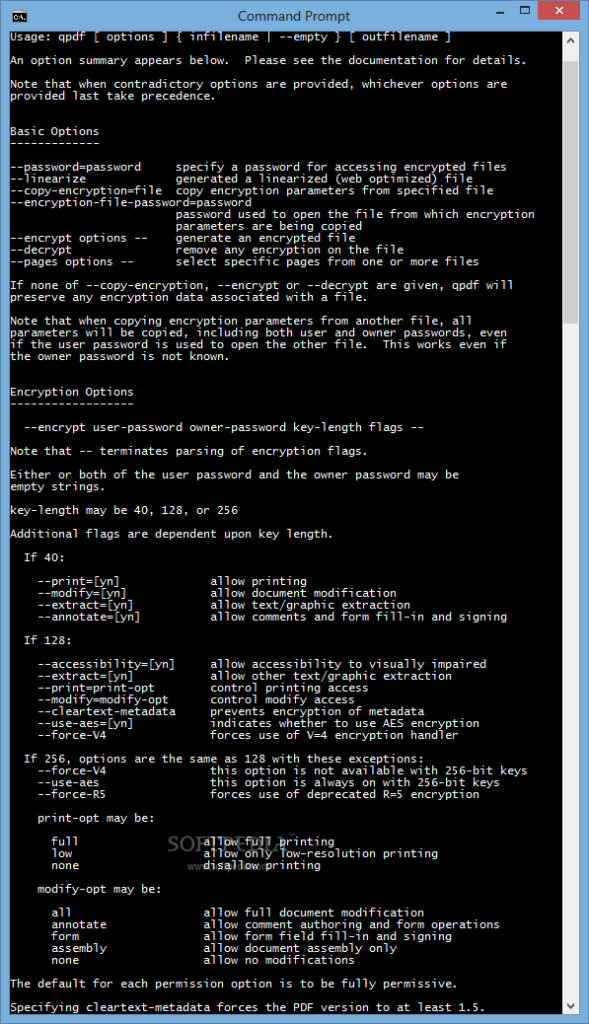
The most common fix is to linearize the PDF. This rewrites the file structure, often repairing cross-reference table issues and other corruption. Run:
qpdf –linearize fixed.pdf broken.pdf
This creates a new file called fixed.pdf. If qpdf reports errors during this step, don’t worry—proceed to Step 4. For many cases, this single command is enough to fix a broken pdf.
Step 4: Extract and Rebuild Pages
If linearization fails, you can extract pages individually and rebuild a new PDF. First, determine which pages are recoverable. Use qpdf’s –pages option:
qpdf –pages broken.pdf 1-10 — output.pdf
This extracts pages 1 through 10 into a new file. Adjust the range as needed. You can also extract single pages: qpdf –pages broken.pdf 3 — page3.pdf. Once you have all good pages, merge them using qpdf’s –empty and –pages:
qpdf –empty –pages page1.pdf page2.pdf … — output.pdf
Step 5: Verify the Repaired PDF
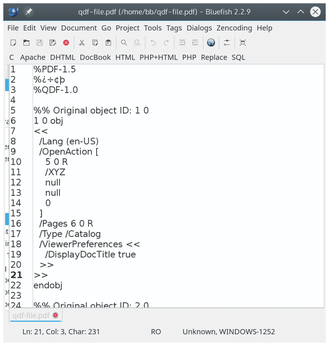
Run qpdf –check on the repaired file to ensure it’s clean. Then open it in your preferred PDF viewer. If it opens fine, congratulations! For best web performance, you can also linearize the repaired file again with –linearize. This tool is a fantastic free pdf repair alternative to Adobe Acrobat.
Common Pitfalls
- Missing dependencies: On Windows, you may need to install Visual C++ Redistributable. On Linux, ensure libqpdf is installed.
- Permission errors: If you get ‘Permission denied,’ move your file to a directory you have write access to (like Desktop).
- qpdf can’t fix everything: Some corruption is too severe (e.g., damaged streams). In that case, try other tools like mutool or consider extracting text from corrupted pdf as a last resort.
Where to Next
Now you’ve got a fully functional PDF. If you ran into trouble, check out our guides on how to detect a corrupted pdf beforehand or repair pdf under 100mb for smaller files. Also, if your PDF won’t open at all, our pdf won’t open repair guide might help. Happy repairing!




