You’ve got a PDF that just won’t behave. Maybe it throws an error, displays gibberish, or opens half-page. Before you start panicking or applying every repair tool in the book, it helps to confirm: is this file actually corrupted? This guide is for anyone – student, admin, casual user – who wants to diagnose a PDF without guessing games. By the end, you’ll have a handful of reliable methods to detect corruption, from quick visual checks to command-line and online diagnostics.
We’ll keep things casual and step-by-step. No jargon you can’t follow. You don’t need to be a tech wizard – just follow along and you’ll know exactly what’s wrong with your PDF (if anything). Let’s get started.
What You’ll Need
- A computer (Windows, macOS, or Linux)
- The suspect PDF file
- Adobe Acrobat Reader (free) or any PDF viewer
- Optional but helpful: pdfinfo tool (comes with poppler-utils on Linux/Mac; on Windows you can get it via Cygwin or use WSL)
- Optional: a hex editor like HxD (Windows) or built-in xxd/hexdump on Mac/Linux
- Optional: an internet connection for online checkers
Most of these are free. Don’t worry if you don’t have the command-line tools – you can still detect corruption with steps 1, 2, and 4.
Step 1: Visual Inspection – Open and Look for Red Flags
The simplest test: try opening the PDF with your usual viewer (like Adobe Acrobat Reader). Watch for these telltale signs: an immediate error message saying “There was an error opening this document” or “File cannot be opened because it is not a supported file type.” Sometimes the file opens but content looks wrong – missing images, scrambled text, blank pages, or odd symbols. If any of that happens, you likely have a corrupted file.
Even if the PDF opens smoothly, the corruption could be partial. Scroll through all pages. Look for graphics that didn’t load or weird spacing. If you see anything off, move to the next steps.
Step 2: Check Adobe Reader’s Diagnostic Messages
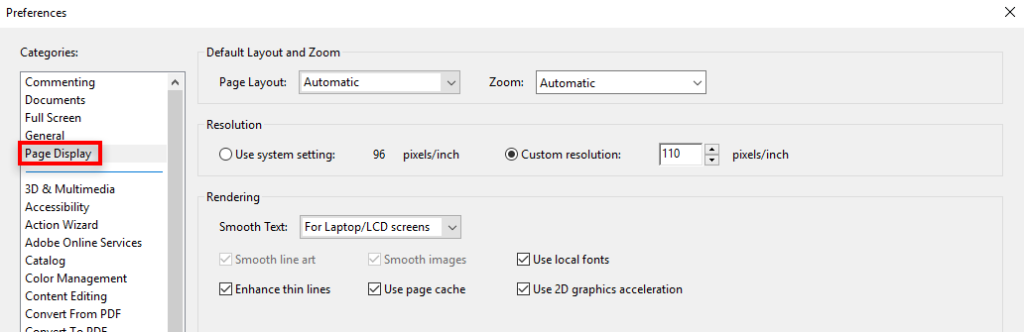
Sometimes the corruption is silent. Adobe Reader logs errors internally. When you try to open a problematic file, it may show a dialog with a numeric error code like “There was an error opening this document. The file is damaged and could not be repaired.” More info is often available via the small “Details” button. Click it and note the error code – you can search it later. This already confirms corruption.
Step 3: Use the pdfinfo Command-Line Tool
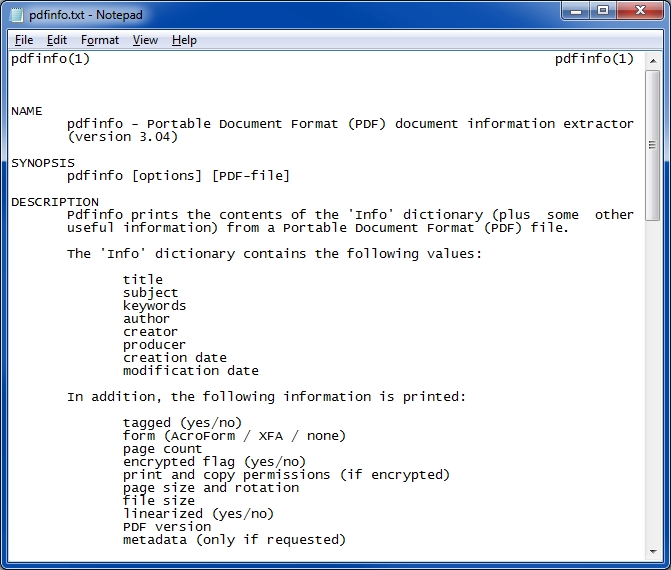
pdfinfo is a lightweight tool that reads PDF metadata. It’s part of the poppler-utils package. On Linux, install it via your package manager; on macOS, use Homebrew (`brew install poppler`); on Windows, get it through Cygwin or WSL. Once installed, open a terminal and type:
pdfinfo yourfile.pdf
terminal command
If the PDF is healthy, you’ll see info like title, pages, file size. If it’s corrupted, you’ll likely get an error: “Syntax Error: Couldn’t read xref table” or “Error: Couldn’t find trailer dictionary” – clear signs of a broken file. This method is great because it doesn’t even try to render the full document – just the structure. For more on using this tool, check our earlier post on pdfinfo damaged pdf.
Step 4: Test with an Online PDF Checker
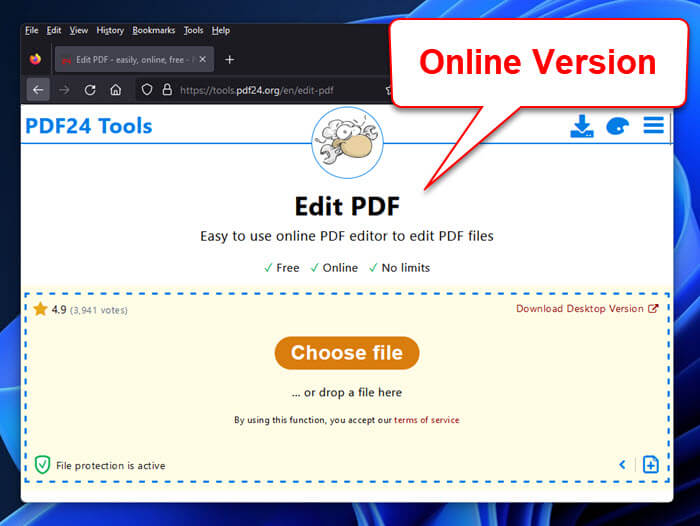
If command lines aren’t your thing, try a free online service. Websites like PDF24’s “Check PDF for errors” or iLovePDF’s “Repair PDF” tool will first analyze your file. Just upload the suspect PDF (under 100 MB usually). The tool will tell you if it’s corrupt and sometimes even pinpoint specific issues. Note: for sensitive files, avoid online services – but for everyday use, they’re handy.
Step 5: Hex Dump – Look Under the Hood
For the truly curious, you can inspect the raw bytes of the PDF. Open the file in a hex editor (like HxD on Windows, or use `xxd` on Mac/Linux). A healthy PDF starts with “%PDF-1.x” at the very beginning. If you see different bytes (like many null bytes 0x00, or garbage text), the file is definitely corrupted. Also look near the end for “%%EOF” – if missing, the file is truncated. This method is definitive but requires a bit of practice.
If you discover a broken PDF, don’t despair. You can often fix it using tools like Mutool or open-source solutions. Read our guides on repair pdf with mutool and broken pdf solution for step-by-step fixes.
Common Pitfalls
- **Confusing a renamed file with a corrupted PDF.** If someone renamed a .docx to .pdf, it won’t open and will look corrupted. Check the file’s true type by examining its actual content in a hex editor – if the header says “PK” or “DOCX”, it’s not a real PDF.
- **Assuming a large PDF is corrupted because it takes time to open.** Large files with many images may be slow but perfectly healthy. Give it a minute before concluding corruption.
- **Troubleshooting the viewer instead of the file.** Sometimes your PDF viewer is the problem (outdated, buggy). Try opening the file on another computer or in a web browser (Chrome’s built-in PDF viewer) before declaring it corrupted.
Keep these in mind and you’ll avoid false alarms.
Where to Next?
Now that you’ve confirmed the PDF is indeed corrupted, you need to fix it. Check out our detailed tutorials on repair pdf with mutool, broken pdf solution, or recover pdf pages – all part of our PDF Repair series. With the right tools, most corrupted PDFs can be saved.




