Got a PDF that won’t open or looks all garbled? Don’t panic. This guide is for anyone who needs to rescue a corrupted PDF using mutool—a fast, free command-line tool that comes with the MuPDF library. By the end, you’ll have a working PDF (or at least salvaged content) and a solid understanding of mutool’s repair commands.
Mutool is lightweight and runs on Windows, macOS, and Linux. No fancy GUI, just terminal power. If you’re comfortable with a few commands, this is the quickest way to fix a broken PDF. And if you’re stuck, check out our broader broken pdf solution for other options.
What You’ll Need
- A computer with internet access
- A corrupted PDF file (preferably under 100 MB for speed; if larger, see our guide on repair pdf under 100mb)
- Basic familiarity with opening a terminal (Command Prompt, PowerShell, or Terminal)
- Permission to install software (admin rights may be needed)
Step 1: Install Mutool
Mutool is part of MuPDF. Download the official package from mupdf.com. For Windows, grab the ‘.exe’ installer; for macOS, use the ‘.dmg’; for Linux, you can compile from source or use a package manager (e.g., ‘sudo apt install mupdf-tools’ on Ubuntu). After installation, test by opening a terminal and typing ‘mutool -v’—you should see the version number.
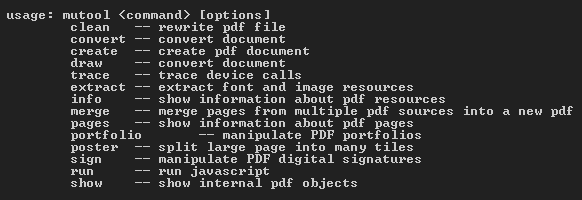
Step 2: Run a Basic Repair with Mutool clean
The most common repair command is ‘mutool clean’. Open your terminal, navigate to the folder with your corrupted PDF, and run: ‘mutool clean input.pdf output.pdf’. This parses the file, fixes syntax errors, and writes a cleaned version. For deeper repair, add the ‘-D’ flag to decompress streams—this often resolves rendering issues.
Step 3: Diagnose the Damage with Mutool info
Before diving into repairs, it helps to know what’s broken. Run ‘mutool info input.pdf’ to see metadata, page count, and any errors. This is similar to using pdfinfo damaged pdf techniques. If mutool reports missing objects or syntax issues, you can target those with specific flags.
Step 4: Recover Pages If the File Is Still Bad
If the cleaned output still has issues, try extracting individual pages. Use ‘mutool clean -D -p 1-5 input.pdf output.pdf’ to process a range of pages. Or, use ‘mutool draw -r 150 input.pdf output.pdf’ to rasterize pages as images—this can salvage content even when text is corrupt. For page recovery, see our guide on recover report pdf.
Step 5: Extract Text as a Last Resort
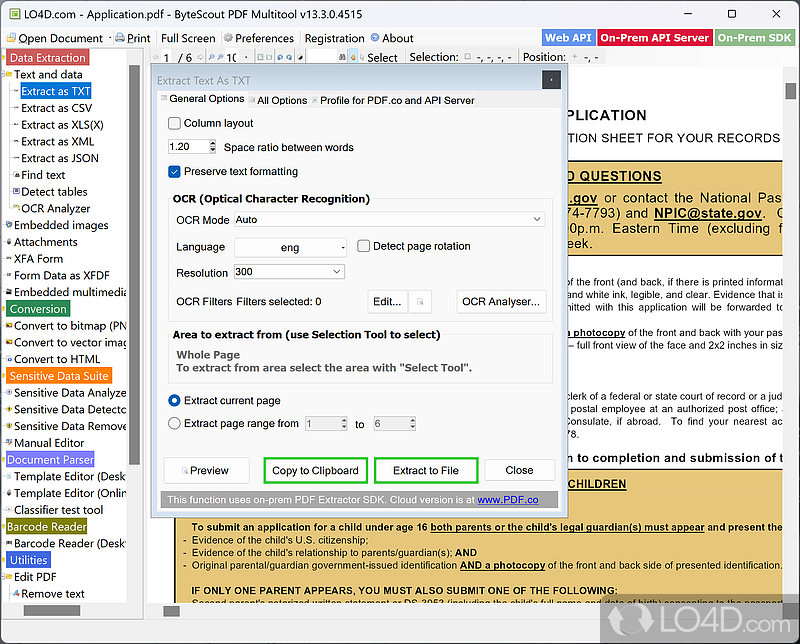
If all else fails, you can pull text out of the PDF. Run ‘mutool draw -F text input.pdf output.txt’ to dump all text. This won’t preserve formatting, but you’ll get the words. For more detailed text extraction, check our article on extract text from corrupted pdf.

Common Pitfalls
- Mutool not in PATH: If you get ‘command not found’, either add the installation folder to your PATH or use the full path to the executable.
- Skipping the -D flag: For heavily corrupted files, always use ‘mutool clean -D’. Without it, some compression errors go unfixed.
- Assuming mutool fixes everything: Mutool can’t repair password-protected PDFs. You’ll need to unlock them first—check our fix locked pdf guide. Also, if the PDF is simply a blank file, mutool can’t create content from nothing.
Where to Next
Mutool is just one of many handy open-source PDF tools. For batch repairs or automated workflows, check out our automated pdf repair guide. And if you prefer a graphical interface, try our pdf repair open source roundup. Happy repairing!




