Got a PDF that’s under 100 MB but won’t open, shows errors, or has missing content? You’re in the right place. This guide is for anyone—student, freelancer, office worker—who needs to fix a corrupted PDF without losing their mind. By the end, you’ll have a fully repaired PDF ready to use, and you might not even spend a dime.
We’ll walk through five methods, from the simplest (just opening in another viewer) to more powerful tools like Adobe Acrobat and open-source command-line utilities. Most repairs take under 10 minutes. Let’s get your PDF back in shape.
What You’ll Need
- The corrupted PDF file (make sure it’s under 100 MB)
- A computer with internet access
- Optional: Adobe Acrobat (free trial or full version) for advanced repair
- Optional: Open-source tools like pdftk or Ghostscript (free download)
- Optional: A web browser for online PDF repair services
Step 1: Try a Different PDF Viewer
Sometimes the issue isn’t the file but the viewer. If your PDF is corrupted but still recoverable, another program might handle it better. Try opening it in Chrome, Edge, Firefox, or a dedicated reader like Foxit Reader. If it opens, you can save a copy from that viewer. For a more thorough approach, check out our broken pdf solution for other quick fixes.

Step 2: Use a Free Online PDF Repair Service
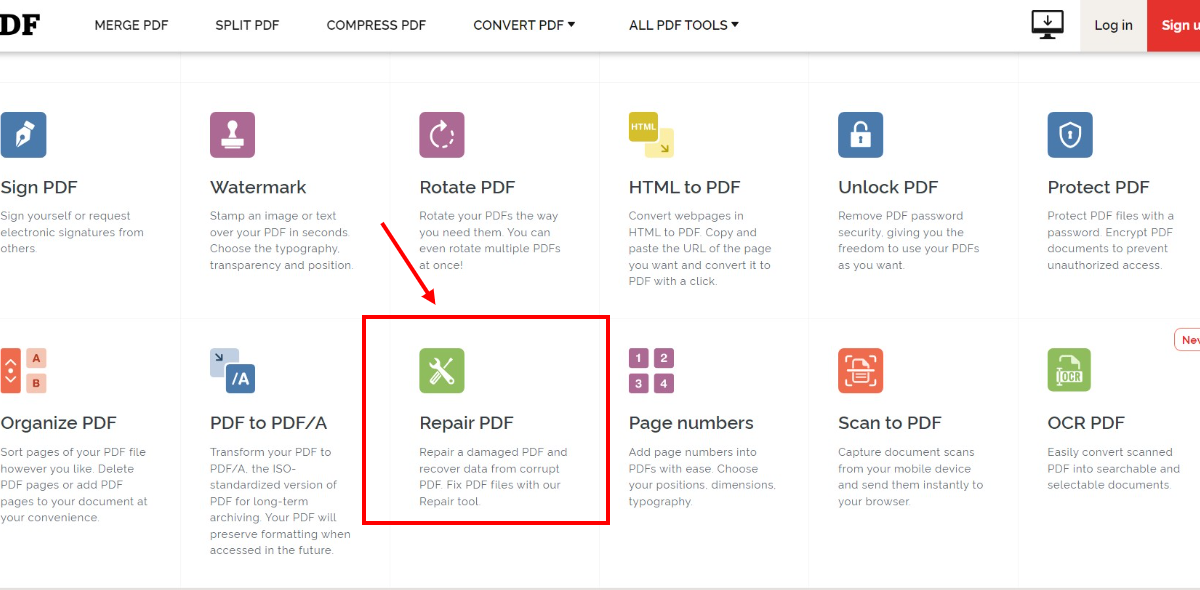
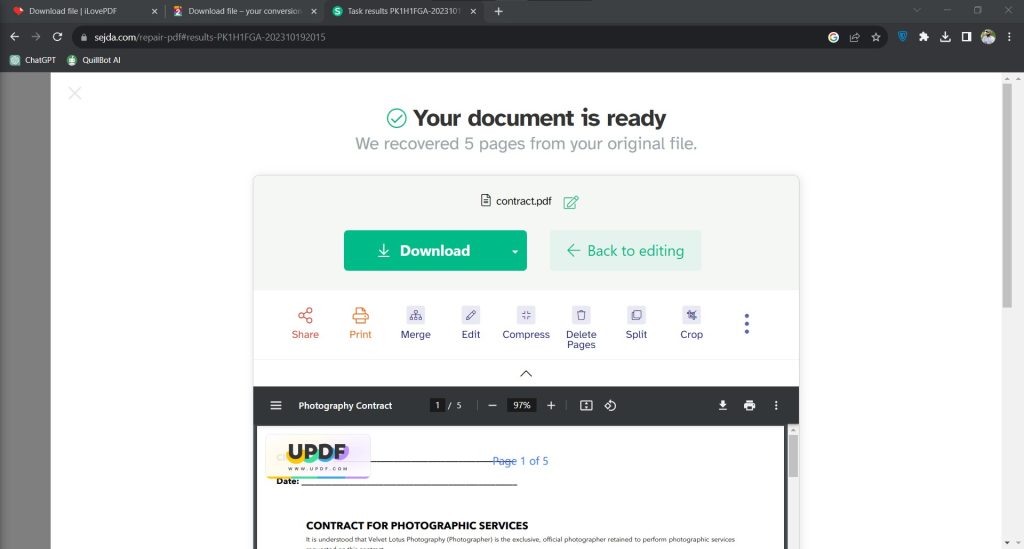
Online tools are fast and require no installation. Websites like Smallpdf, iLovePDF, or Sejda have dedicated repair features. Upload your PDF (under 100 MB is usually allowed), let them work, and download the fixed version. This method is great for minor corruption, and it’s a solid pdf repair free option. Remember to never upload sensitive documents you don’t want on third-party servers.
Step 3: Repair with Adobe Acrobat
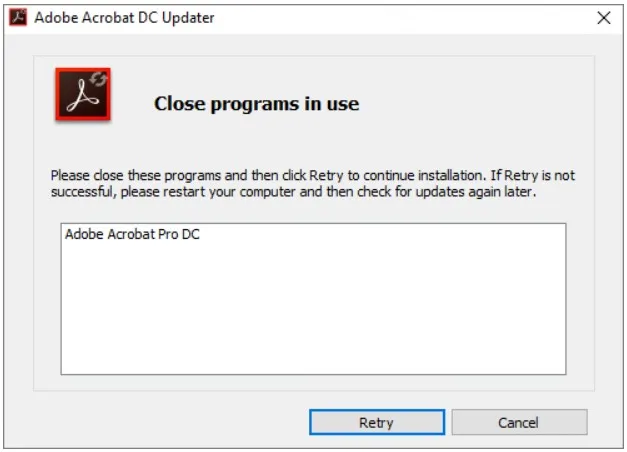
If you have Adobe Acrobat (not just Reader), it can often repair a PDF automatically. Open Acrobat, go to File > Open, select your corrupted PDF, and then try File > Save As a new file. If Acrobat detects corruption, it may prompt to repair the file—click Yes. For more details, check our dedicated adobe pdf repair guide. This works well for PDFs under 100 MB and can recover most content.
Step 4: Use Open-Source Command-Line Tools
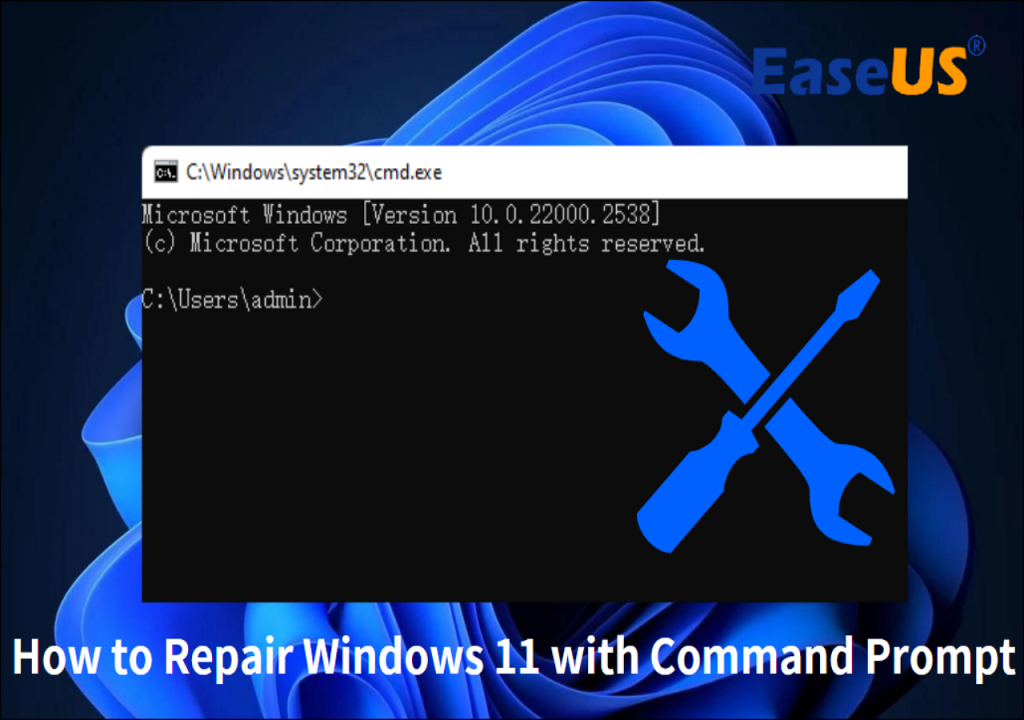
For more stubborn corruption, command-line tools like pdftk or Ghostscript are powerful and free. With pdftk, run: pdftk corrupted.pdf output repaired.pdf. With Ghostscript: gs -o repaired.pdf -sDEVICE=pdfwrite -dPDFSETTINGS=/prepress corrupted.pdf. This method is ideal for batch repairs and large files. If you’re new to this, our pdf repair open source article walks through each command. It may sound technical, but it’s worth learning.
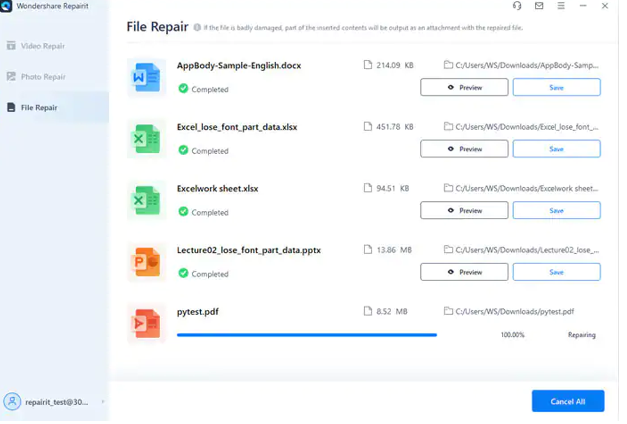
Step 5: Use a Dedicated PDF Repair Tool
Sometimes all else fails, and you need specialized software. Tools like Recoll or PDF Repair Tool Pro are designed to extract text, images, and structure from severely corrupted PDFs. Many offer free trials. Download one, load your PDF, and click Repair. If the file was important, consider having a backup. For a case where your PDF won’t even open, see our pdf won’t open repair guide for targeted help.
Common Pitfalls
- Repairing may increase file size: Some tools re-encode content, making the PDF larger. If size matters, compress the repaired file using online compressors.
- Online services have limits: Even though your file is under 100 MB, some free services cap at 50 MB or 100 MB. Check before uploading.
- Not all corruption is fixable: Extremely damaged PDFs may lose data. Always keep a backup of the original file and try multiple methods.
Where to Next
If this guide helped, you might also like our posts on pdf repair free for more budget-friendly methods, or check out the broken pdf solution for other common issues. For specific tools, see our adobe pdf repair and pdf repair open source articles. If your file is completely unresponsive, the pdf won’t open repair guide has extra steps. Happy fixing!




