
If you’ve ever tried to open a PDF and got nothing but an error message, you know the frustration. Maybe the file shows blank pages, or it’s garbled, or it simply won’t launch. This guide is for anyone who has a damaged PDF and wants to fix it using Adobe Acrobat (the paid version, not just Reader). By the end of this tutorial, you’ll have a repaired PDF that opens correctly and is ready to use.
We’ll walk through the built-in repair tools in Adobe Acrobat, from the simple “Save As” trick to the more advanced “Preflight” repair. No third-party software needed. You’ll also learn how to prevent future corruption. Let’s get your PDF back in shape.
What you’ll need
- Adobe Acrobat Pro DC or Standard (trial works too)
- The corrupted PDF file
- A computer with Windows or Mac
- Optional: a backup of the original file
Step 1: Try the Quickest Fix – “Save As” or “Re-save”
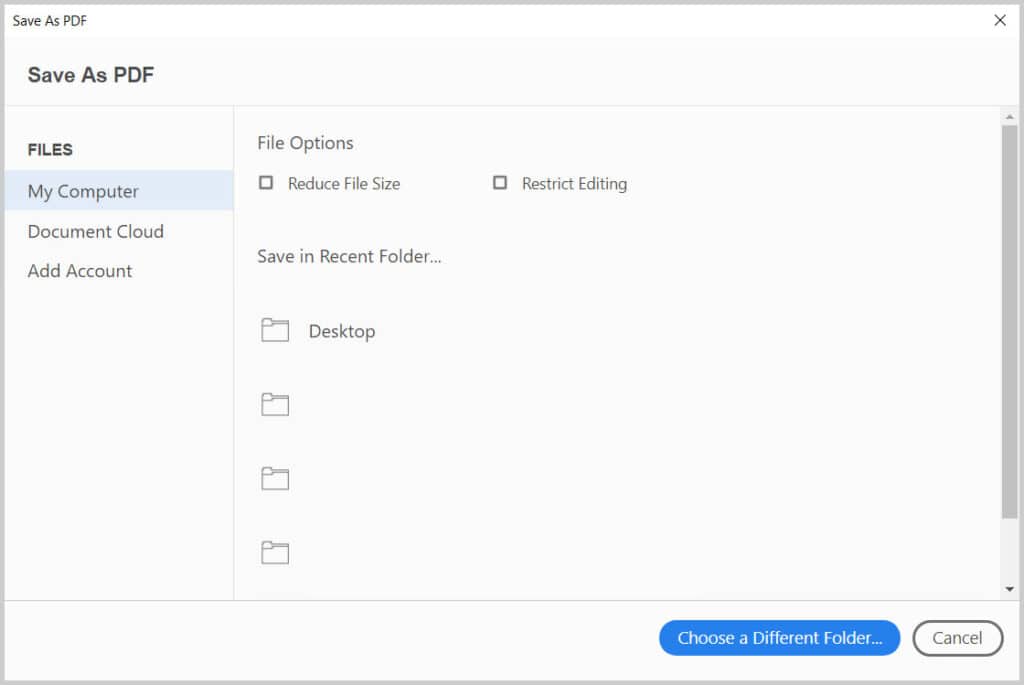
Start by opening the PDF in Adobe Acrobat. If it opens partially or with errors, go to File > Save As and save it as a new PDF. This simple action often fixes minor corruption by rewriting the file structure. If that works, you’re done. If not, proceed.
Step 2: Use the “Optimize Scanned PDF” Tool
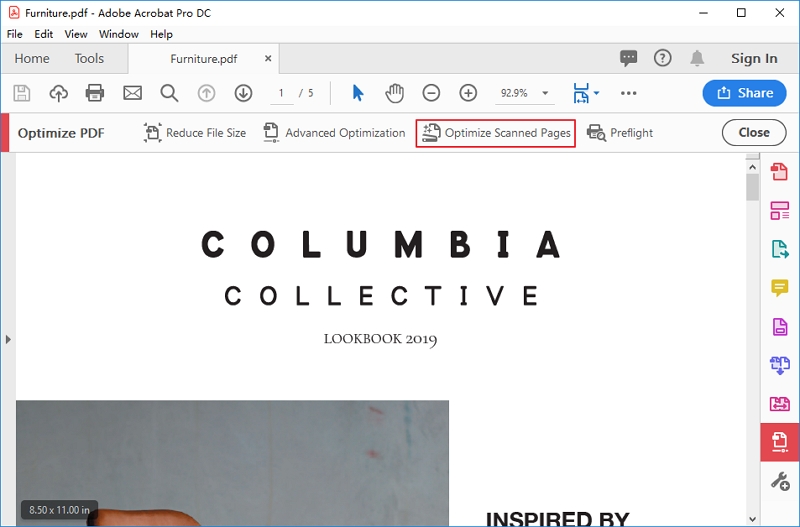
A common cause of corruption is faulty scanning. Acrobat has a tool that re-optimizes the file. Go to Tools > Optimize Scanned PDF or click on the “Scan & OCR” tool. Select the “Optimize Scanned PDF” option. This can fix encoding issues and remove artifacts. Note that this works best for scanned PDFs, not native digital ones.
Step 3: Run Preflight to Check and Fix Errors
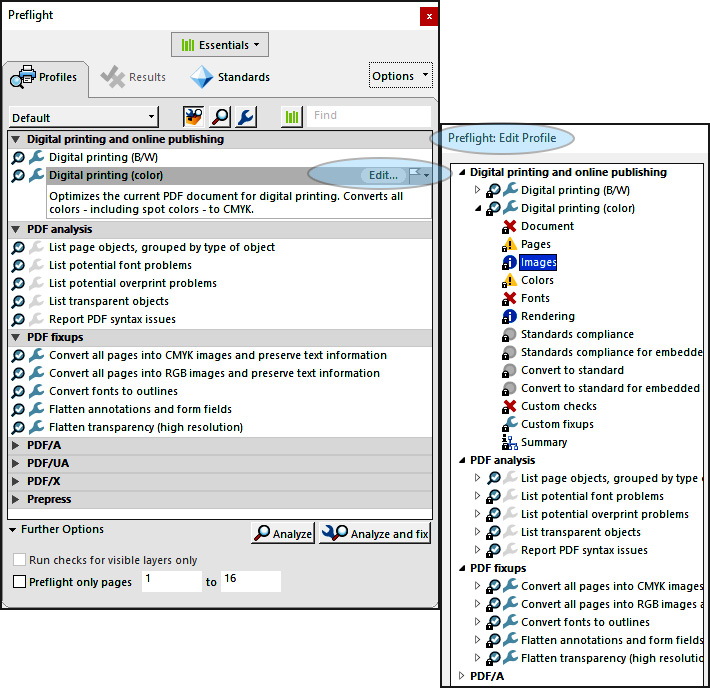
Preflight is a powerful diagnostic tool in Acrobat Pro. Go to Tools > Print Production > Preflight. In the Preflight window, click “Analyze and fix” and search for “repair” or “fix”. Look for profiles like “PDF/A compliance” or “Fix common PDF problems”. Run the fix and save a copy.
Step 4: Recover Pages with “Extract Pages”
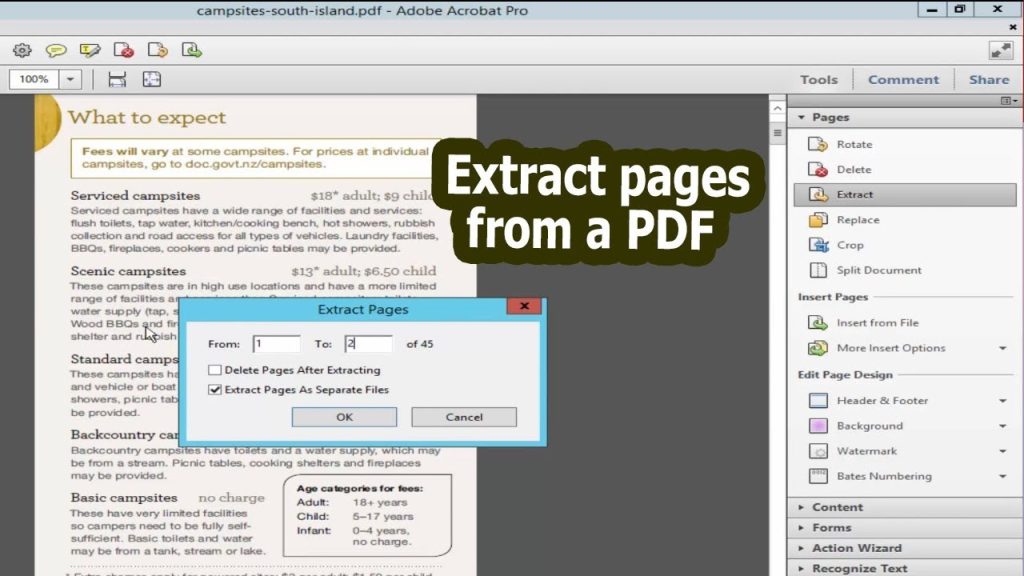
If only some pages are corrupted, you can extract the good ones. Go to Organize Pages > Extract. Select the pages that are readable and extract them to a new PDF. This eliminates the corrupted pages. You can then merge them back with other tools.
Step 5: Try the “Touch Up Reading Order” Tool for Garbled Text
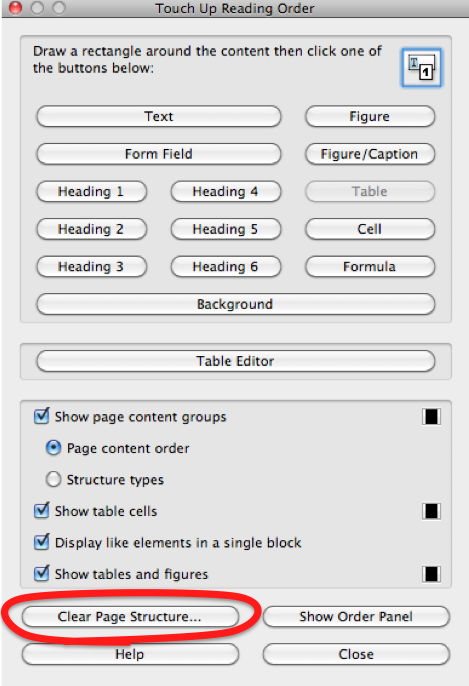
When text appears as symbols or boxes, the font information might be damaged. Use the Accessibility tool: Tools > Accessibility > Touch Up Reading Order. Click on the text and try to reassign it as “Text” or “Paragraph”. This doesn’t fix the font, but it can make the text selectable again.
Common pitfalls
- Not making a backup first. Always save a copy before attempting repairs, as some fixes can alter the file irreversibly.
- Using the wrong tool for the type of corruption. For example, “Optimize Scanned PDF” won’t help a digital encoding error.
- Forgetting to save after a fix. Always do “File > Save As” with a new name to preserve the original.
Now that you know how to repair a PDF with Adobe Acrobat, you might also explore other repair methods. Check out our guide on broken pdf solution for more options, or learn how to fix pdf online free if you don’t have Acrobat. For open-source alternatives, see pdf repair open source. If you prefer command-line tools, read about pdftk repair pdf. And for a comprehensive overview, our pdf fixer article covers many scenarios.




