Ever opened a PDF only to see blank pages, gibberish text, or an error that says the file is damaged? You’re not alone. PDFs get corrupted all the time – from bad downloads, sudden crashes, or even cloud sync glitches. This guide is for anyone who needs a quick, free fix without installing software. By the end, you’ll know exactly how to upload, repair, and download your PDF using reliable online tools.
We’ll walk through three methods using free websites, step by step. You’ll learn what to do when your PDF won’t open, shows garbled text, or has missing pages. Even if you’re not tech-savvy, these steps are simple enough to follow. Plus, we’ll point you to related resources like our free pdf repair guide and corrupted pdf fixer for tougher cases.
What You’ll Need
- A corrupted PDF file (the one you want to fix)
- A stable internet connection
- A modern web browser (Chrome, Firefox, Edge, or Safari)
- Your PDF file size under 50 MB (most free tools have a limit)
- About 10 minutes of your time
Step 1: Choose a Free Online PDF Repair Tool
Not all online repair tools are equal. Stick with reputable ones like iLovePDF, Smallpdf, or Sejda. They have free tiers that handle most corruption issues. Avoid unknown sites that ask for payment upfront or upload your file to shady servers. For this guide, we’ll use iLovePDF because it’s free, fast, and doesn’t require an account for basic repair.
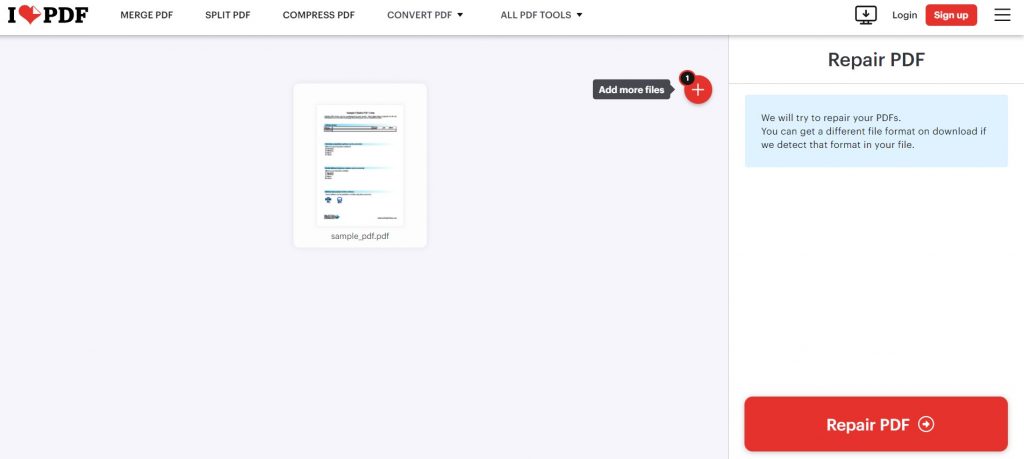
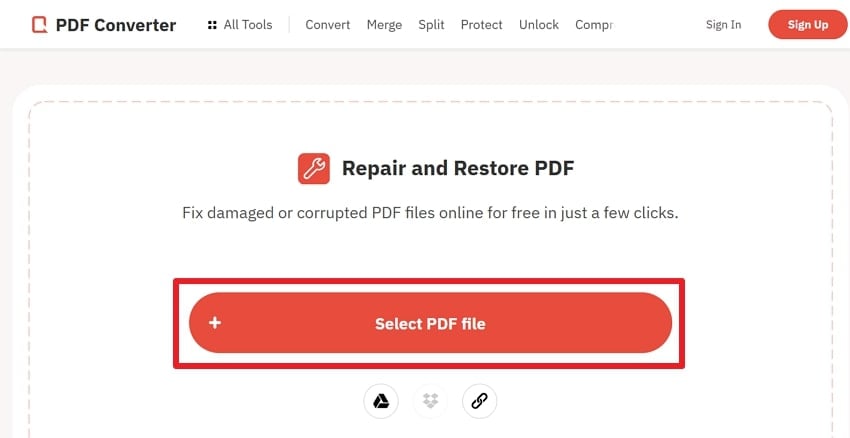
Open your browser and go to the iLovePDF repair page (search ‘iLovePDF Repair PDF’ or use their Tools section). You’ll see a big ‘Select PDF file’ button. Click it to browse your computer for the corrupted file.
Step 2: Upload Your Corrupted PDF
Select the problematic PDF from your desktop or downloads folder. The upload usually takes a few seconds, depending on file size. Once uploaded, the tool automatically starts analyzing your file. You’ll see a loading spinner or a progress bar.
If your file is too large (over 50 MB for many free tools), try compressing it first or splitting it. You can also try a different tool like Sejda, which allows up to 200 MB on its free plan. For very stubborn corruption, check out our recover multiple pdfs guide.
Step 3: Start the Repair Process
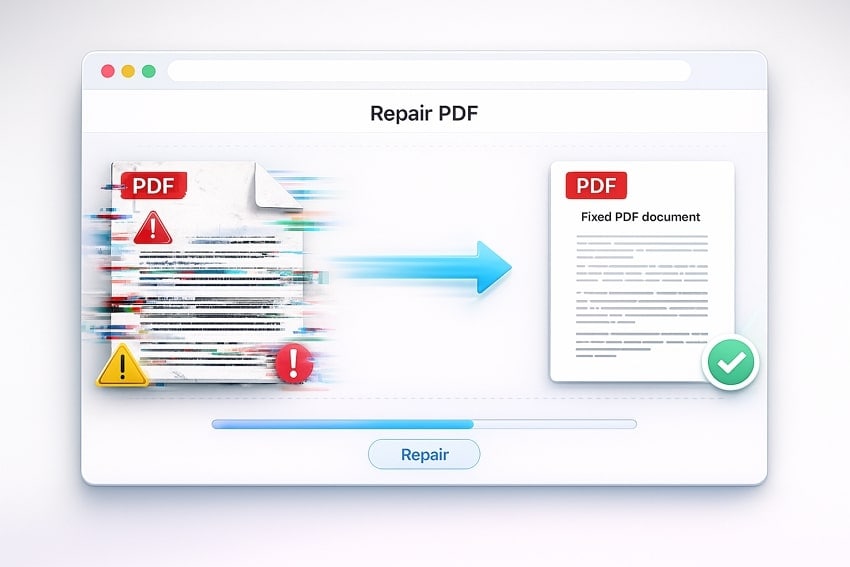
After uploading, click the ‘Repair’ button (or equivalent). The tool will attempt to reconstruct your PDF’s structure, fix broken references, and restore readable content. Wait for the process to complete. It usually takes 10–30 seconds, but slow or large files may take up to a minute.
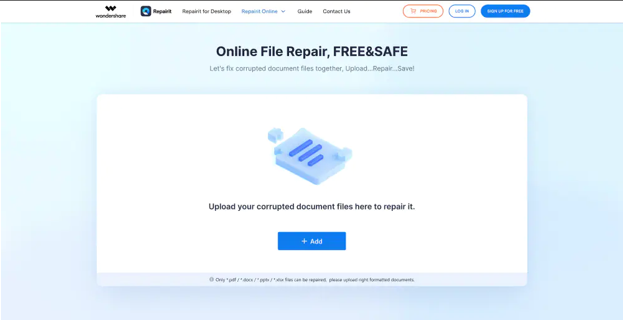
Don’t refresh the page or click away. Let the tool finish. If it times out, your file might be severely damaged. In that case, try a different service like Smallpdf or use our garbled pdf fix tips.
Step 4: Preview and Download the Fixed PDF
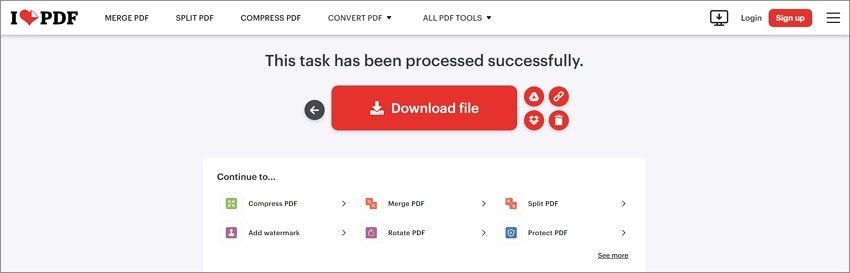
Once repaired, most tools show a preview or a success message. Click ‘Download’ to save the fixed PDF to your computer. Name it something different from the original to avoid confusion. Open the downloaded file to check if it works correctly.
If the preview looks fine but pages are still missing, you may need to try a different tool. Some corrupted PDFs have complex issues like font substitution or encoding errors. Our encoding issues fix article covers that in detail.
Step 5: Troubleshoot Persistent Problems
If the repaired PDF still shows errors, don’t give up. Try these free alternatives:
- Use Smallpdf’s Repair tool (free for 2 file per day)
- Try Sejda’s Repair PDF (free up to 200 MB, no daily limit)
- Use PDF24’s online repair (completely free, no file size limit)
Each tool uses a different algorithm. One might succeed where another fails. Also, if your PDF is password-protected or encrypted, remove the password first. For signed PDFs, re-signing after repair may be necessary – see our corrupted pdf fixer for advanced steps.
Common Pitfalls
Even with the best tools, things can go wrong. Here are three common issues and how to avoid them.
- File size too large: Many free tools cap uploads at 50 MB. If your PDF is bigger, compress it first using an online compressor or split into smaller parts. Then repair each part individually.
- Tool returns empty PDF: Sometimes the repair ‘succeeds’ but produces a blank file. This often means the repair algorithm couldn’t recover content. Try a different tool or use a desktop app like your browser’s built-in PDF viewer to ‘print’ the PDF, which can sometimes re-wrap data.
- Upload fails halfway: This is usually an internet issue. Use a wired connection or wait for a stable Wi-Fi signal. Also, clear your browser cache and disable ad blockers temporarily, as they sometimes interfere with uploads.
Most online repair tools are safe with proper encryption, but never upload sensitive personal documents (like tax returns or medical records) to any free online service.
PDF Repair Best Practices
Where to Next
You’ve successfully repaired your PDF online for free! If you still have trouble, explore more advanced solutions in our library. For example, if you need to fix multiple files at once, check out our free pdf repair guide. For severe corruption, the corrupted pdf fixer has additional techniques. And if your PDF is completely broken, our garbled pdf fix section might save you. Happy repairing!




