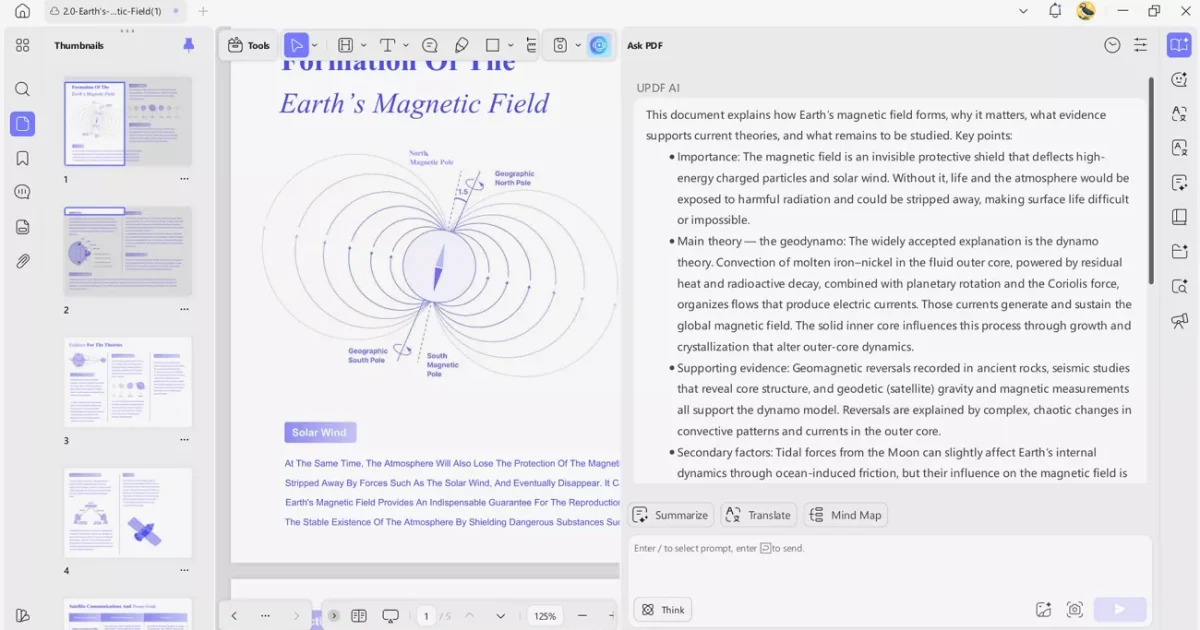
You’ve just opened an important PDF, and instead of clean text, you’re looking at a mess of random symbols, missing characters, or scrambled words. Garbled PDFs are frustrating, but don’t panic – this guide is for anyone who needs to fix garbled PDF text fast. By the end, you’ll have a readable document, whether you use a free online tool or a built-in trick.
Garbled text usually means the PDF’s encoding or font is corrupted. Sometimes it’s a minor glitch that a different reader can solve; other times you need a dedicated repair tool. We’ll walk through five steps – from simplest to most powerful – so you can choose what works for you. If you’re in a hurry, the best way to fix a corrupted PDF is often the first step.
What You’ll Need
- Your garbled PDF file
- A computer with internet access
- At least one alternative PDF reader (like Chrome, Edge, or Foxit Reader)
- Optional: An online PDF repair tool or Adobe Acrobat
Step 1: Open the PDF in a Different Reader
Sometimes the issue is with the reader, not the file. If you’re using Adobe Acrobat, try opening the PDF in a web browser (Chrome, Firefox) or a lightweight reader like Foxit. Each renderer handles fonts and encoding differently, so the garbled text might disappear.
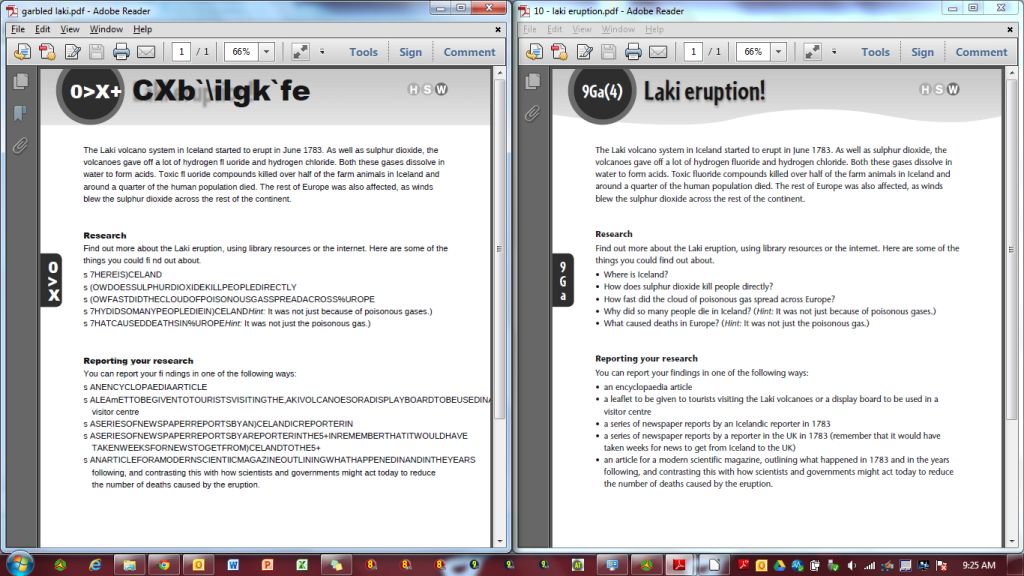
If the text clears up, your problem is solved – you just need to use that reader. If it’s still garbled, move to Step 2.
Step 2: Use an Online PDF Repair Tool
Free online repair tools can fix common encoding issues. Upload your garbled PDF to a trusted service like pdfrepairs.click’s online repair (or another reputable site). The tool will attempt to rebuild the PDF’s text and font data. This method works well for mild corruption.
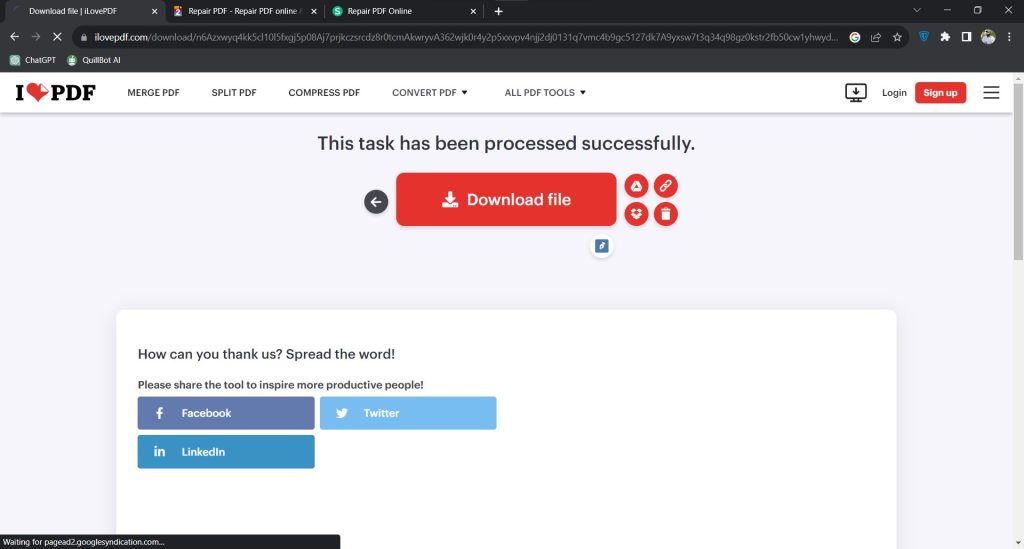
If you don’t get results, consider using a more advanced tool that can repair garbled characters individually.
Step 3: Print to PDF (Re-save as New PDF)
Open the garbled PDF in a reader that can display it (even with gibberish), then use the “Print” command and choose “Save as PDF” or “Microsoft Print to PDF”. This creates a fresh PDF from the rendered output, often fixing encoding issues. Note: if the text is completely unreadable, this won’t recover the original characters – it will just print the garbage. But if only some symbols are wrong, this might help.
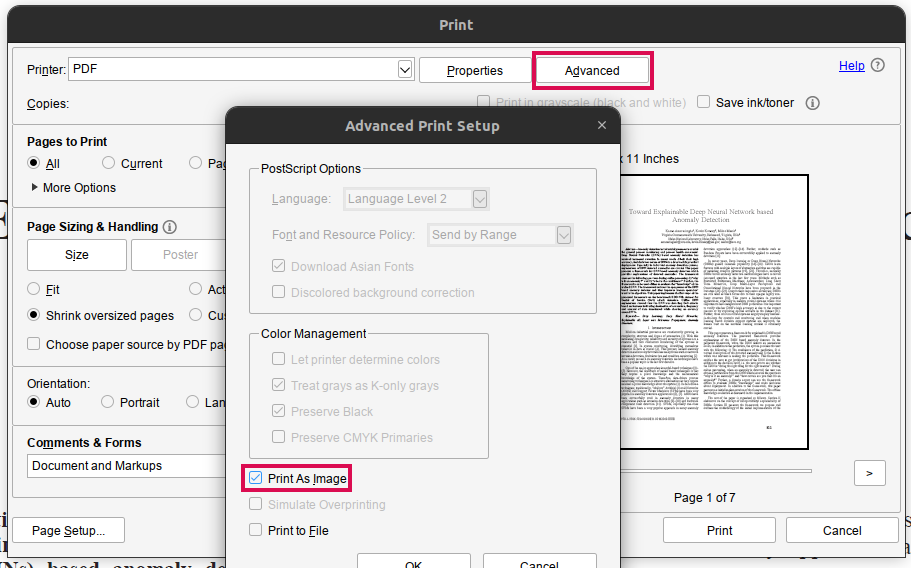
After creating the new file, check if the text is now clean. This is a quick try before moving to text extraction.
Step 4: Extract and Recreate the PDF from Text
If the PDF is still garbled, extract whatever text you can. Open the file in a reader, select all (Ctrl+A), and copy the content into a plain text editor like Notepad. You might get partial or mixed-up text, but some usable content may survive. Save the text file, then use a PDF creator (like Word or Google Docs) to convert it back to PDF. This method is good when you need to recover text from damaged PDF files.
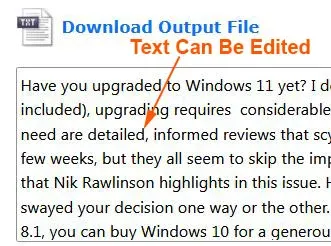
Be aware that formatting will be lost. If you need the original layout, try the next step.
Step 5: Use Dedicated Repair Software (Adobe Acrobat Preflight)
For stubborn garbled text, professional tools like Adobe Acrobat Pro have a “Preflight” feature that can fix encoding and font problems. Open the PDF in Acrobat, go to Tools > Print Production > Preflight, then select a repair profile like “PDF syntax errors” or “Fix broken fonts”. Acrobat will scan and correct issues. This is the most thorough method, ideal for important files. If you don’t have Acrobat, consider a trial.
After preflight, save a copy. If the text remains garbled, the PDF may be beyond simple repair – then you can try services that specialize in manual recovery for fix unreadable text problems.
Common Pitfalls
- Relying on only one reader: Different readers render PDFs differently. Always try at least two before assuming the file is broken.
- Not backing up the original: If you modify the PDF directly (e.g., with an editor), you might lose the original. Always keep a backup until you confirm the repair worked.
- Ignoring font embedding: Garbled text often comes from missing or corrupted fonts. Tools that re-embed fonts (like Preflight) are more effective than simple re-saving.
Where to Next
If this guide helped, you might also want to check out how to repair a corrupted PDF file using similar methods. For batch fixes, see our batch pdf repair guide. And if you’re dealing with garbled characters specifically, our dedicated article on repair garbled characters can dive deeper.




