This guide is for anyone who’s ever hit “Print” on a PDF only to get blank pages, scrambled text, or a message that the PDF won’t print at all. It’s frustrating, especially when you need that document now. You don’t need to be a tech wizard — I’ll walk you through every fix in plain English.
By the end of this tutorial, you’ll have a clean, printable PDF. We’ll cover the most common print issues and show you both quick software checks and more advanced repair techniques. Whether it’s a corrupted file or a simple setting, we’ll sort it out.
What you’ll need
- A computer with a PDF reader (e.g., Adobe Acrobat Reader, Preview, or any browser)
- The problematic PDF file
- A stable internet connection (for online repair tools)
- Optional: PDF repair software like Adobe Acrobat Pro or free alternatives
Step 1: Check Your PDF Reader and Printer Settings
Often, the issue isn’t with the PDF itself but with how your software talks to the printer. Start by opening the PDF in a different reader — try a browser like Chrome or Edge, or the free Adobe Acrobat Reader. If it prints fine from there, your default reader might need a reset. Next, check your printer properties. Go to Print > Properties and look for an option like “Print as Image.” Enabling this can fix garbled text or missing elements. It forces the printer to treat the page as a picture, bypassing font issues.

Step 2: Update or Reinstall Printer Drivers
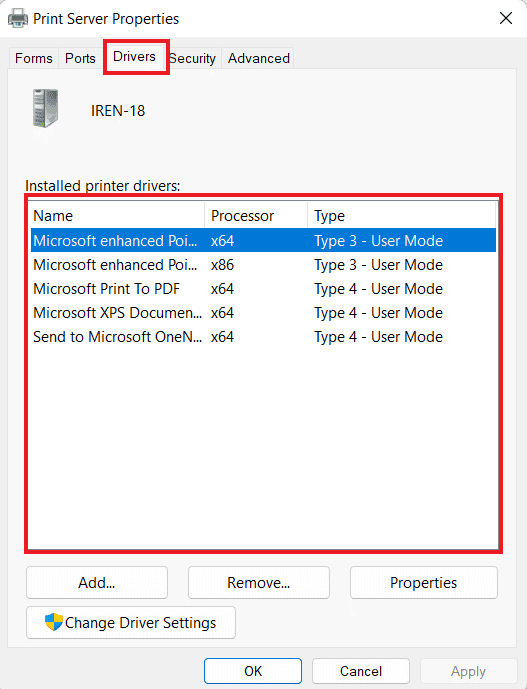
Outdated or corrupted printer drivers are a common culprit. Visit your printer manufacturer’s website and download the latest driver for your model and operating system. Install it, then restart your computer. If you already have the latest driver, try uninstalling the printer completely and adding it again. This clears out any bad cached settings. After reinstalling, test the PDF again.
Step 3: Use PDF Repair Tools
If the file itself is corrupted, you’ll need repair software. For a deep corruption, try a dedicated tool. If you have many files to fix, consider a batch pdf repair tool to process them all at once. Alternatively, use an online service that can repair pdf automatically — just upload and download the fixed file. Always keep a backup of the original in case the result isn’t perfect.

Step 4: Fix Syntax Errors and Corruptions
Sometimes a PDF has internal syntax errors that prevent printing. If you see an error like “PDF syntax error”, use a tool designed to fix pdf syntax error. For more general corruption, follow a repair pdf after file corruption guide to recover the structure. If the PDF is severely damaged, you may need to extract content manually.
Step 5: Convert and Recreate the PDF
When all else fails, recreate the PDF from scratch. If you have the original source file (like a Word doc), open it and choose File > Print, then select “Microsoft Print to PDF” (or your system’s built-in PDF printer). This generates a fresh, uncorrupted PDF. If you don’t have the source, try opening the PDF in a program like Google Docs or Word (it will convert it) and then export back to PDF. This strips out any deep corruption.

Common pitfalls
- Forgetting to check the printer driver first — always update before assuming the file is broken.
- Using unreliable online tools without a backup — some may worsen the corruption. Always keep the original.
- Overlooking that the PDF itself is malformed — if nothing works, it may be a fix malformed pdf issue that requires specialized repair.
If you’re still stuck, check out our other guides on fixing specific problems like recovering text from damaged PDFs or handling large file size issues. But with these steps, you should have your PDF printing smoothly in no time.




