
Have you ever opened a PDF only to see garbled text, missing pages, or an error saying the file is corrupted? It’s frustrating, especially when you need that document urgently. But here’s the good news: you don’t have to manually dig into the file or learn complex commands. With today’s tools, you can repair PDF automatically — often with a single click. This guide is for anyone who wants a quick, no-fuss solution to fix broken PDFs without technical skills.
By the end of this tutorial, you’ll know several ways to auto‑repair corrupted PDFs using free online services and desktop applications. You’ll also learn how to identify the type of corruption (like a malformed structure or missing pages), and which tool works best for each scenario. I’ll walk you through concrete steps so you can get your PDF back to normal fast.
What You’ll Need
- A corrupted PDF file (keep a backup copy elsewhere)
- Internet connection (if using online tools)
- About 10 minutes of your time
- (Optional) A PDF repair tool like Adobe Acrobat or a third‑party app such as PDF Repair Toolbox
Step 1: Detect the Corruption Type
Before you hit repair, it helps to know what’s wrong. Some PDFs have a broken header, others have missing page references, or the entire file might be unreadable. Use a free online tool to check for corruption quickly. A reliable option is the PDF Repair Tool or simply open your PDF in a viewer and note any error messages. If you need a formal test, you can check for corruption using the methods described in our guide on that topic.
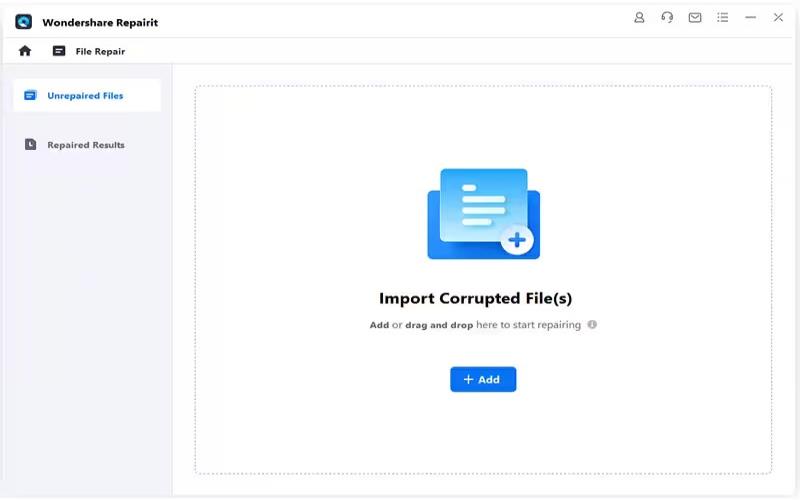
Common symptoms: ‘File is damaged and cannot be repaired’ error, random characters instead of text, pages that appear blank, or the PDF opens but shows nothing. Once you know the symptom, you can pick the right automatic fix.
Step 2: Use an Online Auto‑Repair Service
The easiest way to repair PDF automatically is through a free online service. Websites like iLovePDF, Smallpdf, or PDF2Go offer a ‘Repair PDF’ feature. Here’s how:
- Go to your chosen online PDF repair tool (e.g., iLovePDF’s Repair PDF).
- Upload your corrupted PDF file (most services accept up to 100 MB).
- Click ‘Repair PDF’ and wait a few seconds. The tool will scan the file and fix common structural issues.
- Download the repaired PDF. Open it to verify the fix worked.
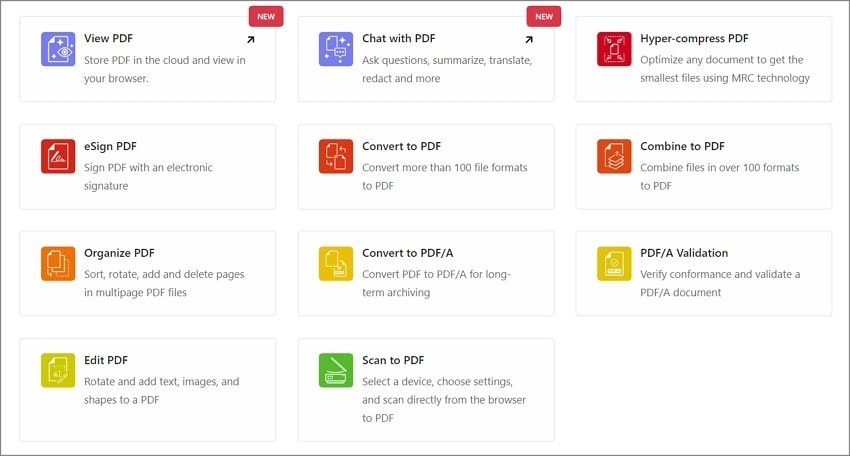
These tools handle many types of corruption automatically. They are ideal for simple issues like broken cross‑references, bad page trees, or minor header errors. If the PDF is severely malformed, try the desktop method below.
Step 3: Use Desktop PDF Repair Software
For tougher cases, desktop software often does a better job. Free options like PDF Repair Toolbox (Windows) or the built‑in repair in Adobe Acrobat Pro can automatically rebuild the PDF structure. Adobe Acrobat Pro users can go to Tools > Action Wizard > Repair PDF. Other programs like SysTools PDF Repair or Kernel for PDF Recovery offer batch processing and handle larger files. If you need dedicated software, check out the comprehensive list in our PDF recovery software guide.

- Install and open the PDF repair software of your choice.
- Select the corrupted PDF file (or a folder if batch repair).
- Click ‘Repair’ or ‘Start’ to begin automatic scanning and fixing.
- Once finished, save the repaired copy to a new location. Always test the output before deleting the original.
Desktop tools excel at recovering data from deeply corrupted PDFs. They can extract content even when the file structure is nearly gone.
Step 4: Verify and Re‑apply Fixes for Stubborn Issues
Sometimes one pass isn’t enough. If the repaired PDF still has garbled text or missing pages, try a second tool. For example, after an online repair, open the file in Adobe Acrobat and run its built-in repair. You can also re-save as a new PDF (File > Save As > Optimized PDF) to refresh the internal structure. For persistent problems like garbled characters, see our dedicated guide on how to repair garbled characters.

Common Pitfalls
- **Overwriting the original file:** Always work on a copy. If the repair fails, you still have the original backup.
- **Using wrong tool for the corruption type:** Online tools fail on severely malformed PDFs. For structural issues, desktop software is usually better. Refer to our guide on fixing malformed PDFs for specific techniques.
- **Ignoring error messages after repair:** If the repaired PDF still shows errors like ‘Page error’ or ‘Missing font’, the tool didn’t fix everything. Try a different method or manually recover the content using a viewer.
Where to Next
Now that you’ve automatically repaired your PDF, you might want to ensure it’s truly clean. You can read more about how to check for corruption after repair to confirm. If you’re dealing with frequent corruption, consider regular backups and using a reliable PDF viewer. For other common issues like broken forms or compression errors, explore our other step‑by‑step guides.




