
Ever opened a PDF only to see weird symbols, question marks, or missing letters? You’re not alone. PDF characters can get garbled due to missing fonts, encoding issues, or file corruption. This guide is for anyone who needs to fix those broken characters and get back a readable document. No advanced tech skills required.
By the end of this tutorial, you’ll have a clear, step-by-step plan to repair PDF characters. You’ll learn how to re-embed fonts, use OCR to recreate text, and apply simple fixes—all using free or low-cost tools. Let’s turn that gibberish into legible text.
What you’ll need
- Your PDF file with character issues
- A backup of the original file (critical!)
- Adobe Acrobat Reader (free) or another PDF viewer
- A PDF editing tool: Adobe Acrobat Pro (trial), PDFescape (free online), or a similar app
- An OCR tool: Google Drive (free) or online OCR service
- Optional: a PDF repair tool like Sejda or pdfRepair.com
Step 1: Identify the Character Problem
Before fixing, figure out what’s wrong. Open your PDF and look closely at the messed-up characters. Are they replaced with boxes, question marks, or random symbols? Boxes usually mean missing fonts. Question marks or wrong symbols often point to encoding errors. Random gibberish scattered throughout might signal file corruption. If you need a refresher on spotting corruption, check out our guide on garbled PDF text.

Step 2: Re-Embed Missing Fonts
If fonts are missing, re-embed them. In Adobe Acrobat Pro, go to Tools > Print Production > Preflight. Search for “embed fonts” and run the fix. If you don’t have Acrobat Pro, try printing the PDF to a new PDF using a virtual printer (like Microsoft Print to PDF) — this often embeds fonts automatically. Another option is to open the PDF in a free tool like PDFescape and re-save it.

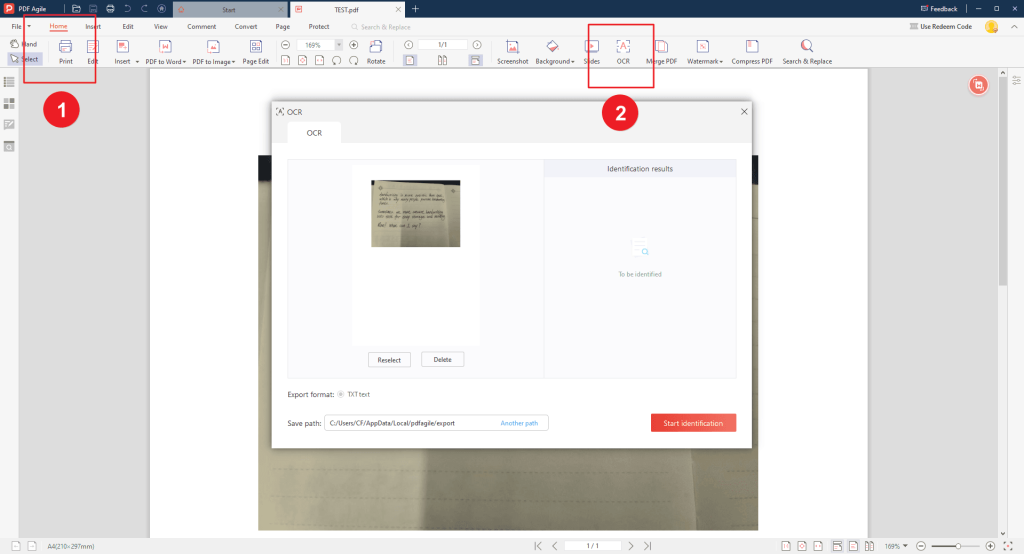
Step 3: Use OCR to Recreate Text
When fonts can’t be embedded (e.g., the PDF is a scanned image), use OCR. Upload the PDF to Google Drive, right-click, and open with Google Docs. Google Docs will automatically run OCR on the text. Then download the result as a PDF. This creates a new PDF with selectable, readable text. For more complex cases, consider a dedicated OCR tool.
Step 4: Try a Dedicated PDF Repair Tool
If the above steps don’t work, your PDF might have structural issues. Online tools like Sejda or pdfRepair.com can fix common corruption. Upload your file, let the tool analyze and repair it, then download the fixed version. This step is especially useful when you need to repair PDF file quickly without installing software.

Step 5: Manual Hex Edit (Last Resort)
For advanced users only: if all else fails, open the PDF in a hex editor (like HxD) and check the header. It should start with “%PDF-1.x”. If the header is corrupted, you can try to restore it by copying from a working PDF. This is risky and not recommended for beginners. Consider professional help or data recovery services instead.

Common pitfalls
- Not backing up the original file before attempting any repairs — you can’t undo mistakes.
- Using OCR on a PDF that is already corrupted at the file level — fix the structure first or use a dedicated repair tool.
- Over-embedding fonts, which can bloat the file size. Only embed fonts that are actually missing.
Where to next
If these steps didn’t fully fix your file, you might need more specialized help. Check out our guides on garbled PDF text, repair PDF file, or recover corrupted PDF document for deeper solutions. Each guide tackles different aspects of PDF repair, so you’re sure to find one that fits your situation.




