Ever had that sinking feeling when you try to open an important PDF and get an error message instead of your document? You’re not alone. Corrupted PDFs happen to everyone — maybe the file didn’t download properly, got mangled during a transfer, or just decided to throw a tantrum. This guide is for anyone who needs to recover a corrupted PDF quickly, whether you’re a student, office worker, or just someone who doesn’t want to lose that tax return. By the end, you’ll have a working PDF again, using methods that range from free online tools to command-line fixes.
We’ll cover five proven recovery techniques, starting with the simplest (online tools) and moving to more powerful options like Ghostscript and Adobe Acrobat. We also include a step to use specialized recovery software for really stubborn files. No matter how bad the corruption looks, there’s a good chance you can get your data back. Let’s dive in.
What You’ll Need
- A corrupted PDF file (obviously!)
- A computer with internet access
- Optional: Adobe Acrobat Pro (trial or paid)
- Optional: Ghostscript (free, open-source)
- A backup of the file (if possible)
Step 1: Identify the Corruption Type
Before you start repairing, take a quick look at the error message. Is it saying the file is damaged, unsupported, or just won’t open? This can hint at the severity. For example, a ‘cross-reference table’ error often means a structural problem, while garbled text suggests content corruption. Take note, but don’t stress — most methods work regardless.
Step 2: Try an Online PDF Repair Tool
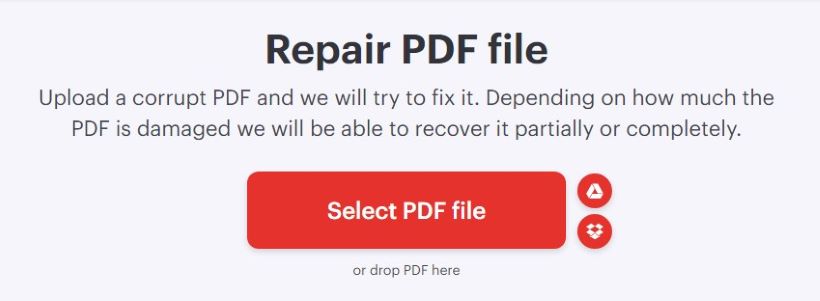
The quickest fix is a free online tool. Sites like iLovePDF or SmallPDF offer repair features. Just upload your file, wait a few seconds, and download the repaired version. This works for minor corruption, like missing fonts or small structural glitches. It’s safe for non-sensitive documents.
Step 3: Use Ghostscript to Repair
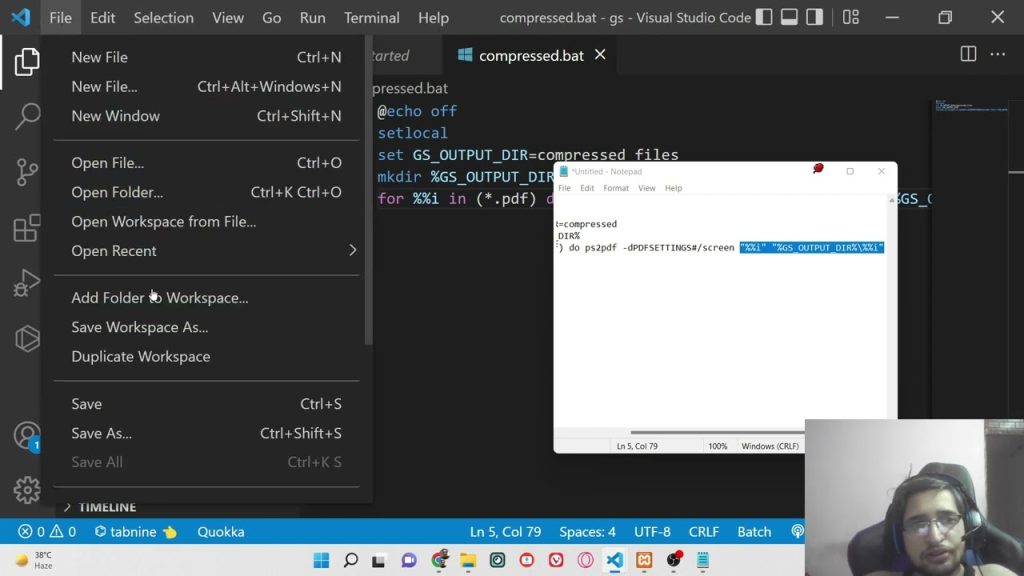
Ghostscript is a powerful command-line tool that can rebuild a PDF from the ground up. Download and install it, then open a terminal (Command Prompt on Windows) and run: gswin64c -o repaired.pdf -sDEVICE=pdfwrite damaged.pdf. This often fixes severe corruption. For more details, check out our guide on ghostscript repair pdf.
Step 4: Repair with Adobe Acrobat Pro
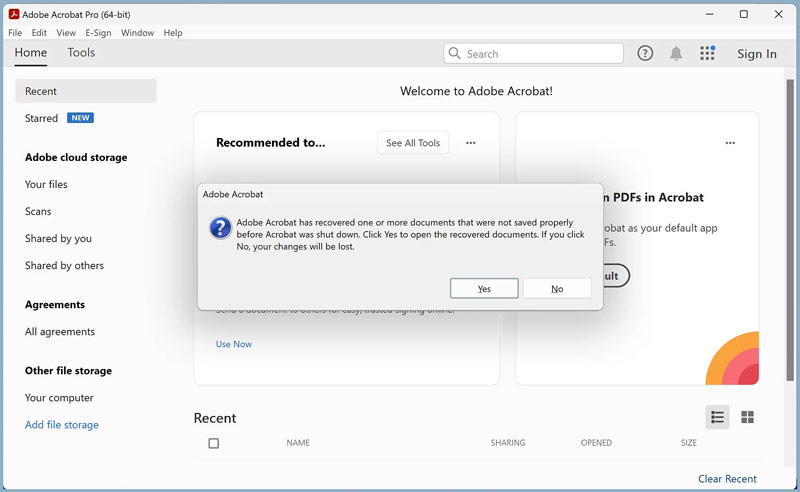
If you have Adobe Acrobat Pro (not just Reader), open the file. If it opens with errors, go to File > Save As Other > Optimized PDF. Click ‘Audit Space Usage’ then ‘OK’ to re-save. Alternatively, use File > Export To > Microsoft Word or Image, then convert back. This can recover content even if formatting is lost.
Step 5: Use Specialized Recovery Software
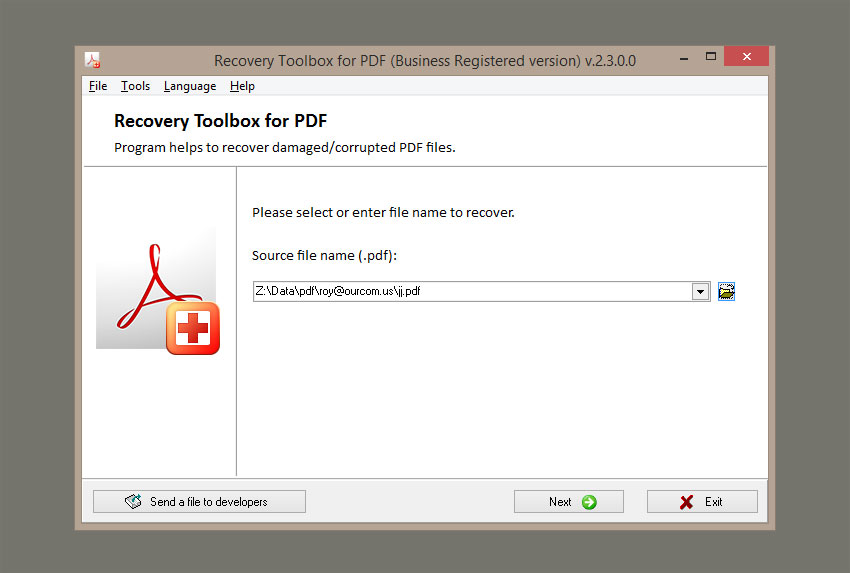
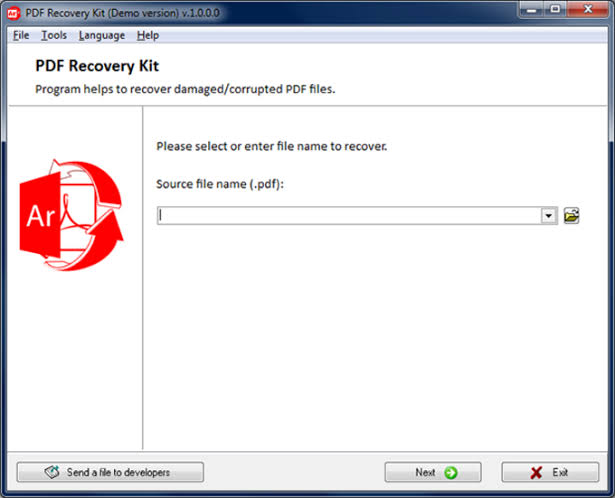
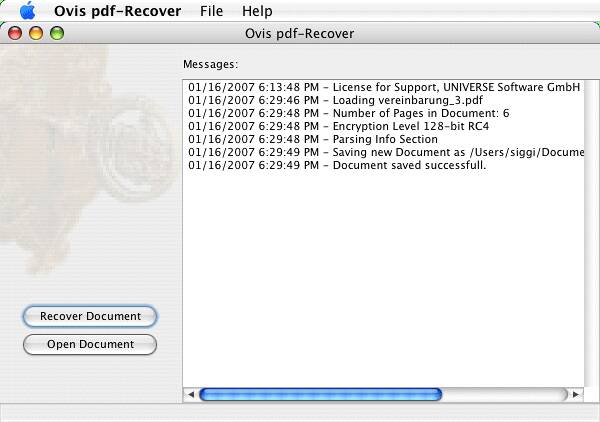
When all else fails, dedicated recovery tools can extract text and images from severely damaged files. Programs like Recuva (for deleted files) or SysTools PDF Repair can salvage what’s left. For a list of the best free options, see our pdf recovery software guide. This step is a last resort but often works.
Common Pitfalls
- Working on the original file without a backup: Always make a copy before trying any repair. One wrong move and the file might be beyond recovery.
- Using an online tool for sensitive documents: Uploading a confidential PDF to a free site is a security risk. Use offline methods instead.
- Expecting a 100% perfect recovery: Some corruption is too deep. You might get most of the text but lose formatting or images. That’s still a win.
Where to Next
Now that your PDF is back to life, you might want to learn how to prevent future corruption. Check out our guides on repair pdf document for general tips, repair pdf file for specific issues, and how to restore corrupted pdf for more advanced techniques. If you often work with PDFs, consider using backup software or a cloud service with version history. Happy reading!




