So you’ve got a PDF that won’t open, shows gibberish, or throws errors? You’re in the right place. This guide is for anyone who has a broken PDF and wants to fix it without spending money on expensive software. By the end, you’ll have a working PDF output, and you’ll know how to use Ghostscript—a free, open-source command-line tool—to repair even stubborn corruptions.
Ghostscript can interpret and regenerate the internal structure of PDF files, smoothing over many common problems. If you’ve already tried other methods like fixing xref tables or using mutool repair pdf, but still have issues, Ghostscript can be a lifesaver. It works on Windows, macOS, and Linux, and once you get the hang of the command, you can apply it to any broken PDF.
What You’ll Need
- A computer with internet access
- Ghostscript installed (we’ll cover installation in Step 1)
- A terminal or command prompt window
- A corrupted PDF file you want to repair
- Basic familiarity with typing commands
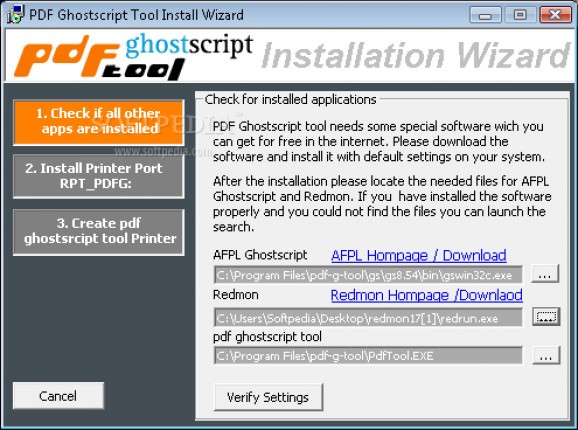
Step 1: Install Ghostscript
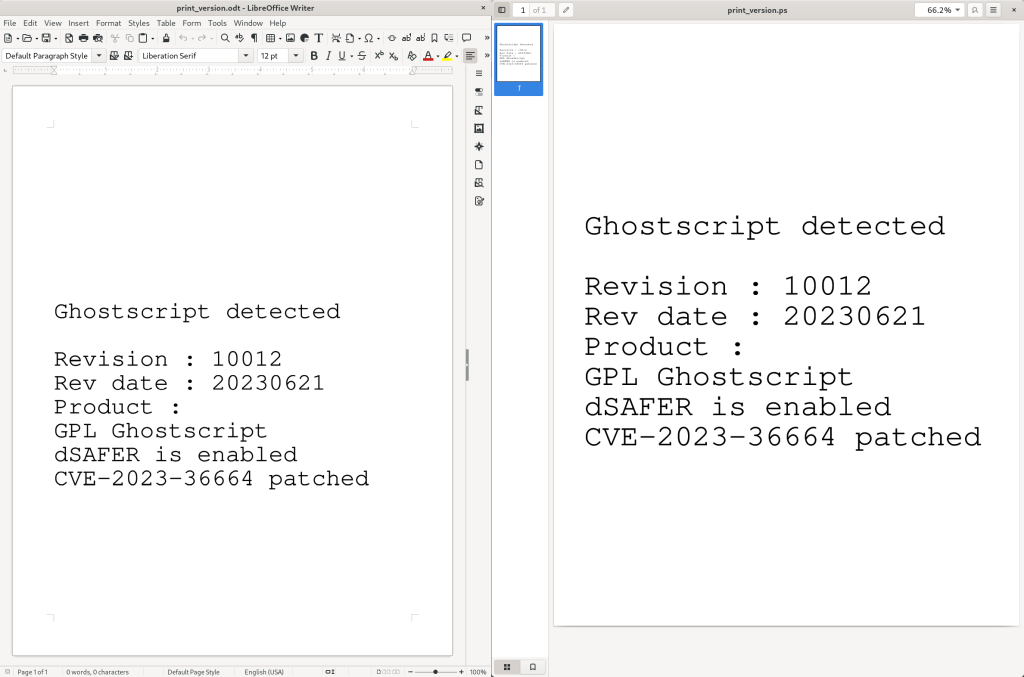
Head to the official Ghostscript downloads page and grab the installer for your operating system. On Windows, run the .exe and follow the prompts. On macOS, you can use Homebrew: brew install ghostscript. On Linux, use your package manager (sudo apt install ghostscript on Debian/Ubuntu). Once installed, verify by opening a terminal and typing gs –version. You should see a version number.
Step 2: Open Your Terminal
On Windows, press Win+R, type cmd, and hit Enter. On macOS, open Terminal from Applications > Utilities. On Linux, you know the drill. Navigate to the folder containing your corrupted PDF using the cd command. For example: cd C:UsersYouDocuments.
Step 3: Run the Basic Repair Command
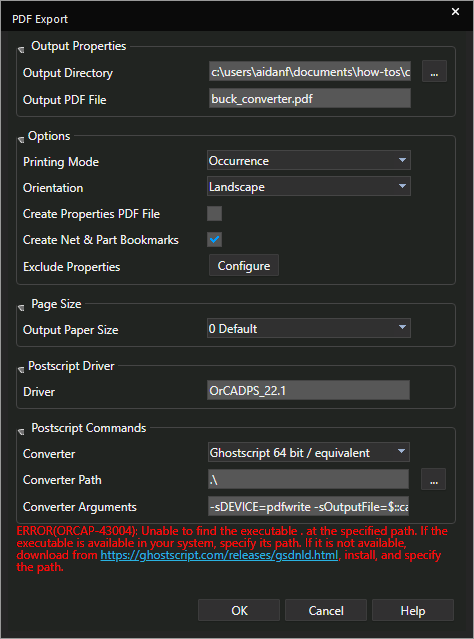
The core Ghostscript command to repair a PDF is: gs -o output.pdf -sDEVICE=pdfwrite -dPDFSETTINGS=/prepress input.pdf. Replace input.pdf with your broken file and output.pdf with the new filename. The -o flag tells Ghostscript to write output and exit. -sDEVICE=pdfwrite sets the output device to PDF. -dPDFSETTINGS=/prepress tries to preserve high quality. Hit Enter and watch the magic happen.
Step 4: Verify the Output
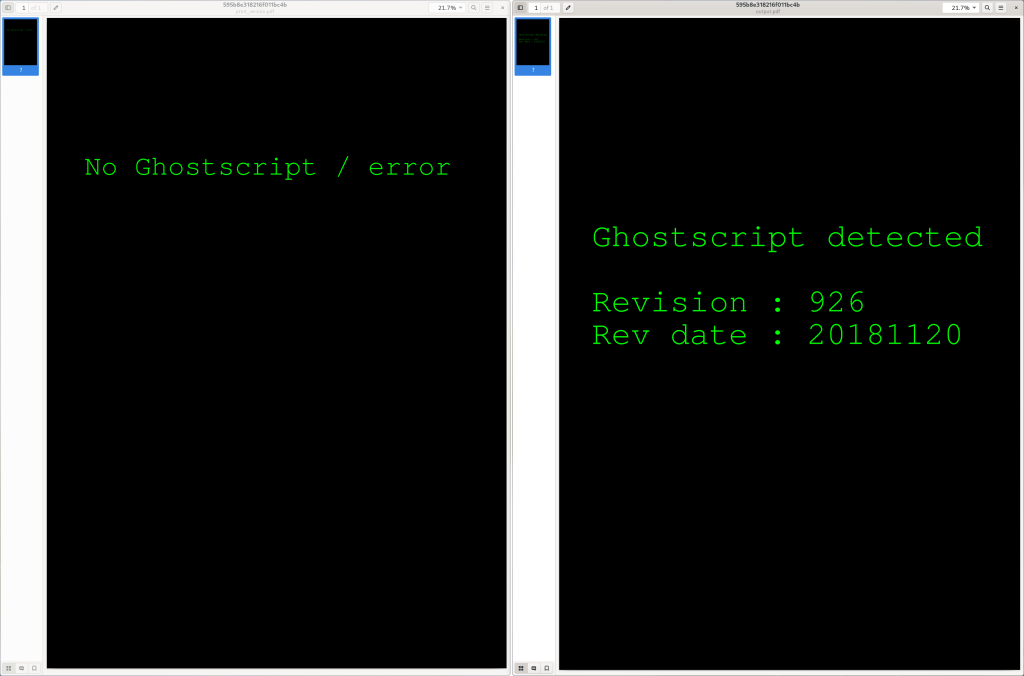
Once the command finishes, open the output.pdf file in your usual PDF viewer. Check that text is readable, images appear, and there are no error messages. If it works, you’re done! If the file is still broken, move to the next step.
Step 5: Try Advanced Repair Options
If the basic command didn’t fully repair your PDF, you can add extra flags to force a more thorough rebuild. Try: gs -o output.pdf -sDEVICE=pdfwrite -dPDFSETTINGS=/default -dNoOutputFonts -dNOGC -dCompressPages=false input.pdf. The -dNoOutputFonts flag strips embedded fonts (might cause reflow, but often fixes corruption). -dNOGC disables garbage collection for more stable reading. Experiment with these. Another powerful option is to use -dPDFSETTINGS=/screen for maximum compression, but it may lower quality.
Common Pitfalls
- Forgetting the -o flag: Without it, Ghostscript may hang or write to stdout. Always use -o output.pdf.
- Overwriting the original: The command writes a new file. If you accidentally set output.pdf to the same name as input.pdf, you might overwrite the original. Use a different name or back up first.
- Running the command from the wrong directory: Ensure your terminal is in the folder containing the PDF, or provide the full path. Otherwise, you’ll get a ‘file not found’ error.
Where to Next
Congrats—you’ve just repaired a PDF with Ghostscript! But if it still gives you trouble, consider other approaches. You can scan pdf for errors to pinpoint the issue, or try mutool repair pdf if Ghostscript didn’t cut it. For completely unopenable files, check out our pdf file not opening repair guide. And if you suspect the damage is from malware, the repair pdf after virus guide has you covered. Keep fixing!




