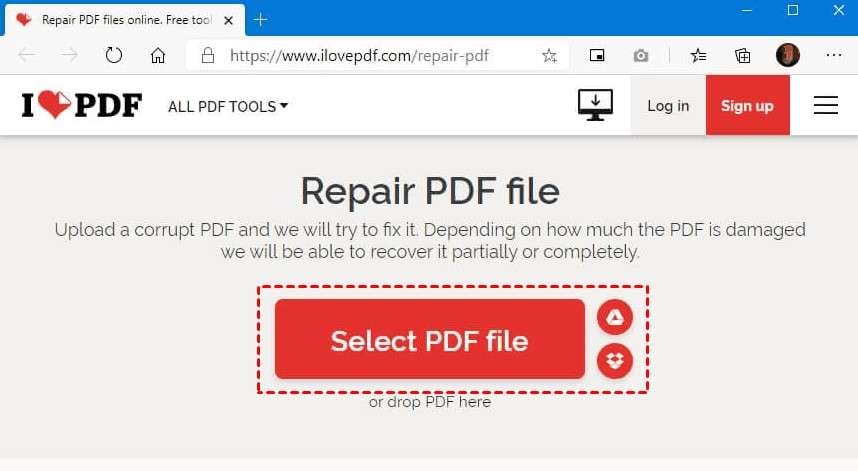
Let’s face it: a damaged PDF file is a huge pain. Maybe it won’t open, shows garbled text, or throws obscure errors. This guide is for anyone—from students with a broken textbook PDF to professionals with a corrupted report—who needs to get their file back. By the end, you’ll have a working PDF (or at least know exactly what’s salvageable). We’ll use free tools you probably already have, plus some clever tricks.
We’ll cover multiple recovery methods: from simple reader tricks to command‑line tools like Ghostscript. You don’t need to be a tech wizard—just follow the steps. And if all else fails, we’ll point you to further resources. Let’s get started.
What You’ll Need
- Your damaged PDF file (make a backup copy first!)
- A PDF reader like Adobe Acrobat Reader or Foxit Reader
- An internet connection (if using online repair tools)
- Ghostscript (free, open-source) – we’ll show you how to get it
- A text editor like Notepad++ (optional, for advanced fixes)
Step 1: Try Opening in Different PDF Readers
Before diving into repairs, test the file in another PDF viewer. Sometimes the damage is only with a specific program. For example, if Adobe Acrobat fails, try Foxit Reader or even your web browser (Chrome, Edge). This quick check can save you time. If the file opens fine elsewhere, you might just need to reinstall your default reader.

Still no luck? Move on to Step 2.
Step 2: Use an Online PDF Repair Tool
Online repair services are a great first line of defense. They can fix mild corruption without installing anything. Search for “free PDF repair online” and upload your file. Many sites let you repair small files for free, but you may lose some formatting or graphics. Before you do that, it’s smart to scan pdf for errors to understand what’s broken. We have a dedicated guide for that.
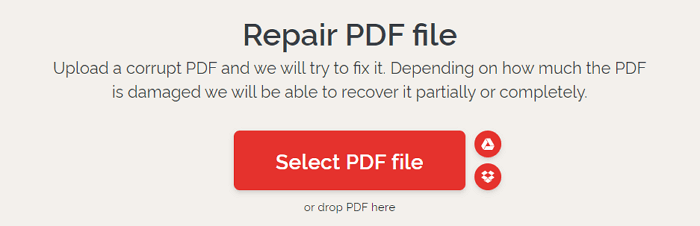
I’ve used a few services and suggest the ones that don’t keep your file on their server. For sensitive documents, skip online tools and go straight to the next step.
Step 3: Repair with Ghostscript (Command Line)
Ghostscript is a powerful free tool that can re‑render a corrupted PDF. If you’re comfortable with a command line, this is one of the most effective methods. First, download Ghostscript from the official site and install it. Then open your terminal (Command Prompt on Windows, Terminal on Mac/Linux). Run this command:
gs -o repaired.pdf -sDEVICE=pdfwrite -dPDFSETTINGS=/prepress damaged.pdf
Replace “damaged.pdf” with your file’s name. This tells Ghostscript to output a new PDF ignoring corrupted structures. For more details, check our step‑by‑step ghostscript repair pdf guide.
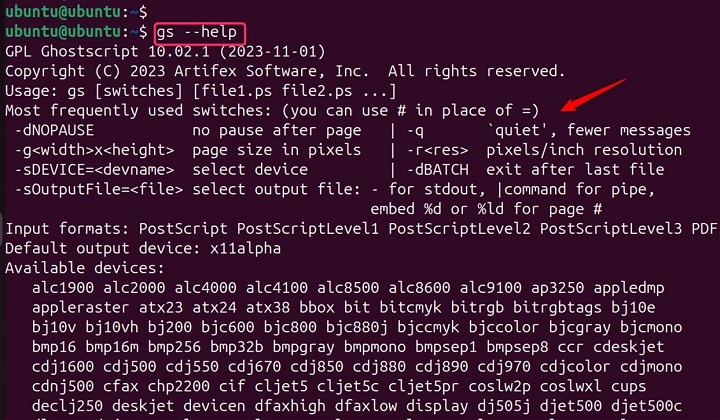
If this works, you’ll have a fresh PDF. If it fails, the file may need more advanced fixes like xref table repair.
Step 4: Fix the Xref Table (Advanced)
Many PDF corruption issues stem from a broken cross‑reference table (xref). This table tells the reader where each object is located. When it’s damaged, the file seems empty or throws errors. You can manually fix it with a text editor, but it’s tedious. Instead, use a dedicated tool. If you need to fix pdf xref table, we have a complete walkthrough that even beginners can follow.

The quick version: open the PDF with a hex editor, locate the “startxref” keyword, and verify the offset. But really, check our full guide because one wrong number can make things worse.
Step 5: Try PDF Repair Software
If all else fails, consider dedicated PDF repair software. Many offer free trials and can recover content from heavily damaged files. Tools like PDFelement or Recovery Toolbox for PDF can fix missing pages, broken links, and garbled text. For extreme cases, like a 0KB PDF, you might need specialized recovery. Our recover 0kb pdf guide covers that scenario.
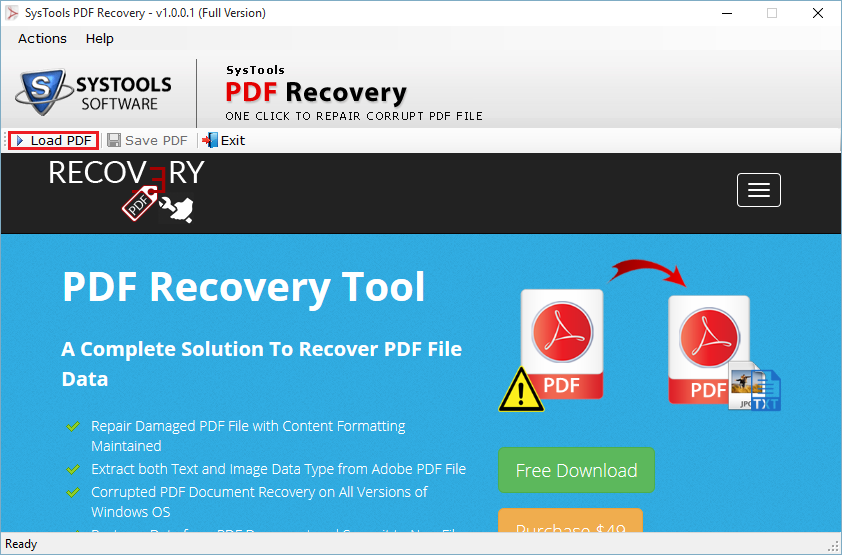
One word of caution: always repair a copy, not the original. And if the document is valuable, consider professional services.
Common Pitfalls
- Overwriting the original: Always work on a backup. Once you overwrite, you can’t undo the damage.
- Using low‑quality online tools: Some free sites reduce quality or inject watermarks. Read the fine print.
- Skipping the easy steps: Don’t jump to Ghostscript if a simple reader switch works. Start simple.
Where to Next
Hopefully one of these methods got your PDF working. If not, remember that not all damage is reversible. But there are more advanced techniques like recovering data from a corrupted file stream. Check out our other repair guides for specific issues, like fixing PDFs that won’t open on your phone or repairing after a virus infection. Good luck!




