
Have you ever tried to open an important PDF only to get an error message saying the file is corrupted or damaged? It’s frustrating, especially if that report, ebook, or contract is time-sensitive. This guide is for anyone who needs to restore a corrupted PDF—whether you’re a student, professional, or casual user. By the end, you’ll be able to recover most corrupted PDFs using free tools and techniques, and you’ll have a clean, working file you can open in any PDF reader.
We’ll cover the most common causes of PDF corruption (like incomplete downloads, virus infections, or zip extraction errors) and walk through several repair methods. You don’t need any special skills—just a computer and a bit of patience. Let’s get your PDF back in shape.
What You’ll Need
- A corrupted PDF file (the one you want to restore)
- A computer with an internet connection
- Optional: a backup of the original file (if you have one, keep it safe)
- Free software: Ghostscript and Mutool (download links provided in steps)
Step 1: Identify the Corruption Type
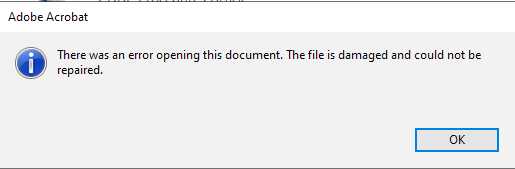
Before you start fixing, try to open the PDF in different readers to see the error. Common errors include ‘File is not a valid PDF’, ‘Cross-reference table’, ‘Unexpected EOF’, or blank pages. This will help you choose the best repair method. If the file opens partially, you might only need to rebuild the structure.
Step 2: Open in Different PDF Readers
Sometimes the issue is with a specific reader, not the file itself. Try opening the PDF in a different app like a web browser (Chrome, Firefox) or a lightweight reader. If it opens elsewhere, save a copy from that reader. On a Mac, you can use Preview. If it still fails, proceed to Step 3.

Step 3: Repair with Ghostscript
Ghostscript is a powerful command-line tool that can reinterpret and rebuild corrupt PDFs. First, download and install Ghostscript from its official website. Then open your command prompt (Windows) or terminal (Mac/Linux). Use the following command to create a new PDF:
gs -o repaired.pdf -sDEVICE=pdfwrite -dPDFSETTINGS=/prepress corrupted.pdf
Ghostscript command
Replace ‘corrupted.pdf’ with your file name. The new ‘repaired.pdf’ should open normally. If you get errors, try adding the `-dNOOUTERSAVE` flag. For a detailed walkthrough, see our guide to repair a PDF with Ghostscript.

Step 4: Use Mutool Clean
Mutool is part of the MuPDF suite and specializes in fixing PDF structure issues. Download MuPDF from the official site, then open a terminal. Navigate to the folder containing your PDF and run:
mutool clean corrupted.pdf repaired.pdf
Mutool clean command
The ‘clean’ command rewrites the file, fixing cross-reference tables and other structural errors. This works well for files damaged after zip extraction. Our Mutool repair PDF guide has more details.
Step 5: Try Online Repair Services
If command-line tools seem intimidating, several reputable online services can fix minor corruption. Upload your file to sites like iLovePDF or Smallpdf’s repair tool. For sensitive documents, avoid uploading confidential information. After repair, download the fixed file. This method is best for quick fixes but may not handle severe corruption.

Common Pitfalls
- Not backing up the original: Always keep the original corrupted file untouched in case your first attempt fails. Work on a copy.
- Using untrusted online tools: Some online services may retain your files or inject malware. Stick to known names or use local tools for sensitive docs.
- Ignoring error messages: The error message often tells you exactly what’s broken. For example, ‘xref table’ issues are ideal for Mutool. Don’t skip Step 1.
Where to Next
Now that you’ve restored your PDF, you might want to scan a PDF for errors to prevent future corruption. If your file was damaged after a virus infection, check out our guide to repair PDF after virus. And if you ever run into issues with PDFs from extracted zip folders, learn how to fix PDF after zip extraction. Happy reading!




