Are you staring at a PDF that won’t open, throws gibberish, or refuses to print? Before you give up, know that a free command-line tool called mutool can often save the day. Mutool is part of the MuPDF project — a lightweight PDF viewer and toolkit. This guide is for anyone comfortable using a terminal (Windows, macOS, or Linux) who wants to repair a damaged PDF without spending money on commercial software. By the end, you’ll have a working repaired file.
We’ll cover installing mutool, running a basic repair, using advanced options, and verifying the results. Along the way, you’ll also learn how to avoid common mistakes. If you’ve already tried other methods — like using an online tool to fix a PDF that won’t open on your phone — mutool is a solid offline alternative.
What You’ll Need
- A computer running Windows, macOS, or Linux
- Terminal / Command Prompt access
- The mutool binary (instructions provided)
- The corrupted PDF file (make a backup first!)
Step 1: Install Mutool
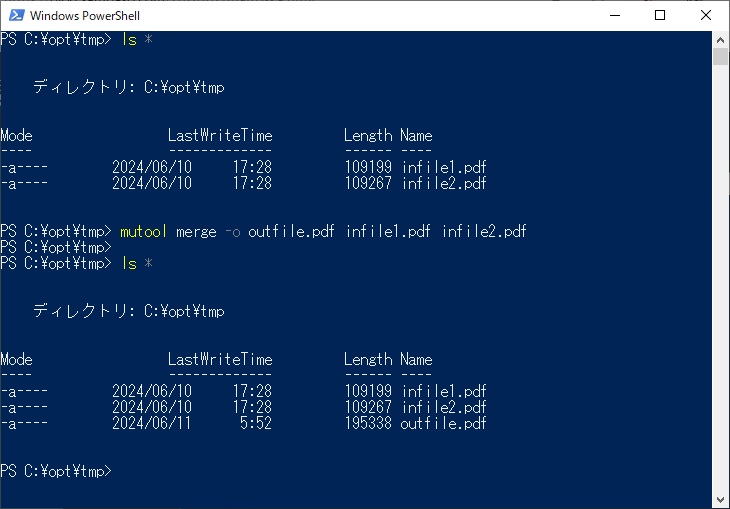
Mutool comes bundled with MuPDF. You can download a pre-built package from the official site or use a package manager. On Ubuntu/Debian, run: sudo apt install mupdf-tools. On macOS with Homebrew: brew install mupdf-tools. Windows users can grab the ZIP from mupdf.com and add the bin folder to your PATH. After installation, test with mutool --version. If you see a version number, you’re ready.
Step 2: Back Up Your Corrupted PDF
Always keep a copy of the original file. Mutool will overwrite the output file — if something goes wrong, you’ll want the original to try another approach. Copy the file to a new folder or rename it with a .bak extension. For example: cp broken.pdf broken.pdf.bak.
Step 3: Run Basic Repair
The main mutool command for repair is mutool clean. This command reads a PDF and writes a cleaned copy, fixing many common structural issues. Open your terminal and navigate to the folder containing your PDF. Then run:
mutool clean -d broken.pdf repaired.pdf
Terminal command
Here, -d (decompress) attempts to decompress and recompress streams, which can fix corruption. Replace broken.pdf with your input file and repaired.pdf with the desired output name. If the file opens successfully after this, you’re done. Otherwise, move to the next step.
Step 4: Use Advanced Options for Stubborn Files
Some PDFs have deeper issues — missing cross-reference tables, broken page trees, or corrupted fonts. Mutool has additional flags: -g (garbage collect) removes unused objects; -s (sanitize) attempts to fix malformed syntax; -c (clean) also performs a more thorough check. Try:
mutool clean -d -g -s -c broken.pdf repaired.pdf
Terminal command
If the file is still broken, you can also try mutool poster to extract pages one by one, or mutool draw to convert the PDF to images (which bypasses internal structure). For example: mutool draw -o page%d.png broken.pdf renders each page to PNG.
Step 5: Verify the Repaired PDF
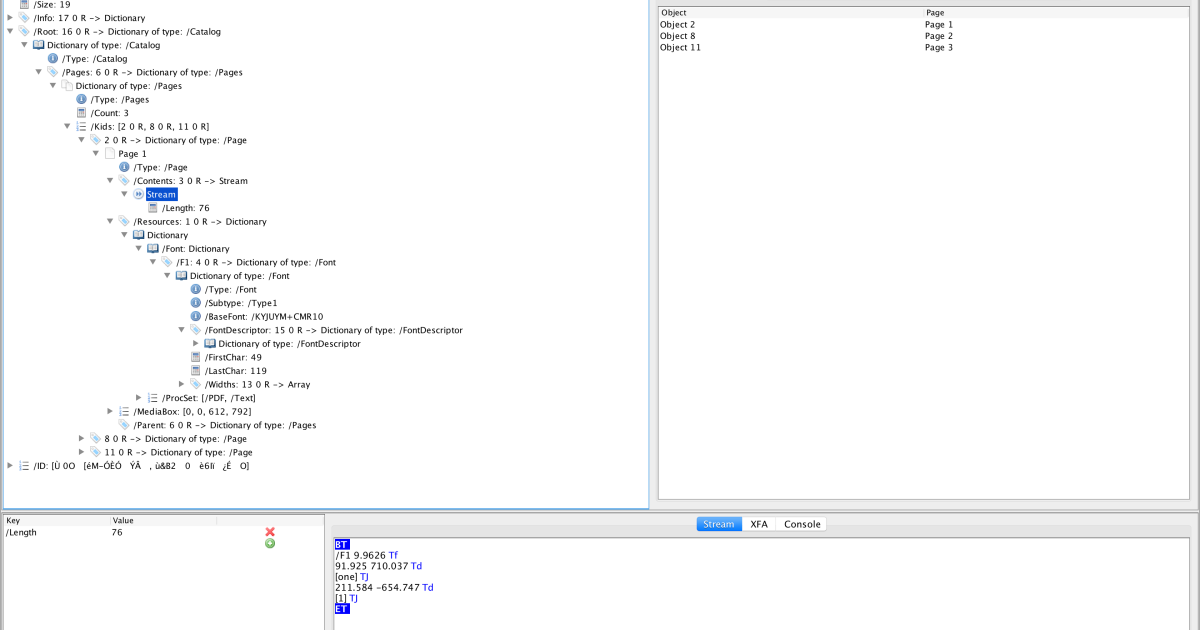
Open the repaired PDF in your favorite viewer. Check that all pages are present, text is selectable, and images display correctly. You can also run mutool info repaired.pdf to see if the metadata and page count look sane. If you encounter parse errors, mutool may still leave the file partly corrupted. In that case, consider using a different tool or combining mutool with one of our other guides — for instance, you can scan pdf for errors first to identify the problem, then decide whether to fix a corrupted PDF file with mutool or something else.
Common Pitfalls
- Forgetting to back up the original file — if mutool creates a broken output, you lose both copies.
- Using the wrong syntax — mutool is case-sensitive and flags must be placed before the input file.
- Not having write permissions to the output directory — mutool will silently fail or give a cryptic error.
Where to Next
Mutool is a powerful tool, but no single method works for every corruption. If your PDF still won’t cooperate, try our guides on how to recover 0kb pdf or fix PDF parse error. For online options, check out our article on how to repair a private PDF online if you prefer not to install software. And if you’re dealing with a PDF that simply won’t open, don’t miss our detailed walkthrough on how to fix a PDF that won’t open on your phone — many of those techniques also apply to desktop issues.




