So you’ve got a PDF that’s acting weird — random blank pages, garbled text, or maybe it just won’t open. Before you panic, you need to scan it for errors. This guide is for anyone who works with PDFs: students turning in papers, professionals sharing reports, or even just folks who downloaded a file that looks suspicious. By the end, you’ll know how to run a quick health check on any PDF and spot corruption before it bites you.
We’ll cover built-in tools in Adobe Acrobat, free online validators, and a couple of DIY methods that don’t require fancy software. The best part? Most of these scans take less than a minute. Let’s make sure your PDF is in tip-top shape.
What You’ll Need
- A PDF file you want to check
- A computer (Windows, Mac, or Linux)
- Optional: Adobe Acrobat Reader or Pro (free trial works)
- Optional: An internet connection for online tools
Step 1: Check Basic Properties
Start simple. Right-click your PDF and select ‘Properties’ (Windows) or ‘Get Info’ (Mac). Look for the file size and number of pages. A suspiciously small file for a supposed 100-page document might already be corrupted. Also check the creation and modification dates — if they’re weird, it’s a red flag.
Step 2: Use Adobe Acrobat’s Preflight Tool
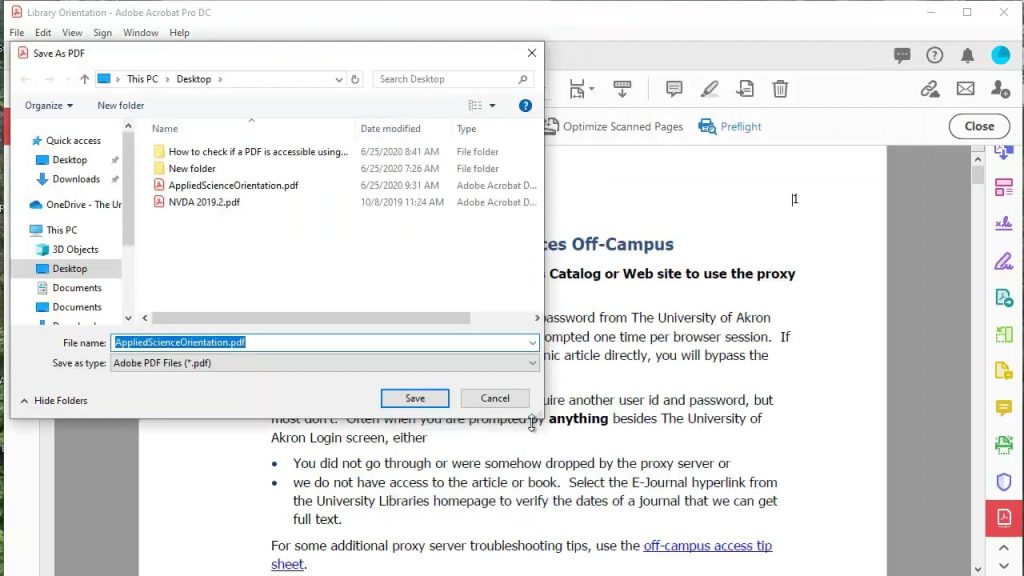
If you have Adobe Acrobat Pro, open the PDF, then go to ‘Tools’ > ‘Print Production’ > ‘Preflight’. Click ‘Analyze and fix…’ and choose ‘PDF fixups’ > ‘Verify compliance with PDF/X-1a:2001’ (or any standard). Acrobat will scan the file and list any issues. Even Acrobat Reader has a basic ‘Check Accessibility’ feature under ‘Tools’ > ‘Action Wizard’ that can reveal structural errors.
Step 3: Try an Online PDF Validator
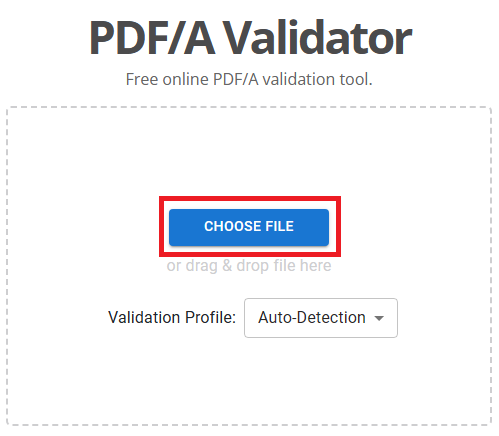
No Acrobat? No problem. Head to a free online tool like PDFtools or iLovePDF’s ‘Repair PDF’ feature. Upload your file and let it check for corruption. These services often catch things like missing fonts, broken images, or damaged metadata. They’re great for a quick scan, but keep sensitive docs offline for privacy.
Step 4: Open the PDF in Different Readers
Sometimes a PDF will work perfectly in one reader but choke in another. Try opening your file in a few free apps: Chrome’s built-in viewer, Edge, or a lightweight app like SumatraPDF. If it opens fine in one but not others, the file might be poorly structured rather than corrupted. This test is quick and tells you a lot about the file’s health.
Step 5: Use Command-Line Tools (Optional)
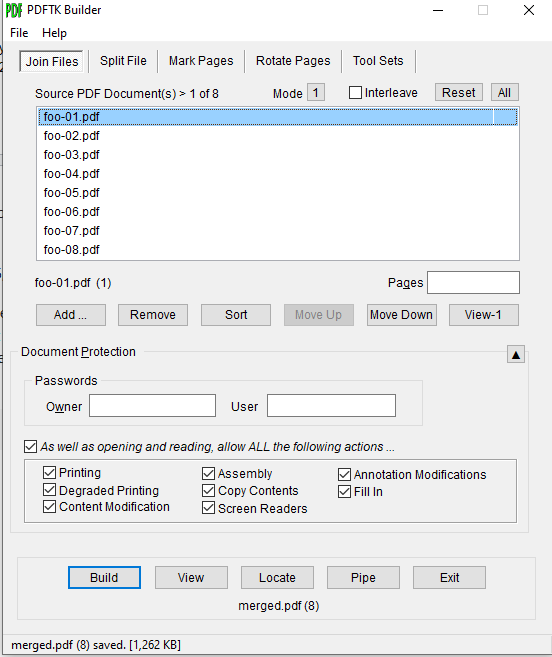
For the tech-savvy, command-line tools like PDFtk or QPDF can validate a PDF. Run ‘pdftk input.pdf output /dev/null’ and check for error messages. QPDF has a –check flag. This is the most thorough scan because it parses the entire file structure. If these tools report errors, your PDF definitely needs repairs.
Common Pitfalls
- False positives from badly designed PDFs — sometimes a file is fine but was generated by weird software. Use multiple tests before trashing it.
- Encrypted PDFs can confuse scanners. If your file is password-protected, you’ll need to decrypt it first. Our guide on how to fix encrypted pdf walks you through it.
- Very large files may time out on free online tools. Stick to desktop methods for anything over 50 MB.
Where to Next?
Once you’ve scanned your PDF and found errors, don’t worry — most are fixable. Check out our dedicated guides: if the file is totally blank, try our repair blank pdf guide; if it won’t open at all, see the pdf file not opening repair walkthrough; and if you suspect a virus messed things up, follow the repair pdf after virus steps. And if you want an even deeper dive, our pdf corruption checker tool is a must-read. Happy scanning!




