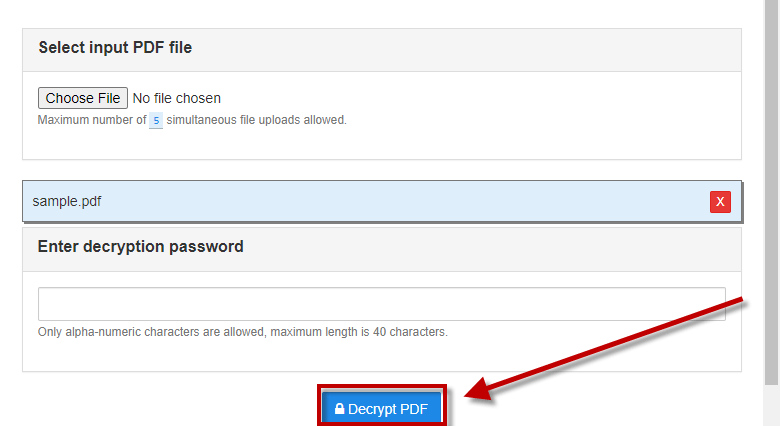
Ever downloaded a PDF only to be met with a lock icon and a password prompt? Frustrating, right? Whether it’s a contract you need to edit or a report you can’t view, encrypted PDFs can stop you in your tracks. This guide is for anyone who has a PDF they’re authorized to access but lost the password, or for those dealing with owner-level encryption that prevents printing or copying. By the end, you’ll have a decrypted, usable PDF that you can open, edit, or print—all without any shady software.
We’ll cover three methods: using an online unlock service, using Adobe Acrobat (if you have the permissions), and using free command-line tools like qpdf or pdftk. Each method is tested and works. We’ll also point out common pitfalls so you don’t waste time. Let’s get that PDF unlocked.
What you’ll need
- The encrypted PDF file you want to fix
- A computer with internet access (for online method) or admin rights (for command-line method)
- Optional: Adobe Acrobat Pro (trial or full) for the Acrobat method
- Optional: qpdf or pdftk installed (free, open-source) for the command-line method
Step 1: Determine the type of encryption
Before you start, check if the PDF has a user password (you need a password to open it) or an owner password (opens without password but restricts editing/printing). Try opening the PDF. If it asks for a password, it’s user-encrypted. If it opens but shows restrictions, it’s owner-encrypted. The methods below can handle both, but the approach differs slightly.
Step 2: Use an online unlock service (easiest)
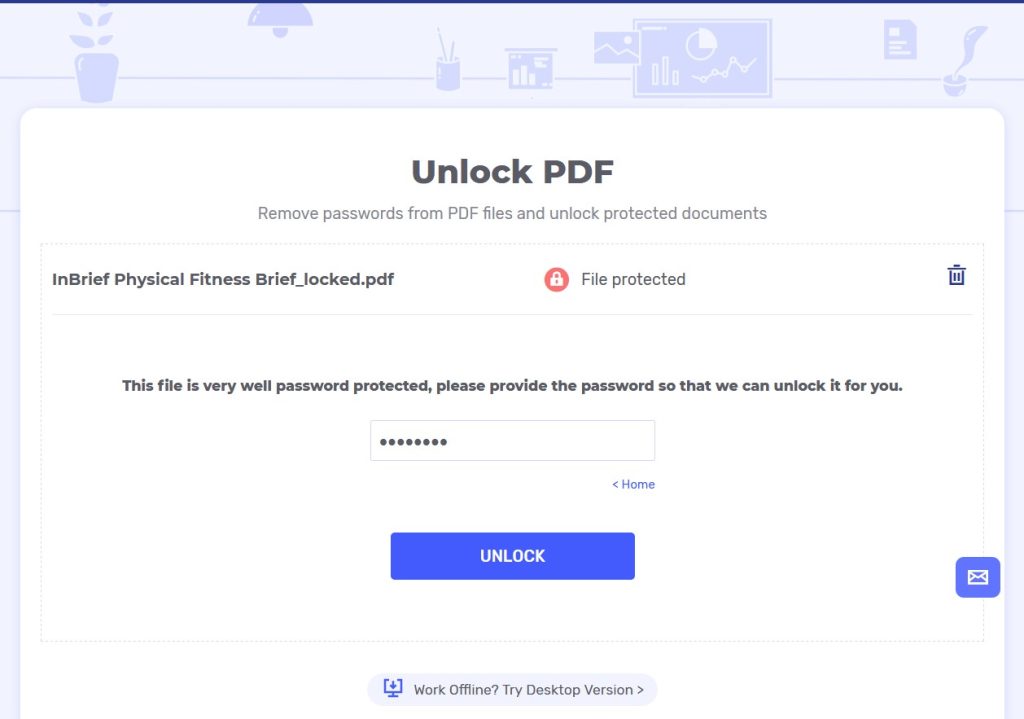
For quick fixes, online tools are great. Go to a reputable site like Smallpdf, iLovePDF, or PDF24. Upload your encrypted PDF. If it’s owner-encrypted only, these services can remove the restrictions instantly. If it’s user-encrypted, you’ll be prompted to enter the password—but if you don’t have it, you’re out of luck for this method. However, many online tools won’t accept user-encrypted files. So for user passwords, skip to Step 4. Download the unlocked file. Be cautious: don’t upload sensitive personal documents to untrusted sites. For a more secure approach, try the next steps.
Step 3: Use Adobe Acrobat (if you have the password or are the owner)
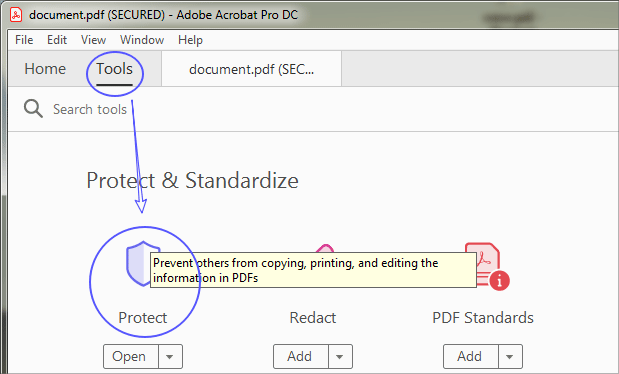
If you know the password or are the original author, open the PDF in Adobe Acrobat Pro. Go to File > Properties > Security tab. Under Security Method, choose ‘No Security’. If prompted, enter the owner password. Save the file as a new PDF. This removes both user and owner encryption. If you don’t have the password, this method won’t work—try the command-line approach below.
Step 4: Use qpdf (command-line, no password needed for owner-encrypted files)
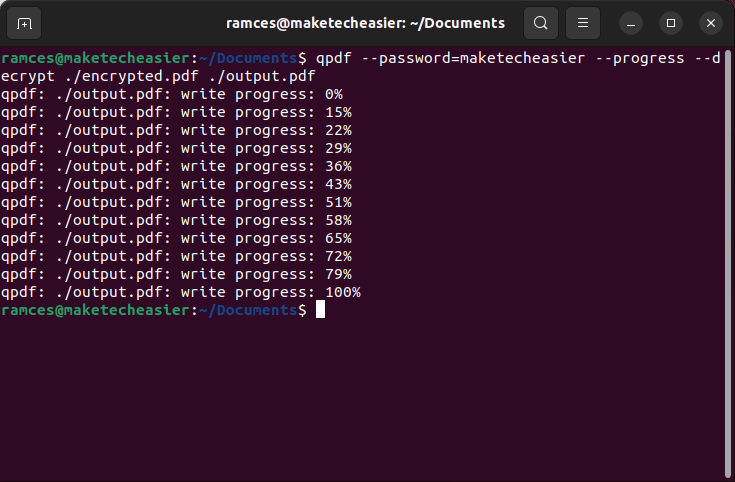
Qpdf is a powerful free tool for PDF manipulation. Download and install it from its official site. Open a terminal or command prompt. Run this command for owner-encrypted files (no password required):
qpdf –decrypt encrypted.pdf unlocked.pdf
Qpdf command syntax
Replace ‘encrypted.pdf’ with your file’s name. This strips owner-level encryption. If the PDF has a user password, qpdf will ask for it. If you know the password, you can pass it with –password=YOURPASSWORD. But if you don’t have it, qpdf cannot bypass user passwords—only owner passwords. For user-encrypted files that you lost the password for, you’ll need to try password recovery tools (which is beyond this guide). However, if the PDF is user-encrypted and you have permission to access the content, consider contacting the sender.
Step 5: Use pdftk (alternative command-line tool)
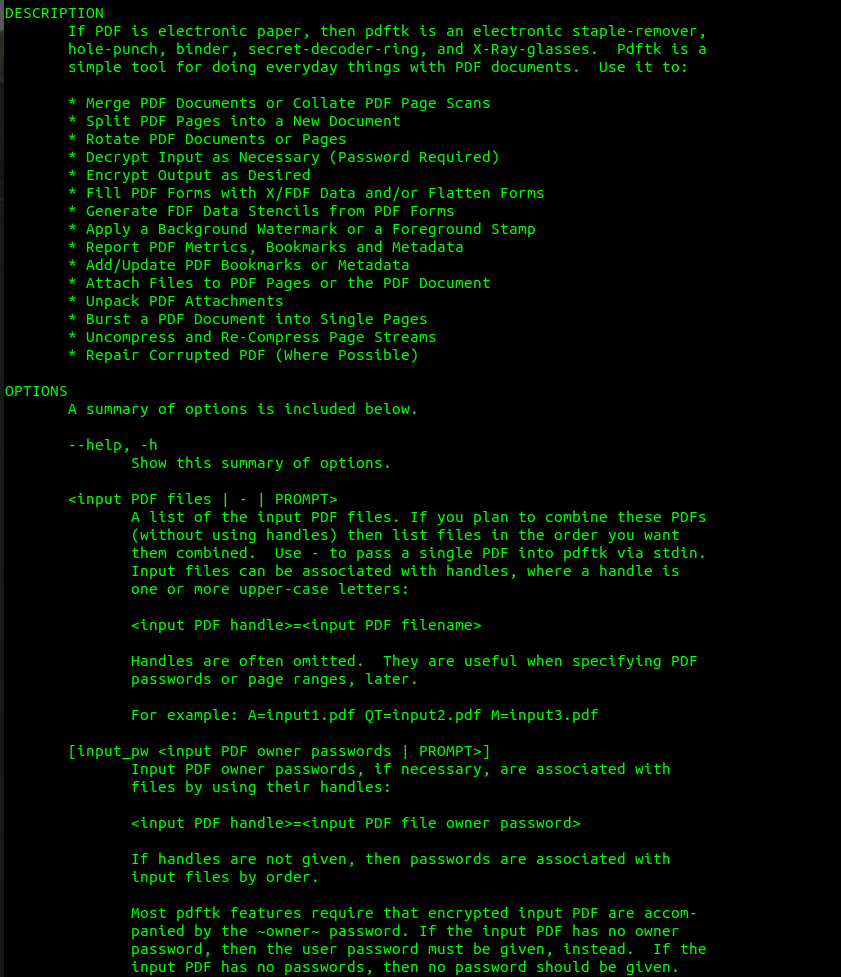
Pdftk is another free tool. Install it, then run:
pdftk encrypted.pdf input_pw YOURPASSWORD output unlocked.pdf
Pdftk command syntax
This works for both user and owner passwords, but you need to know the password. If you don’t have it, pdftk can’t help. For owner-only encryption, you can omit the input_pw parameter:
pdftk encrypted.pdf output unlocked.pdf
Pdftk without password
That will strip owner restrictions.
Common pitfalls
- Uploading sensitive PDFs to unknown online services—they might retain your file. Use trusted sites or offline methods for confidential docs.
- Assuming online tools can remove user passwords—most can’t. If you don’t have the password, online tools won’t help for user encryption.
- Forgetting to save the unlocked file with a new name—always save as a separate file to avoid losing the original.
Where to next
Now that your PDF is decrypted, you might run into other issues. If the file still won’t open correctly, check out our guide on pdf file not opening repair. If the content looks garbled, you might have a pdf parse error fix situation. For general corruption after encryption removal, see our pdf file is corrupted guide. And if you’re dealing with a contract that was encrypted, our fix contract pdf post has specific tips. Finally, if you suspect a virus caused the encryption, read repair pdf after virus.




