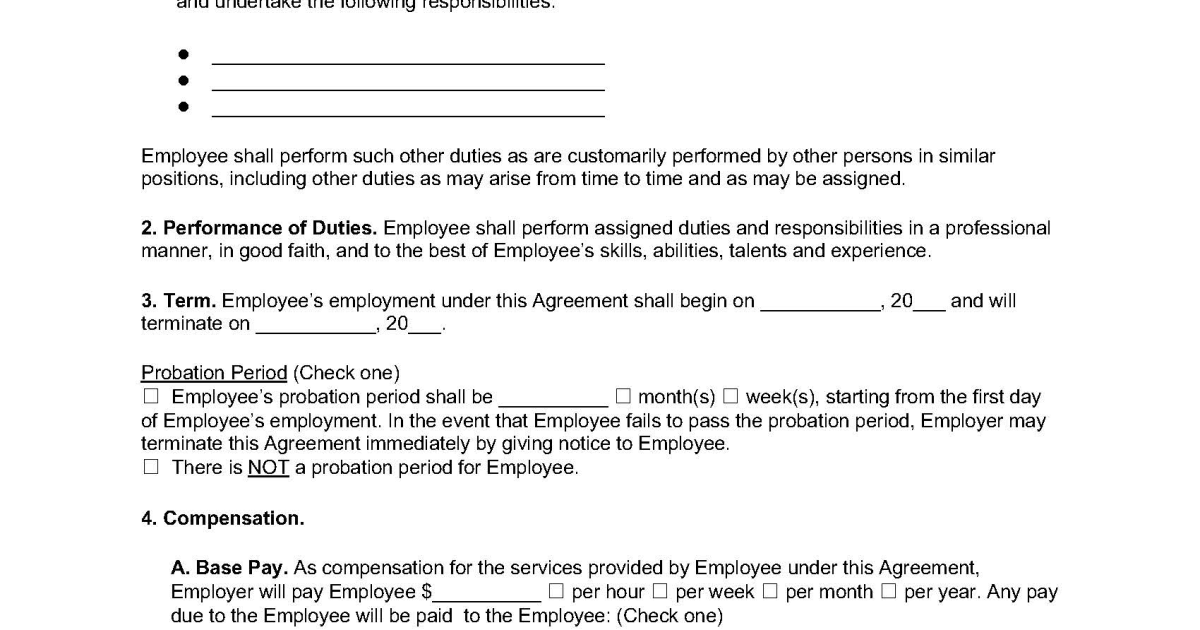
Contracts are some of the most important PDFs you’ll ever handle. When a PDF contract suddenly won’t open, shows garbled text, or throws an error, it can feel like a disaster. This guide is for anyone—freelancers, business owners, or legal pros—who needs to salvage a contract PDF without starting from scratch. By the end, you’ll have a working document you can review and sign.
We’ll walk through five proven methods, from simple checks to advanced repairs. No technical background is required. You’ll learn how to back up your file, use free online tools, and even edit the raw PDF code if needed. Let’s get that contract fixed.
What You’ll Need
- Your corrupted contract PDF file (keep the original safe).
- A stable internet connection for online tools.
- A PDF reader (Adobe Acrobat Reader, Foxit, etc.) installed.
- Optional: a PDF repair tool (like Wondershare Repairit or SysTools).
- Optional: a hex editor for manual fixes (e.g., HxD).
Step 1: Back Up the Original File

Before any repair, make a copy of the original corrupted PDF. Right-click the file and select Copy, then paste it into a folder you’ll remember. Store the original somewhere safe. If something goes wrong during repair, you can always go back to the original and try another method.
Why this matters: Some repair tools modify the file directly. A backup gives you a safety net. Also, keep a copy on a separate drive or cloud storage for extra protection.
Step 2: Check for Basic Errors in Your PDF Reader

Open the PDF in your default reader. Note the error code or message. Then try opening it in a different reader (like Google Chrome’s built-in PDF viewer). Sometimes the issue is with the reader, not the file. If the PDF opens in another program, that’s a clue—your reader might need an update or reinstall.
If the PDF still doesn’t open, look up the error message online. Many common errors (like a PDF not opening) have quick fixes. For instance, Adobe Acrobat’s “File is damaged and could not be repaired” message often means a structural issue we can fix in later steps.
Step 3: Use a Dedicated PDF Repair Tool
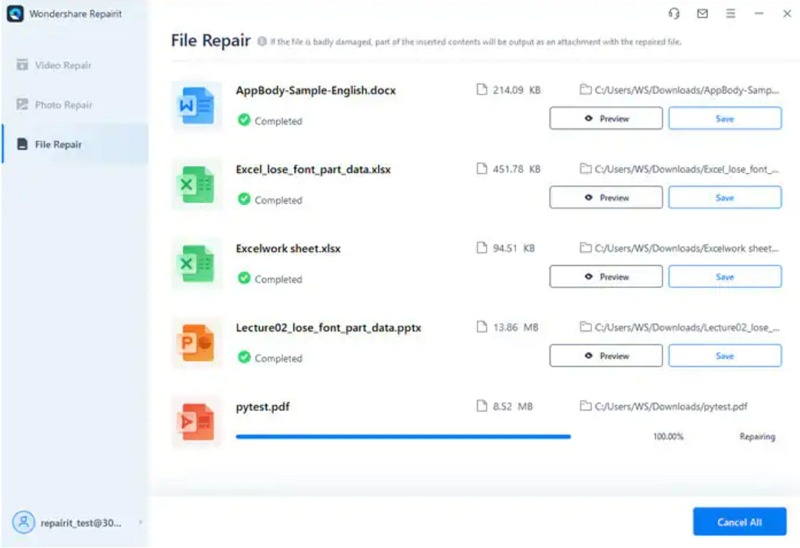
If the basic check fails, a dedicated repair tool is your best bet. Download a reputable tool like Wondershare Repairit (paid) or SysTools PDF Repair (free trial). Open the program, click “Add File,” select your contract PDF, and click “Repair.” The tool will scan the file structure and fix common issues like cross-references or broken streams.
After repair, save the fixed version with a new name (e.g., “contract-fixed.pdf”). Open it in a reader to verify. If it works, you’re done. If not, move to the next step.
Step 4: Try an Online Repair Service
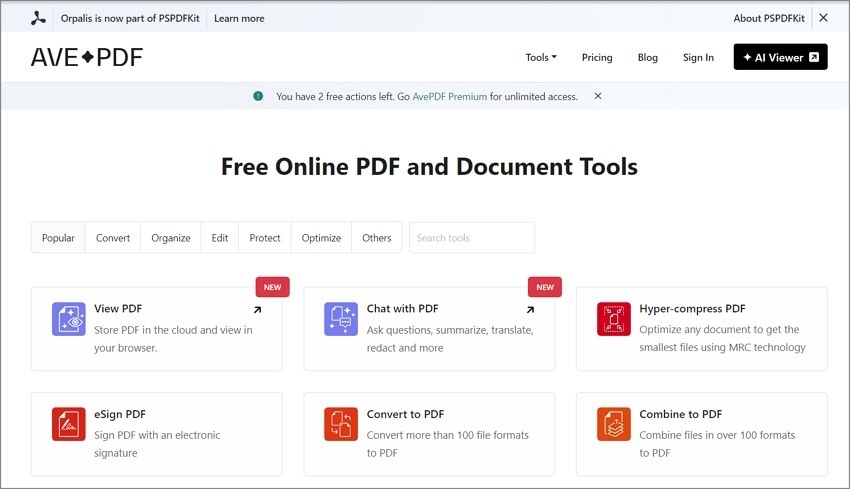
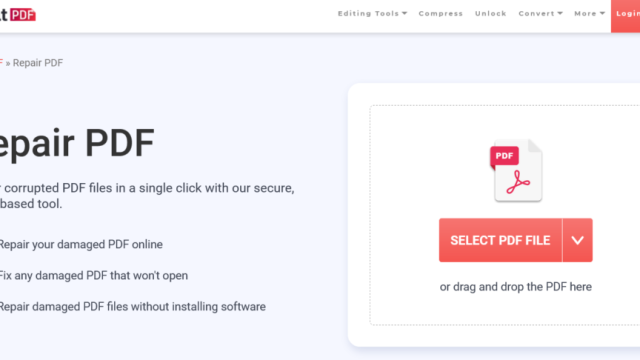
Don’t have a desktop tool? Online services can fix many corruption types. Go to a trusted site like PDFRepair.click or Smallpdf. Upload your contract PDF (make sure it’s not highly confidential—use a local tool if it is). The service will reprocess the file and let you download a repaired version.
Online tools work well for virus-infected PDFs or files damaged during download. They’re also great for partially corrupted PDFs where only some pages are broken. If the online fix succeeds, download and double-check every page of the contract.
Step 5: Manual Fix with a Text Editor (Advanced)
If all else fails, you can try a manual fix. This requires a hex editor (like HxD) and some familiarity with PDF structure. Open the corrupted PDF in the hex editor. Look for the normal PDF header “%PDF-1.x” at the start. If it’s missing or corrupted, you can correct it. Also, check for stray bytes or repeated sections. This method is tricky but can salvage edited PDFs or blank PDFs that have lost their content.
After editing, try opening the PDF again. If it works, great! If not, you may need to restore a backup or re-create the contract from an earlier version. Remember, manual editing is a last resort—most people will succeed with Steps 1-4.
Common Pitfalls
- Skipping the backup: If you modify the original file and it becomes worse, you may lose the contract entirely. Always work with a copy.
- Choosing an untrustworthy online tool: Some sites steal your data. Stick to well-known services or desktop tools for sensitive contracts.
- Ignoring reader-specific errors: A corrupted PDF might open fine in Chrome but not in Adobe. Don’t assume the file is damaged—test multiple readers first.
Where to Next
You’ve just fixed your contract PDF. To avoid future heartache, check out our guides on preventing corruption: we cover how to handle virus-infected PDFs, what to do when a PDF not opening is the symptom, tips for edited PDFs, and how to recover a blank PDF. For quick fixes, our article on partially corrupted PDFs is a must-read.