Ever opened a PDF only to see garbage characters, missing pages, or a scary error message? Don’t panic. You don’t need expensive software or tech skills to fix it. This guide is for anyone who just wants a working PDF again, using only the browser they already have. By the end, you’ll know four dead-simple methods to repair a corrupted PDF without downloading a single program.
Whether you’re dealing with a mildly broken file or a completely unreadable mess, these browser-based tricks will save you time and frustration. We’ll start with the easiest fix and work up to more powerful options. Let’s turn that error into a readable document.
What You’ll Need
- A modern browser (Chrome, Firefox, Edge, or Safari)
- Your corrupted PDF file
- A stable internet connection (for online tools)
- A Google account (optional, for Google Drive method)
Step 1: Open and Re-Download Using the Browser’s Native PDF Viewer
Browsers have built-in PDF viewers that can sometimes handle minor corruption. Simply drag and drop your PDF into a new tab. If it opens at all, try viewing it in full screen and then hit Ctrl+S (or Cmd+S on Mac) to save a fresh copy. This re-saves the file with a clean structure, often fixing display glitches.
If the PDF doesn’t open, try renaming it to remove unusual characters, or re-download it from the original source. Sometimes corruption happens during transfer, so a fresh download works wonders. For more stubborn cases, see our guide on how to repair corrupted pdf using other methods.
Step 2: Use the Browser’s “Print to PDF” Feature
This trick re-renders the PDF as a brand new file, stripping away many corruption issues. Open the PDF in your browser (if it opens), then press Ctrl+P (or Cmd+P). In the print dialog, select “Save as PDF” as the destination (in Chrome/Firefox/Edge). Click Save. This creates a clean PDF from what the browser can render. It’s especially helpful for fixing a pdf file is invalid error because it rebuilds the file structure.
Note: This method may lose some interactive elements like forms or hyperlinks, but it’s perfect for fixing fix incomplete pdf issues where pages are missing or garbled.
Step 3: Use a Dedicated Online PDF Repair Tool
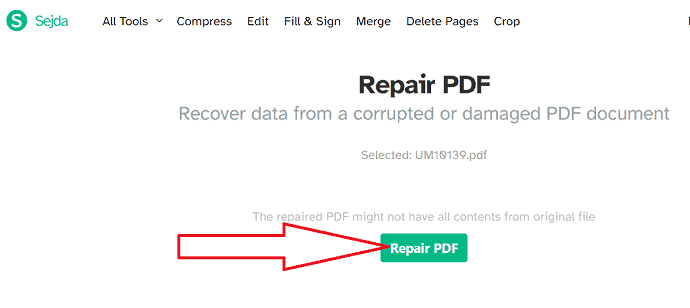
For tougher corruption, try an online repair service. Tools like Smallpdf, iLovePDF, or PDF2Go offer free browser-based repair. You upload the broken PDF, they process it on their servers, and you download a repaired version. This works great for a corrupted pdf repair online scenario when nothing else opens the file.
Most services have size limits (often up to 100 MB), but they can handle severe corruption. Just make sure you’re not uploading sensitive data if the file is confidential. For smaller files under 10 MB, many tools offer immediate repair. Check out our dedicated guide on corrupted pdf repair online for detailed steps.
Step 4: Use Google Drive to Recover the PDF
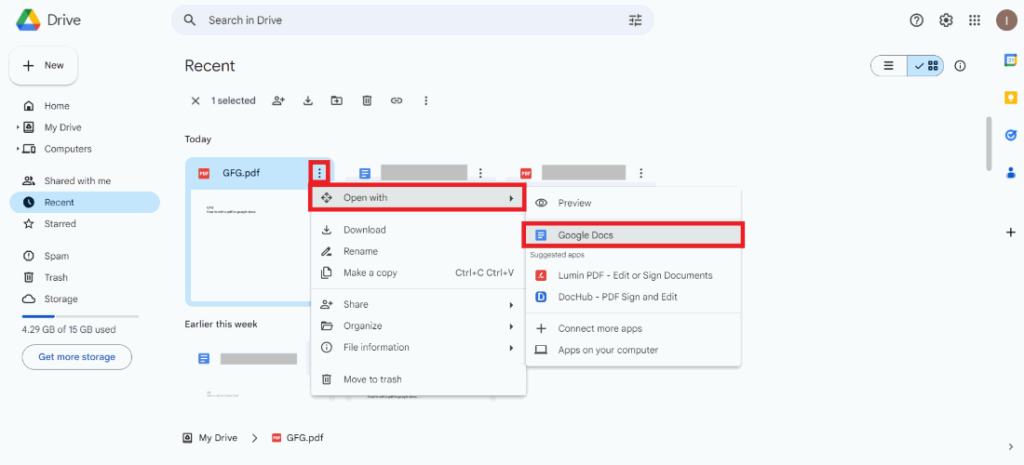
Google Drive can often salvage PDFs that other tools can’t. Upload the corrupted PDF to Google Drive, right-click it, and choose “Open with > Google Docs”. Google Docs will attempt to convert the PDF into an editable document. Even if the conversion is messy, you can then download it as a PDF again via “File > Download > PDF Document”. This process often fixes structural corruption.
It’s especially useful for repair small pdf file issues where the file is only a few pages. However, complex layouts may get scrambled. Still, it’s a solid backup plan. For extremely broken files, you might need to combine this with other methods.
Common Pitfalls
- File is too large for free online tools – many cap at 100 MB. Try splitting the PDF first or use a desktop app.
- Privacy concerns – avoid uploading sensitive documents to free online services. Use the browser print method or Google Drive for better control.
- Partial corruption – sometimes only parts of the PDF are damaged. The methods above may fix most of it, but you could lose some content. Try extracting pages first using extract pages from damaged pdf technique.
Where to Next?
You’ve got your PDF back! But if corruption keeps happening, check out our guides on preventing PDF issues and fixing specific errors. For example, learn how to fix incomplete pdf or deal with a pdf file is invalid message. And if you often work with small files, our repair small pdf file article has tailored tips. Happy reading!




