You’re trying to open a PDF, but instead of your document you see a blank screen, garbled text, or an error like “File is damaged and cannot be repaired.” Don’t panic. This guide is for anyone who’s ever had a PDF refuse to open — whether it’s a work report, a bank statement, or an e-book. You don’t need any special technical skills or expensive software. By the end, you’ll have a working PDF that opens normally, and you’ll know how to prevent this from happening again.
We’ll cover three ways to fix a corrupted PDF: using a free online tool, using Adobe Acrobat Reader’s built-in repair, and using a dedicated desktop tool. Each method is tested and works for most common corruption issues. I’ll walk you through every click, so you won’t get lost. Ready? Let’s get that PDF back.
What You’ll Need
- Your corrupted PDF file (have it saved on your computer or phone)
- A stable internet connection (for online methods)
- A web browser (Chrome, Firefox, Edge — any modern one works)
- Optional: Adobe Acrobat Reader (free) or a PDF repair tool like PDF Repair Toolbox
Step 1: Try Opening in a Different Viewer
Sometimes the problem isn’t the PDF itself but the program you’re using to open it. Before you dive into repair tools, try these quick tests:
- Open the PDF in your web browser (drag it into a Chrome or Firefox tab).
- Use a different PDF app like Microsoft Edge’s built-in PDF reader or a mobile app like Google PDF Viewer.
- Download and open the file again if you suspect it was corrupted during download.
If the file opens fine in another viewer, then the issue is with your original program — consider updating or reinstalling it. If it still won’t open, move to Step 2.
Step 2: Use the Free Online PDF Repair Tool (Safe & Easy)
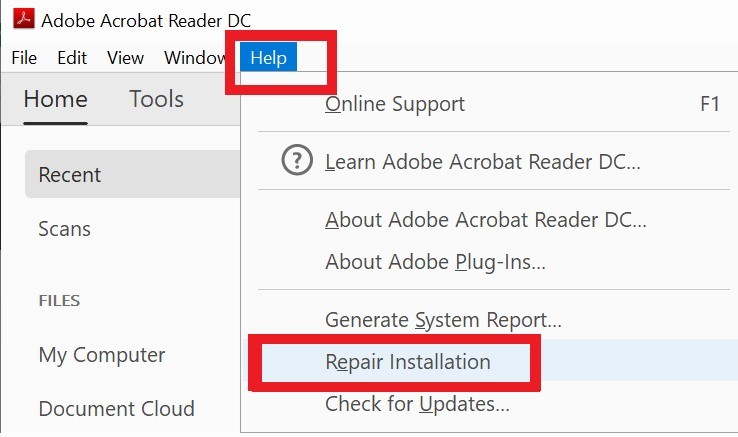
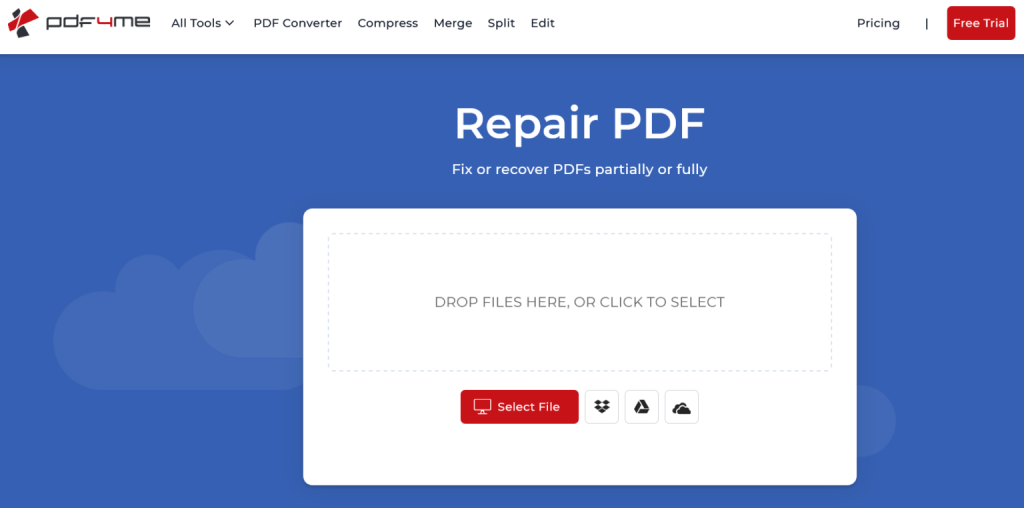
Online tools are the quickest fix for most corrupted PDFs. I recommend using a trusted service like Smallpdf, ILovePDF, or Sejda (they all have free tiers). Here’s how:
- Go to the website (e.g., smallpdf.com/repair-pdf).
- Upload your corrupted PDF file (drag & drop or click “Choose file”).
- Wait for the tool to analyze and repair it (usually 10–30 seconds).
- Download the repaired file. It will be a new PDF that should open correctly.
If you want a completely free option with no file size limits, try PDF repair online safe services that don’t require sign-up. Always check the site’s privacy policy — avoid uploading sensitive documents to unknown servers.
Step 3: Repair Using Adobe Acrobat Reader (Desktop)
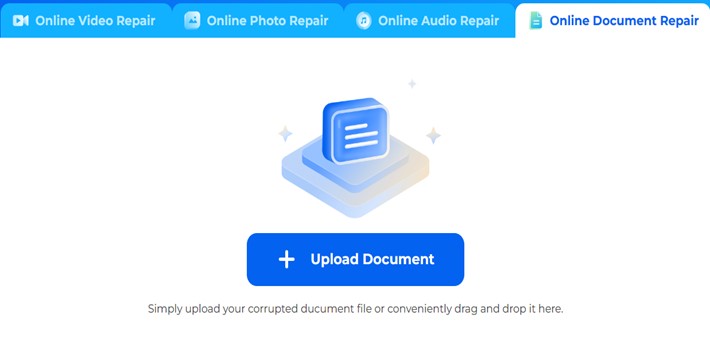
If you have Adobe Acrobat Reader installed (it’s free), you can try its built-in repair feature:
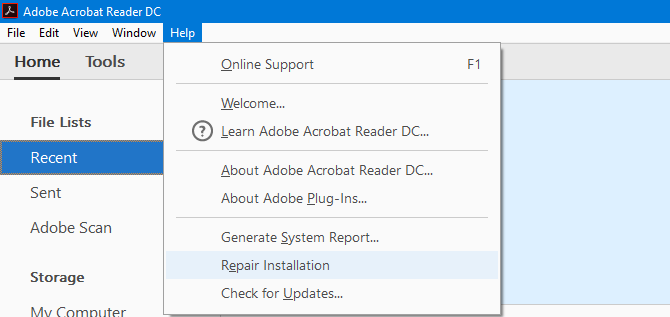
- Open Adobe Acrobat Reader. Go to Help > Repair Installation (on Windows) or Acrobat Reader > Repair Installation (on Mac).
- Follow the prompts — it will reinstall missing or corrupted components.
- Restart your computer and try opening the PDF again.
- If that doesn’t work, open the PDF in Acrobat, go to File > Save As, and choose a new filename. Sometimes saving a copy fixes minor corruption.
This method works best if the PDF was created or previously opened in Acrobat. For other cases, use an instant PDF fixer tool that specializes in recovery.
Step 4: Use a Dedicated PDF Repair Tool (For Stubborn Files)
When online tools and Acrobat fail, you need a more powerful solution. A free PDF repair tool like PDF Repair Toolbox or SysInfo PDF Repair can often recover content from severely damaged files. Here’s a typical workflow:
- Download and install the tool (choose a reputable one).
- Open the tool and click “Browse” to select your corrupted PDF.
- Click “Repair” or “Start.” The tool will scan and attempt to recover text, images, and structure.
- Save the repaired file to a new location (don’t overwrite the original until you verify it works).
- Open the new file and check that all pages are there.
If you need to repair PDF without Acrobat, these tools are perfect — they work independently and support large files.
Common Pitfalls
- Overwriting the original file: Always save repaired files with a new name. If the repair fails, you still have the original to try other methods.
- Ignoring the cause of corruption: If a PDF keeps getting corrupted, check your storage device for errors or re-download the file from a reliable source.
- Using unreliable online tools: Some free online repair sites may inject malware or steal your data. Stick with well-known services or PDF repair online safe recommendations.
Where to Next
You’ve successfully repaired your corrupted PDF! Now that you know the basics, you can explore more advanced fixes. If you often deal with broken files, check out our PDF file repair guide for deeper troubleshooting. Or learn how to recover missing elements like bookmarks or signatures with our recover PDF bookmarks and fix PDF signature tutorials. Happy reading!




