So you’ve got a corrupted PDF that won’t open properly—maybe it shows garbage characters, throws an error, or only loads half the pages. Before you give up and lose all that data, know that you can often extract individual pages that are still intact. This guide is for anyone who has a corrupted PDF (whether it’s a report, ebook, invoice, or certificate) and wants to salvage whatever readable content remains. By the end, you’ll have a set of separate PDF files, each containing a single page that you can open and use.
We’ll cover three reliable methods: using a free desktop tool (PDF24), using Adobe Acrobat (if you have it), and using an online service. All methods are beginner-friendly and don’t require any technical skills. Let’s dive in.
What You’ll Need
- A corrupted PDF file (the one you want to salvage pages from)
- A computer with internet access (for online tools or downloads)
- Optional: Adobe Acrobat Pro (paid, but has robust extraction features)
- Optional: PDFtk or other command-line tools (if you’re comfortable with the terminal)
Step 1: Try Opening the PDF in a Different Viewer
Sometimes the corruption is viewer-specific. Before you try extraction, open the PDF in a different program. For example, if it fails in Adobe Acrobat, try a web browser (Chrome, Edge) or a lightweight reader like SumatraPDF. If some pages render, note which ones are readable—you can target those pages for extraction. This step is quick and might save you time.
Step 2: Use PDF24 (Free Desktop Tool)
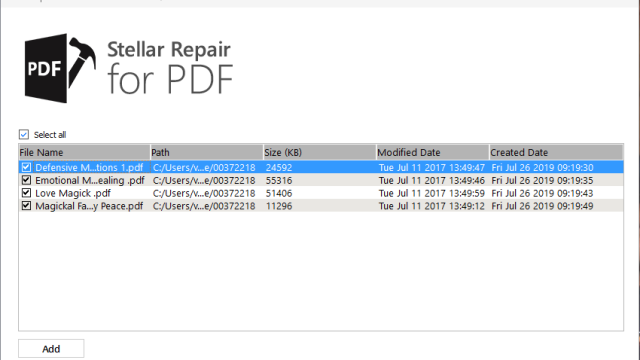
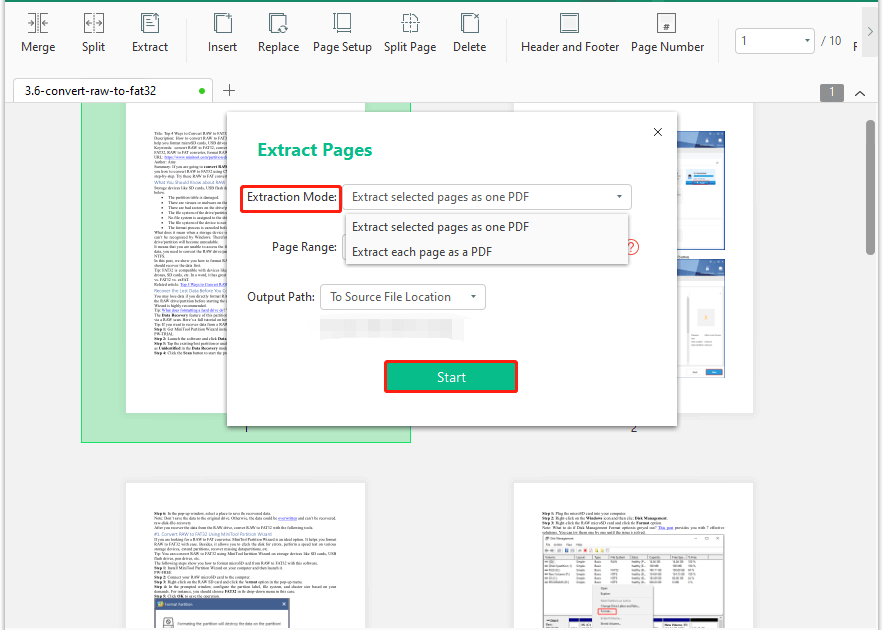
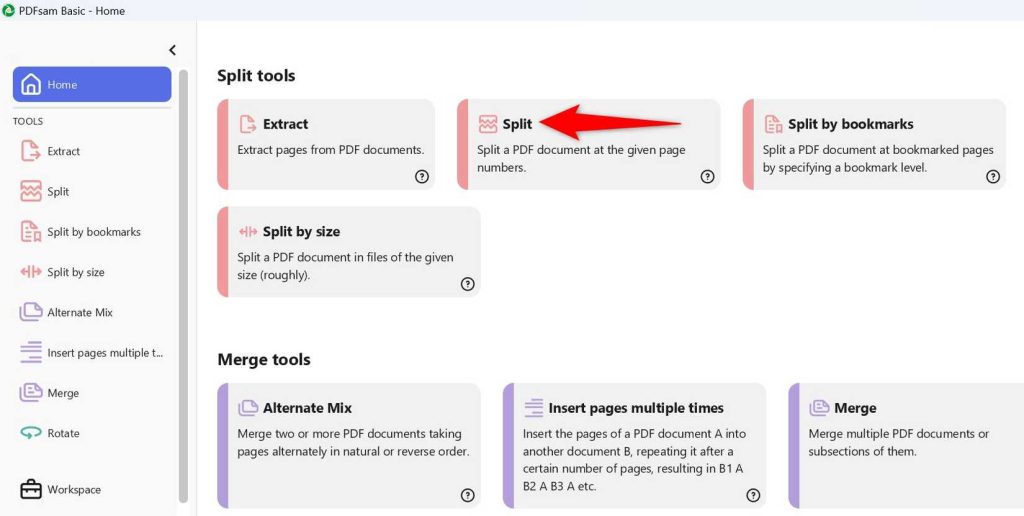
PDF24 is a free, offline PDF tool that works wonders on corrupted files. Download and install PDF24 from their official site. Then open the PDF24 Assistant and choose ‘Split PDF.’ Select your corrupted file. If PDF24 can read it, you’ll see thumbnails of all pages. Check the pages you want to extract (or select all if you want to test) and click ‘Split.’ The output will be individual PDF files. If PDF24 fails to load the file, try its ‘Repair’ function first—it’s considered the best free pdf repair tool for many issues. After repair, then split.
Step 3: Use Adobe Acrobat Pro
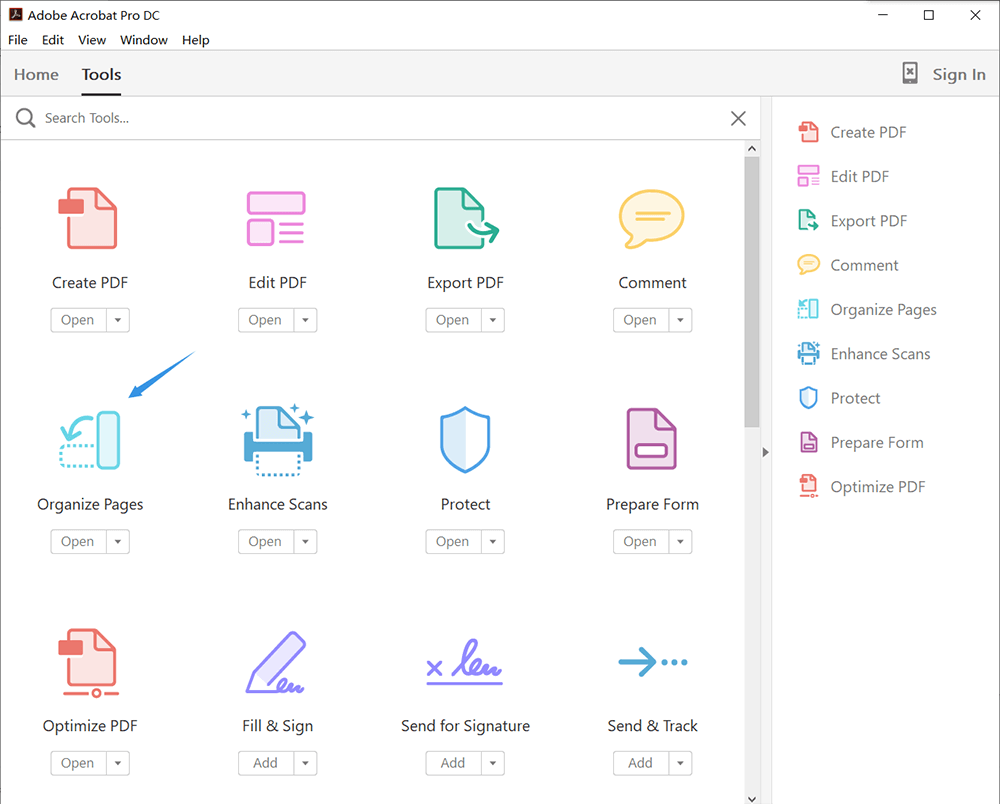
If you have Adobe Acrobat Pro, its extraction tool is robust. Open the corrupted PDF. Go to ‘Tools’ > ‘Organize Pages.’ If Acrobat can open the file, you’ll see all pages. Select the pages you want to extract (click the first, then Shift+click the last, or Ctrl+click individual). Then click ‘Extract’ and choose ‘Extract as separate files.’ Acrobat will save each page as a new PDF. If the file won’t open, try using the ‘Export PDF’ tool to convert it to a different format (like Word or image) first, then re-create the PDF from the output. This is a good way to recover pdf file content.
Step 4: Use an Online Service
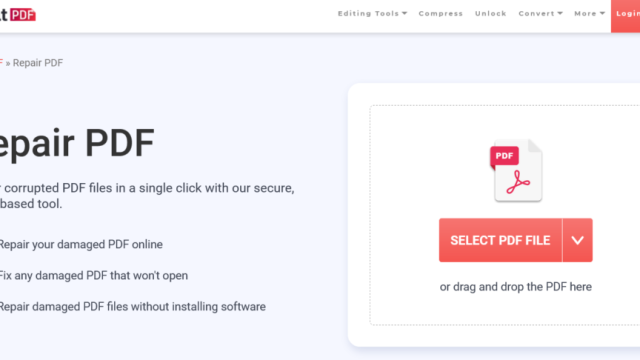
If you prefer not to install software, try an online PDF extractor like Smallpdf, iLovePDF, or the built-in repair pdf in browser feature on some tools. Upload your corrupted PDF. The service will attempt to read the file and display pages. Select the pages you want to extract and download them individually. Note: online services have file size limits (typically 100 MB) and may not handle severe corruption. Also, never upload sensitive documents to free online tools. For sensitive files, use offline methods.
Step 5: Try Command-Line Tools (Advanced)
For the tech-savvy, tools like PDFtk (PDF Toolkit) or qpdf can extract pages even from partially corrupted files. Install PDFtk, open a terminal, and use the command: pdftk corrupted.pdf cat 1-3 output page1-3.pdf to extract pages 1 through 3. If the file has internal corruption, qpdf’s --linearize and --copy-encryption flags can help. This method is ideal for batch extraction or automation. If you often deal with such issues, consider a pdf repair sdk for programmatic solutions.
Common Pitfalls
- The PDF is completely unreadable by any tool: If no tool can even detect pages, the corruption might be at the file header or structural level. Try a dedicated repair tool first, like PDF24’s repair function, to fix incomplete pdf structures.
- Extracted pages are still corrupted: Sometimes the corruption is page-specific. If an extracted page still shows garbage, that page’s content is damaged. You may need to repair ebook pdf page content using OCR or re-creation from source.
- Online services alter or watermark your output: Free online tools often add watermarks or compress images. Always check the output quality. For professional use, prefer offline tools.
Where to Next
You’ve successfully extracted whatever pages you could from your corrupted PDF. If some pages are missing or unreadable, don’t despair—check out our other guides on repairing specific PDF issues. For example, if your PDF came from a Word conversion, learn how to fix pdf converted from word. Or if you’re dealing with missing fonts, see our repair pdf fonts guide. Good luck!