Ever opened a PDF only to find the text is a bunch of squares, question marks, or random characters? Font issues are super common, especially when the PDF was created on another computer or converted from a Word doc. The good news: you can usually fix them without being a design guru. By the end of this guide, you’ll know how to identify missing fonts, substitute them, and even embed fonts so the problem never comes back.
I’ll show you methods for Adobe Acrobat (Pro and Reader), free online tools, and a couple of workarounds when all else fails. I’ll also point you to related topics like how to repair corrupted PDF or recover unreadable PDF online if you’re dealing with broader file issues.
What You’ll Need
- The problematic PDF file
- Adobe Acrobat Reader (free) or Adobe Acrobat Pro (trial or paid)
- An internet connection (for online tools and font downloads)
- Optional: a PDF repair tool like PDFelement or online services
- Optional: original font files if available
Step 1: Identify the Missing Fonts
Open your PDF in Adobe Acrobat Reader. Go to File > Properties (or press Ctrl+D on Windows, Cmd+D on Mac). Click the Fonts tab. You’ll see a list of all fonts used in the document. Look for entries that say “(Embedded Subset)” — that’s good. If you see “(Embedded)” that’s also fine. But if you see a font name without any notation like “(Embedded)”, that font is NOT embedded and may not display correctly on another system.
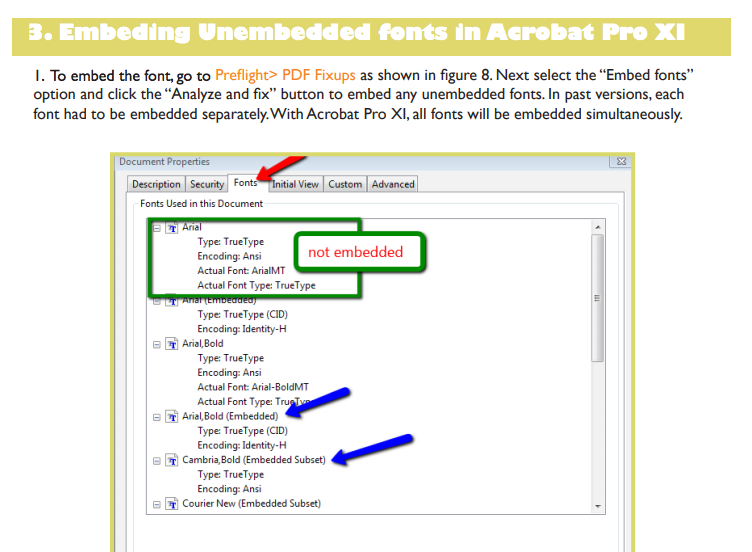
Note which fonts are missing. Common culprits are quirky fonts like Arial Narrow, Calibri, or free fonts that didn’t get packaged. If you have the original font files or can download them, you’re golden. Otherwise, we’ll substitute them.
Step 2: Substitute Missing Fonts (Adobe Acrobat Pro)
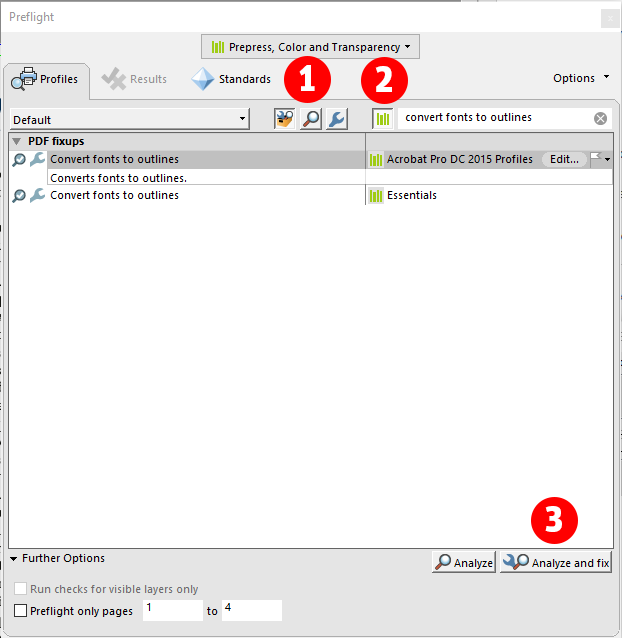
If you have Adobe Acrobat Pro, you can actually replace missing fonts. This is the most reliable method. Go to Tools > Print Production > Preflight. In the Preflight window, click the Fixups dropdown and search for “font”. Select “Fix missing fonts” or a similar fixup. Apply it — Acrobat will automatically try to substitute. If that doesn’t work, you can manually change fonts using the Edit PDF tool: select the garbled text, right-click, and choose Properties. Under Text, pick a replacement font that’s similar.
This method often solves it, but sometimes you’ll need to do this for each text block. For a quick fix, consider using an online tool — but remember, uploading sensitive PDFs might not be safe. If you need a secure method, check out how to repair PDF without Acrobat for alternatives.
Step 3: Use an Online PDF Font Repair Tool
If you don’t have Acrobat Pro, try a free online tool like iLovePDF or PDF24. Upload your file and look for options like “Fix fonts” or “Optimize for printing”. These tools often re-embed standard fonts. For example, PDF24’s online editor lets you edit text and change fonts. Be aware that complex layouts might shift a bit. After the fix, download the repaired PDF and check if the fonts look right.
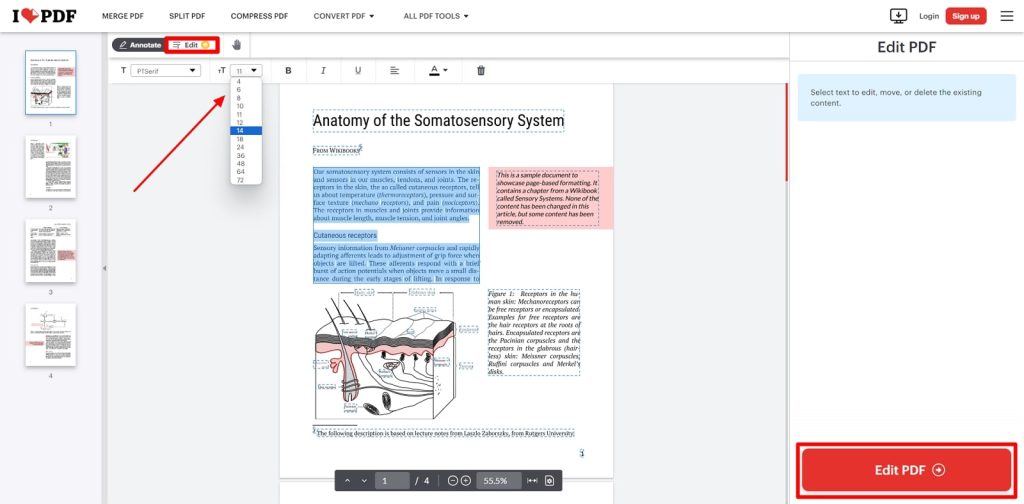
Online tools are great for quick fixes, but they won’t handle rare fonts. If the text is still garbled, you might be dealing with a corrupt file rather than just missing fonts. In that case, you might need to recover unreadable PDF online using a dedicated PDF repair service.
Step 4: Embed Fonts into the PDF (Prevention)
The best fix is to stop it from happening again. If you create PDFs, always embed fonts. In Microsoft Word, when you save as PDF, click Options and check “ISO 19005-1 compliant (PDF/A)” or manually choose “Embed fonts in the file”. In Adobe InDesign or Illustrator, you can embed fonts in the PDF export settings. This ensures the PDF looks the same on every device.
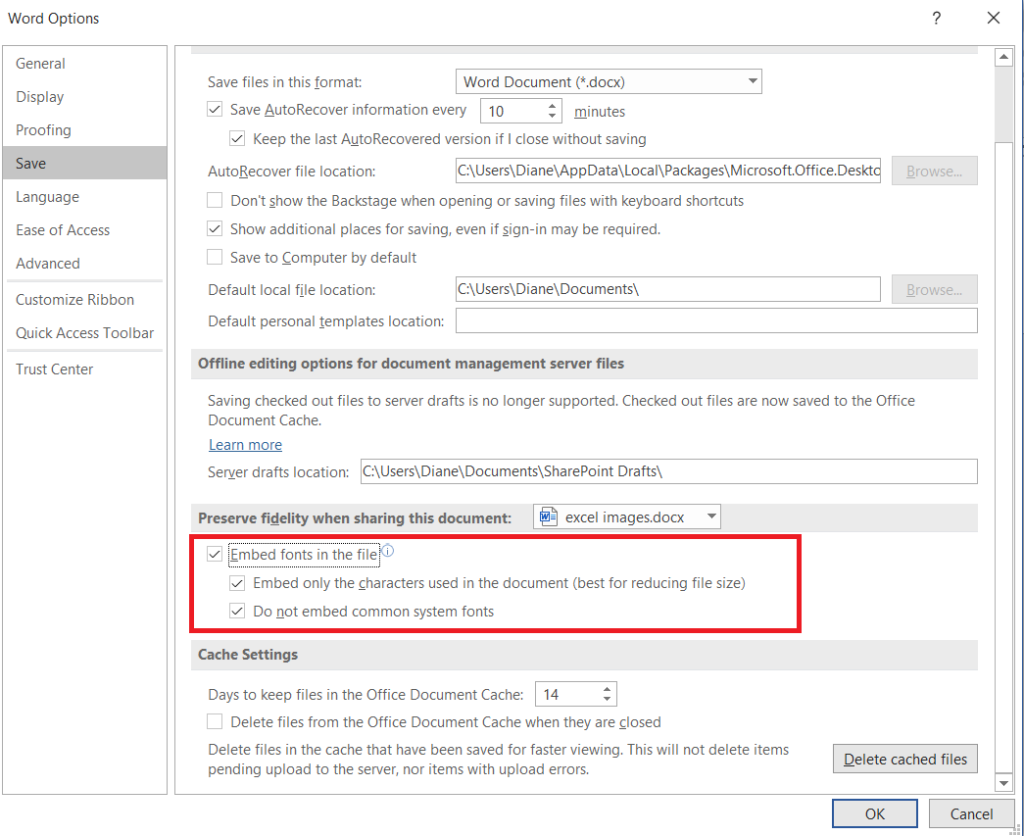
If you’re fixing a PDF that came from someone else and you want to re-embed fonts, you can use Acrobat Pro’s Preflight: search for “embed fonts” fixup and run it. This will embed any missing fonts that are currently available on your system.
Common Pitfalls
- Substituting fonts can change the layout: replacing a wide font with a narrow one may cause text overflow or line breaks. Always review the entire document after substitution.
- Online tools may reduce image quality: some free PDF repair services compress images when fixing fonts. If the PDF has high-res graphics, use desktop software instead.
- Not all fonts can be embedded: some fonts have licensing restrictions that prevent embedding. In that case, you must use a substitute font or convert the text to outlines (but that makes it uneditable).
Where to Next
Congratulations! You’ve got your PDF fonts back in shape. If your file is still acting up, maybe it’s not just fonts — check out our guides on how to fix PDF converted from Word for conversion quirks, or fix incomplete PDF if pages are missing. For more serious corruption, our repair corrupted PDF page has deeper steps. Happy reading!




