So your PDF is busted — won’t open, shows scrambled text, or throws errors. And you don’t have Adobe Acrobat. No worries. You can still fix it using tools you probably already have on your computer or a free online service. This guide walks you through five simple methods to repair a corrupted PDF without spending a dime.
By the end, you’ll have a working PDF that opens smoothly in any reader. Whether you need a quick fix or a more thorough repair, these steps have you covered. Let’s dive in.
What You’ll Need
- The corrupted PDF file
- A computer (Windows, Mac, or Linux)
- Internet connection (for online methods)
- Optional: Google Chrome, LibreOffice, or Ghostscript
Step 1: Try Opening and Re-saving in Google Chrome
Chrome has a built-in PDF viewer that’s surprisingly good at handling wonky files. First, drag the corrupted PDF into a Chrome tab. If it opens (even partly), you can save a clean copy by printing it to PDF. Click the print icon (or Ctrl+P), then select “Save as PDF” as the destination. This creates a fresh file that often fixes display issues.
If Chrome won’t open the PDF at all, move on to the next step.
Step 2: Use LibreOffice Draw to Import and Export
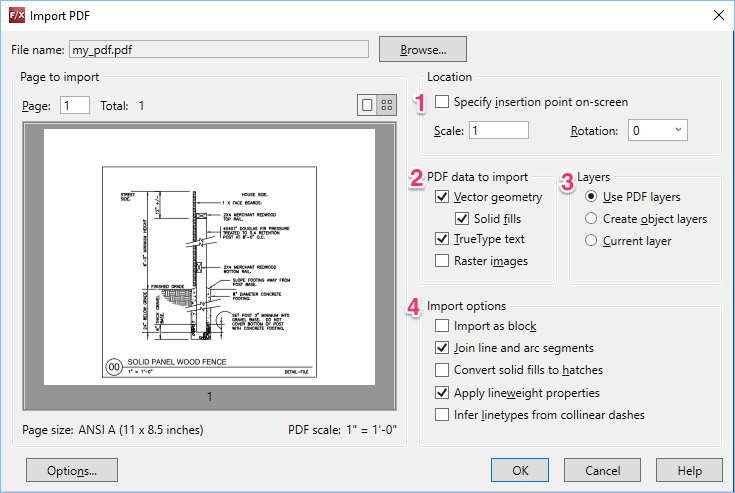
LibreOffice is a free office suite that includes Draw, a tool that can open PDFs and let you edit or rebuild them. Download LibreOffice if you don’t have it. Open Draw, go to File > Open, and select your PDF. Draw will import the content (sometimes with a warning). Remove any garbled pages or objects, then export to PDF via File > Export As > Export as PDF. This method is great for PDFs with minor corruption.
Step 3: Use an Online PDF Repair Tool
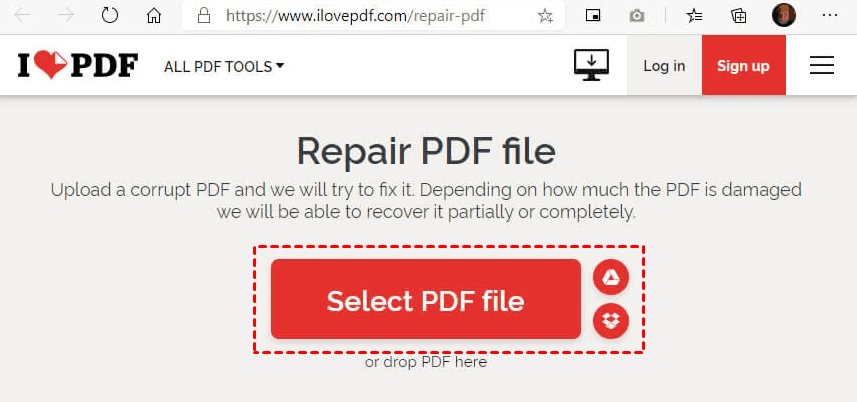
Several websites offer free PDF repair. Services like iLovePDF, PDF2Go, or Smallpdf can often fix corruption by re-encoding the file. Upload your PDF, let them work their magic, then download the repaired version. Be careful with sensitive documents — use a trusted service and avoid uploading confidential info. For a safe option, check out our guide on online PDF repair safe.

This method works for many common issues like “PDF cannot open” errors or missing pages.
Step 4: Command-Line Fix with Ghostscript
If you’re comfortable with the command line, Ghostscript is a powerful free tool that can process and rebuild PDFs. Install Ghostscript, then open a terminal (Command Prompt on Windows) and run:
gs -o repaired.pdf -sDEVICE=pdfwrite -dPDFSETTINGS=/prepress input.pdf
Ghostscript command
Replace ‘input.pdf’ with your file name. This command re-runs the PDF through Ghostscript’s interpreter, often fixing structural corruption. It’s a go-to for advanced users doing corrupted PDF file repair.

Step 5: Try a Dedicated Free PDF Repair Tool
There are standalone free tools designed solely for PDF repair. Recovery Toolbox for PDF (free version) and PDF Repair Tool (by SysTools) offer limited free repairs. Download from official sites, run the tool, and follow the prompts. These are useful when other methods fail. For more options, see our roundup of free pdf repair tool recommendations.
Common Pitfalls
- Not keeping a backup of the original file before attempting repair — if something goes wrong, you might lose it entirely.
- Uploading sensitive documents to online tools without checking their privacy policy. Some services store files temporarily, posing a security risk.
- Overwriting the original PDF with a repaired version that is worse. Always save the repaired file with a new name (e.g., ‘repaired.pdf’).
Where to Next
You’ve just learned several ways to repair a PDF without Acrobat. If you need more specific fixes, check out our guides on how to repair pdf files from failed downloads, fixing missing pages, or recovering signatures. And remember, for routine repairs, a good pdf repair tool can save you time. Happy fixing!




