
So your PDF won’t open, shows garbled text, or throws errors. Don’t panic—most corrupted PDFs can be fixed with a few simple tricks. This guide is for anyone who’s ever faced a broken PDF and didn’t know where to start. By the end, you’ll have a working PDF and a toolkit to handle future corruption.
We’ll walk through four methods, from quick online fixes to more powerful command-line tools. No need to be a tech wizard—we’ll explain each step clearly. And if you’re in a hurry, skip directly to the method that fits your skill level.
What You’ll Need
- A corrupted PDF file
- A computer with internet access
- A PDF reader (Adobe Reader, Foxit, or similar) installed
- Optional: Command-line tools like qpdf or Ghostscript if you choose those methods
Step 1: Check if the PDF Is Valid
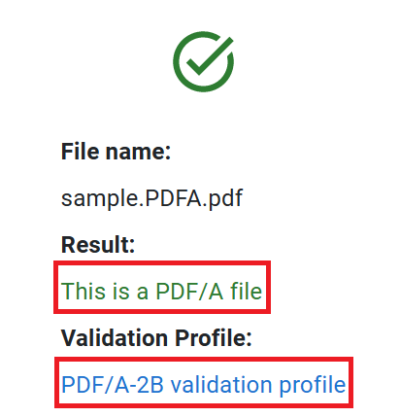
Before diving into repairs, see if the file itself is actually corrupted. Use a pdf validity checker to test the file’s structure. If the PDF passes, the issue might be with your viewer—try opening it in a different PDF reader like your browser or Foxit Reader.
Step 2: Use an Online PDF Repair Tool
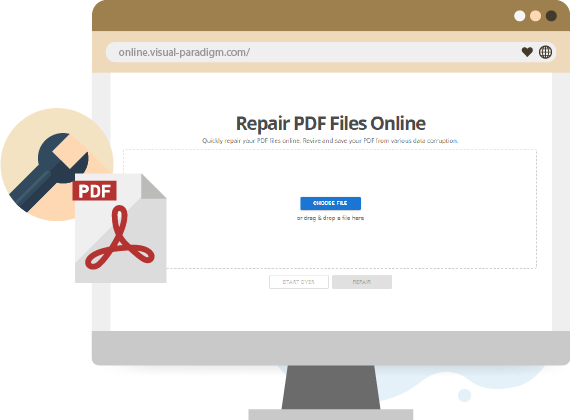
For quick fixes, upload your file to a reputable online repair service. Many free PDF repair tools exist—just upload, process, and download the fixed version. This works great for minor corruption. Be cautious with sensitive documents; use a trusted site or skip to offline methods.
Step 3: Repair with Adobe Acrobat
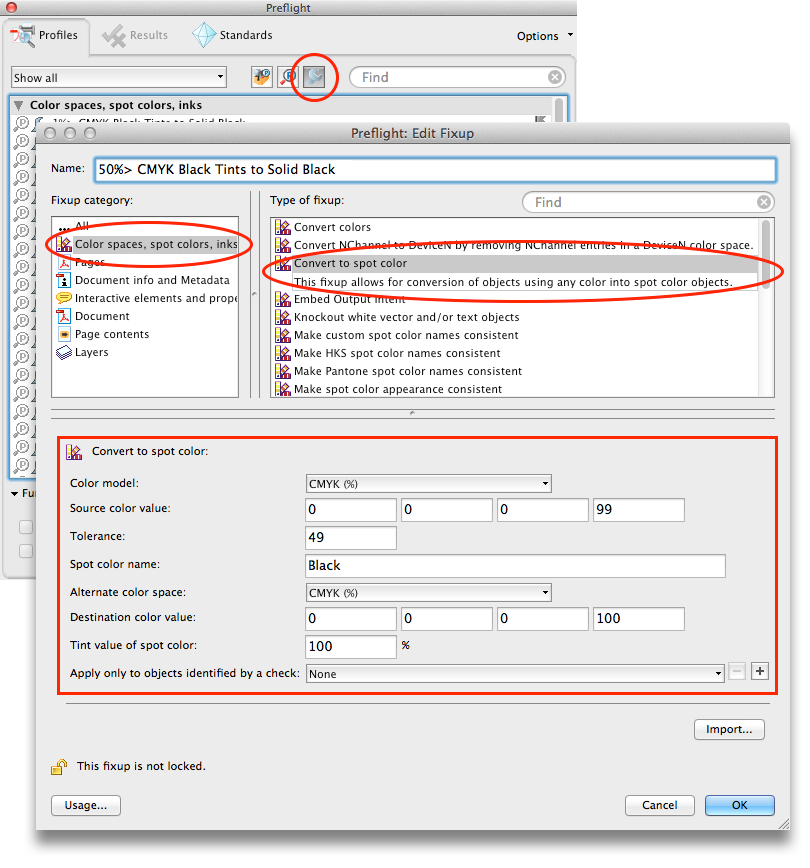
If you have Adobe Acrobat Pro, its built-in repair can fix many issues. Open Acrobat, go to File > Open, select the PDF, and if Acrobat detects problems, it’ll prompt to repair. Alternatively, use the Preflight tool (Tools > Print Production > Preflight) to fix structural errors.
Step 4: Use qpdf for Command-Line Repair
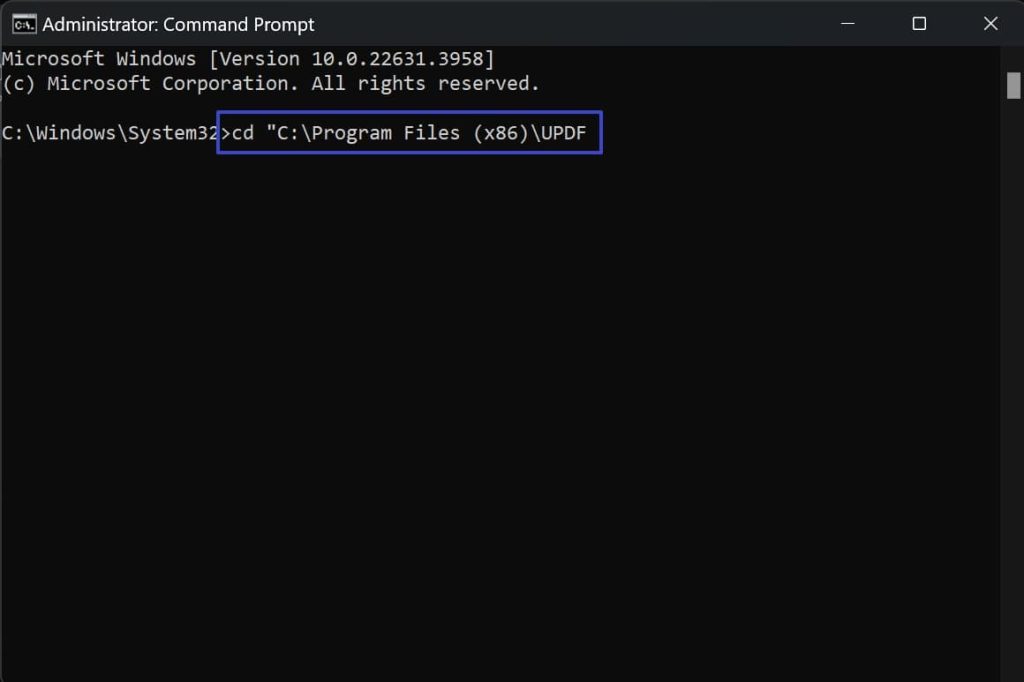
qpdf is a powerful command-line tool that can salvage many corrupted PDFs. Install qpdf, then open a terminal and run: qpdf –repair input.pdf output.pdf. This rewrites the PDF structure, often restoring unreadable content. For detailed steps, see our guide on repair PDF with qpdf.
Step 5: Recover with Ghostscript
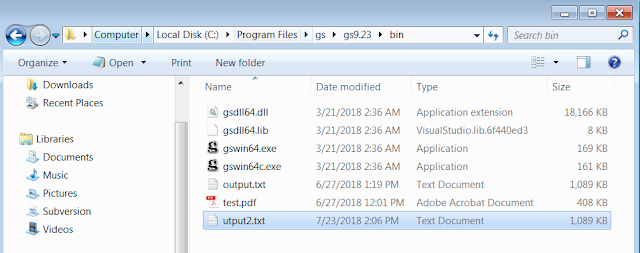
Ghostscript can reinterpret the PDF’s content, working well when qpdf fails. Install Ghostscript, then run: gs -o repaired.pdf -sDEVICE=pdfwrite -dPDFSETTINGS=/prepress input.pdf. This creates a new, clean PDF. If issues persist, check out our unreadable PDF repair guide for more tips.
Common Pitfalls
- Using shady online services that upload to public servers—stick to trusted sites or offline tools for sensitive PDFs.
- Skipping the original file backup—always keep a copy before attempting repairs.
- Jumping straight to complex command-line methods when a simple online fix would work. Start with the easiest approach first.
Where to Next
With these methods, you can rescue most corrupted PDFs. For more persistent issues, explore our guides on fixing unreadable PDFs or recovering missing pages. Happy fixing!




