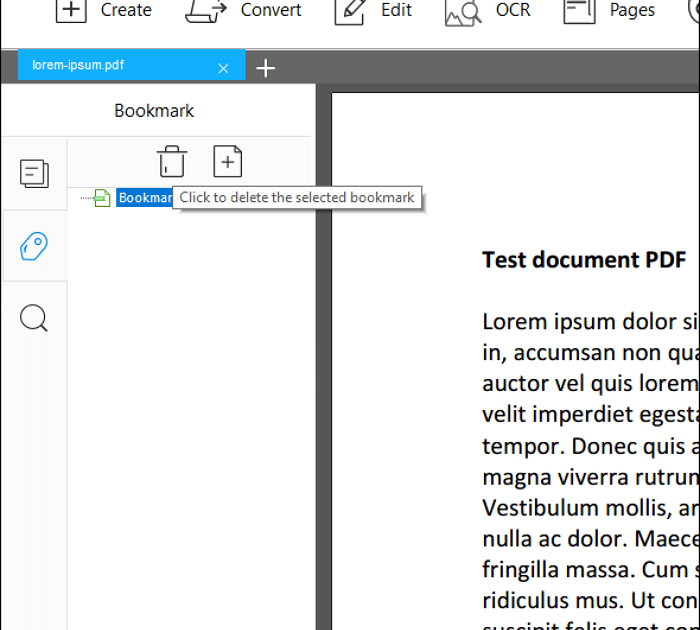
You know the feeling—you open a PDF you use every day, and suddenly the sidebar is empty. All those carefully organized bookmarks are gone. Maybe the file got corrupted during a download, or you accidentally saved over it. Whatever happened, you’re not alone, and the good news is: those bookmarks are often still in the file, just hidden or scrambled. This guide is for anyone who’s lost PDF bookmarks and wants them back without starting from scratch.
By the end of this tutorial, you’ll have a set of methods to recover bookmarks—from simple visibility toggles to command-line fixes—and you’ll know which approach works best for your situation. We’ll cover free tools like qpdf and PDFtk, as well as built-in features in Adobe Acrobat. No advanced skills required; just follow along step by step.
What You’ll Need
- Your PDF file (preferably the original, not a copy that might be overwritten)
- A backup of the PDF (if possible) to avoid permanent damage
- Optional: Adobe Acrobat Pro (trial or full version)
- Optional: qpdf or PDFtk (free command-line tools)
- Optional: an internet connection for online recovery tools
Step 1: Check If Bookmarks Are Just Hidden
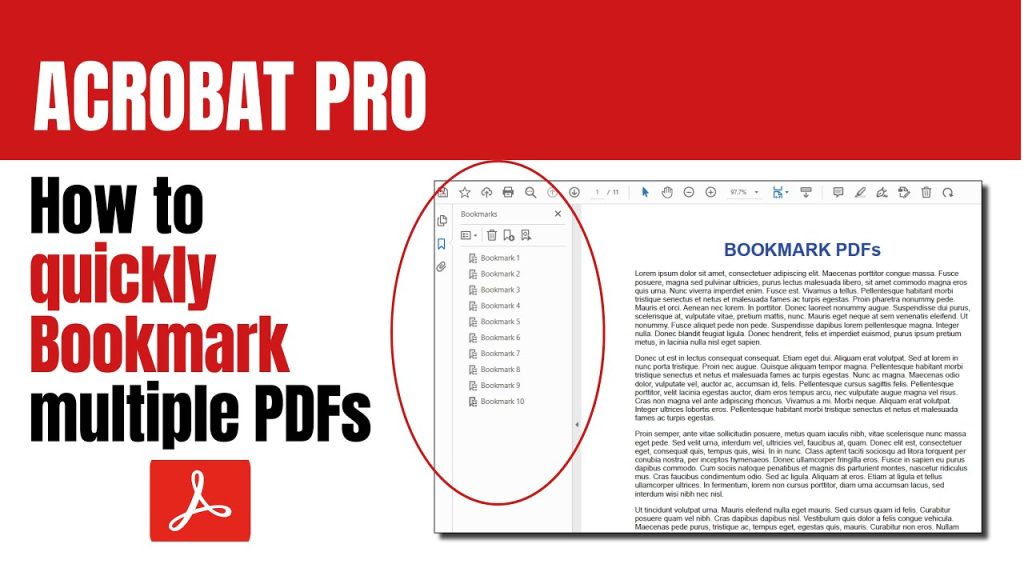
Sometimes bookmarks aren’t lost—they’re just not displayed. Open your PDF in a viewer like Adobe Acrobat Reader, then look for a sidebar icon that resembles a bookmark (usually near the left edge). Click it to toggle the Bookmarks panel. If that doesn’t work, press Ctrl+B (Windows) or Cmd+B (Mac) to show/hide bookmarks. Also check the View menu under “Show/Hide” > “Navigation Panes” > “Bookmarks.” If bookmarks appear, you’re done!
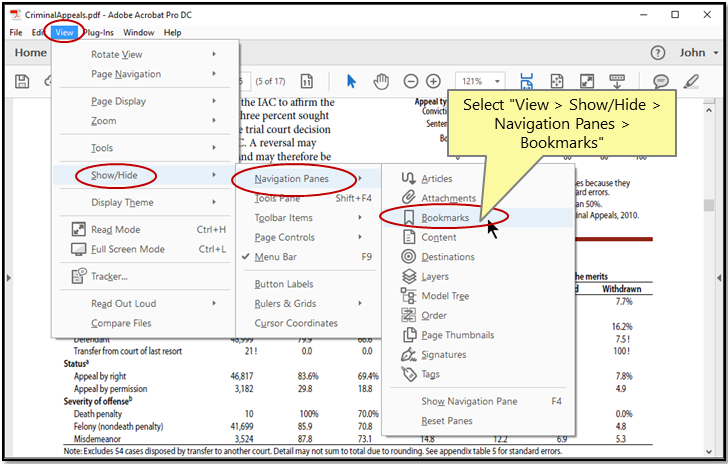
Step 2: Use Adobe Acrobat Pro to Extract and Rebuild Bookmarks
If the bookmarks are truly missing but the PDF structure is intact, Adobe Acrobat Pro can export and re-import the bookmark tree. Open the PDF in Acrobat Pro, go to View > Show/Hide > Navigation Panes > Bookmarks. Right-click in the Bookmarks panel and select “Export All Bookmarks to Text.” Save the .txt file. Then, in a new or restored copy of the PDF, right-click and “Import Bookmarks from Text.” This often recovers the hierarchy. If the export is empty, the bookmarks may be embedded in a different way—move to the next step.
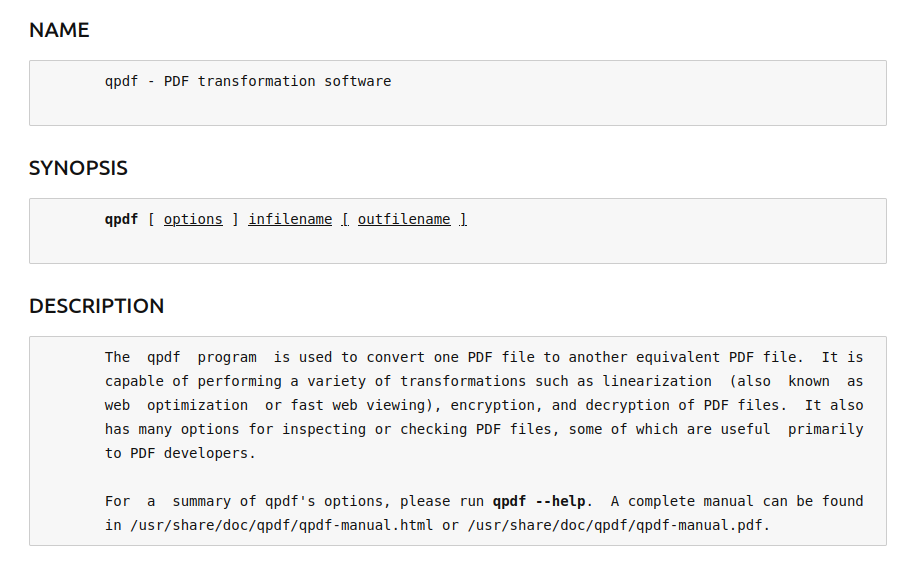
Step 3: Repair PDF with qpdf or PDFtk (Command Line)
For corrupted PDFs where bookmarks are unreadable, command-line tools can often fix the internal structure without damaging content. Download qpdf from its official site. Open a terminal (Command Prompt on Windows) and run: qpdf --linearize input.pdf output.pdf. This rebuilds the file, often restoring broken pointers to bookmarks. You can also try pdf tk input.pdf output.pdf if you have PDFtk installed. For a detailed walkthrough of qpdf, check out our guide on how to repair pdf with qpdf. If the file is still problematic, try the --replace-input flag to repair in place (but make a backup first).
Step 4: Try a Dedicated PDF Repair Tool
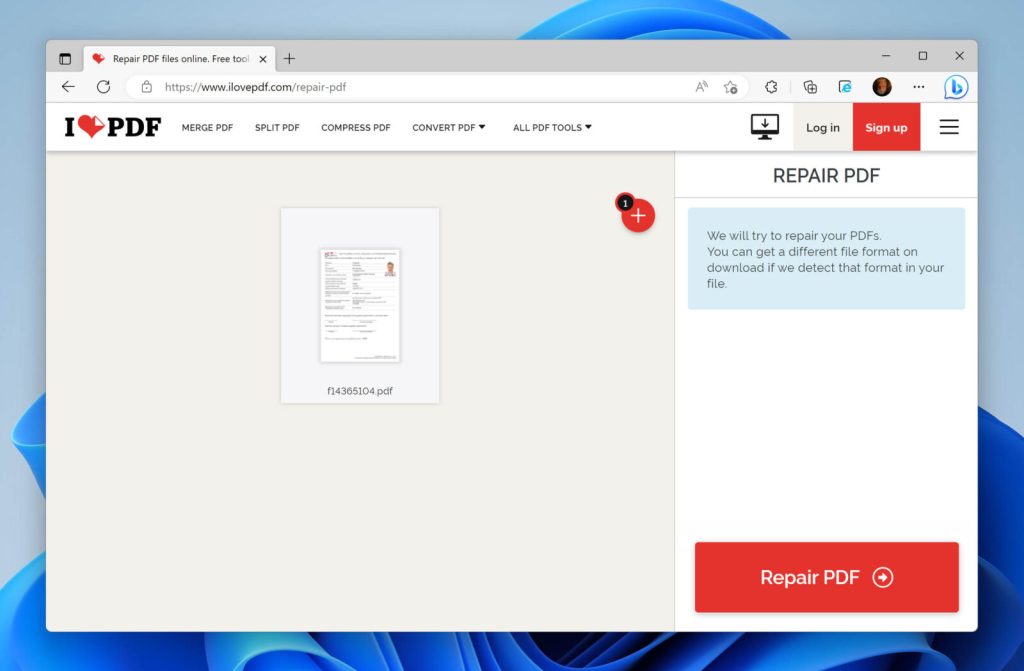
When manual methods fail, a dedicated PDF repair tool might be your best bet. Look for one that specifically mentions bookmark recovery. Many online services offer free scans; upload your PDF and let them rebuild the internal structure. For a list of reliable options, see our roundup of the best free pdf repair tools. Be cautious with free trials—always download the repaired file and verify bookmarks before paying. Some tools even fix structural issues that cause bookmark loss, which can also help if you’re dealing with a general pdf file repair situation.
Common Pitfalls
- Overwriting the original file: Always work on a copy. If the repair fails, you’ll still have the original. This is especially important when using command-line tools with in-place repair.
- Assuming bookmarks exist: Sometimes the PDF never had bookmarks (they might have been in a separate file). Check the file’s metadata or ask the creator. Before spending time on recovery, confirm that bookmarks were indeed part of the document.
- Using an online tool that doesn’t support bookmarks: Many free online PDF repair services only fix page rendering, not internal structure like bookmarks. Look for tools that advertise “bookmark recovery” or “navigation repair.” If you’re recovering from a failed download, our guide on how to repair pdf after failed download covers additional methods.
Where to Next?
Bookmarks are just one part of a PDF’s navigation. If you’re also dealing with missing pages, you can learn how to fix missing pdf pages. Or if the entire PDF is unreadable, our main repair guides have you covered. Remember, prevention is easier than recovery—always keep backups of important PDFs.




