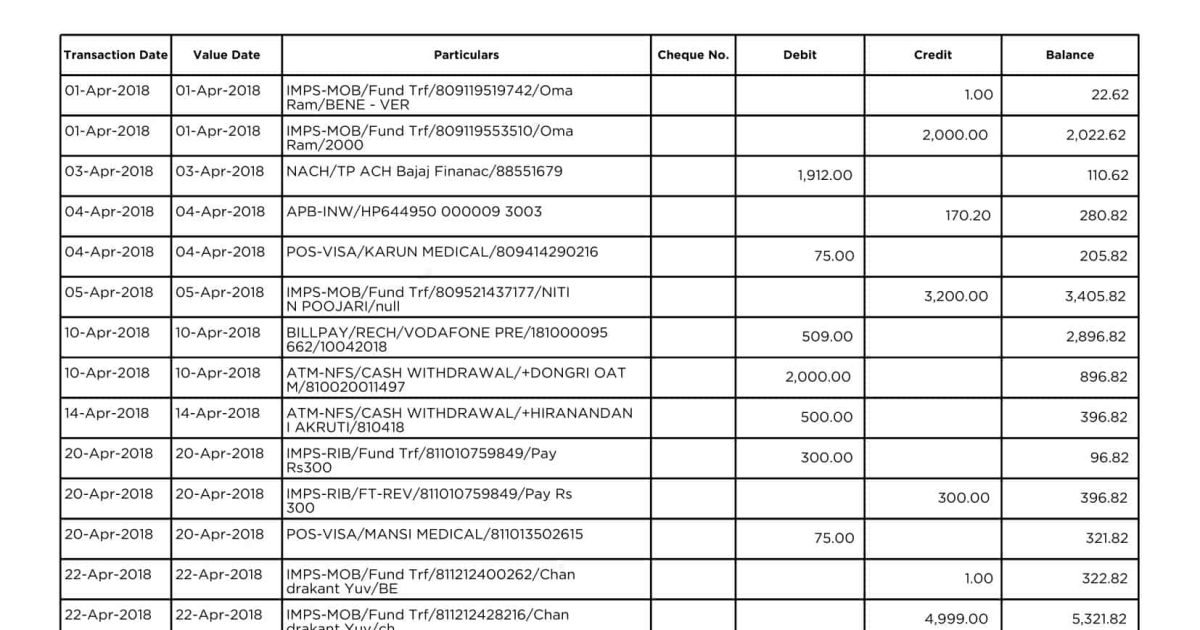
So your bank statement PDF won’t open, shows garbled text, or throws an error when you try to print it. Don’t panic. Whether you need it for a loan application, tax filing, or expense report, we’ve got you covered. This guide is for anyone who’s ever stared at a “PDF cannot open” message on an important financial document. By the end, you’ll have a clean, readable bank statement PDF — and you’ll know how to prevent this headache next time.
We’ll walk through six practical methods, starting with the simplest (just try a different viewer) and moving to more powerful tools like qpdf and mutool. You don’t need to be a tech wizard — just follow the steps. If your file is truly destroyed, we’ll even show you how to get a fresh copy from your bank safely.
What You’ll Need
- The corrupted bank statement PDF file
- A computer (Windows, Mac, or Linux)
- An internet connection (for steps 3 and 6)
- A backup copy of the original PDF (just in case)
- Optional: PDF viewer like Adobe Acrobat Reader or Foxit Reader
- Optional: Command-line tools (qpdf, mutool) — free to download
Step 1: Identify the Problem
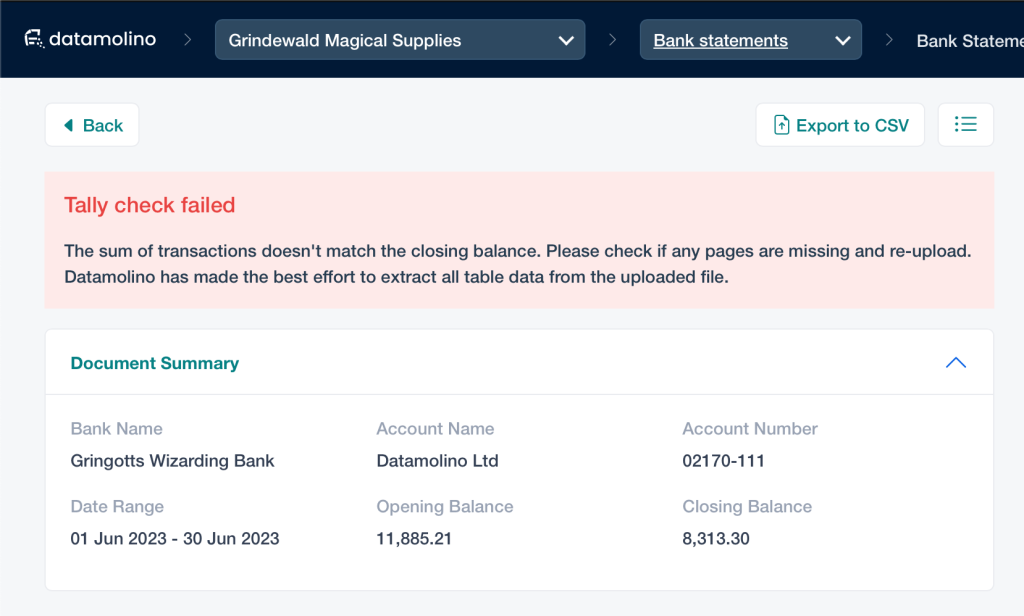
Before you start repairing, figure out what’s actually wrong. Try opening the PDF in your default viewer. Common symptoms include: “The document is damaged” error, blank pages, missing text, scrambled font characters, or the PDF simply not opening at all. This will help you choose the right fix.
Step 2: Try a Different PDF Viewer
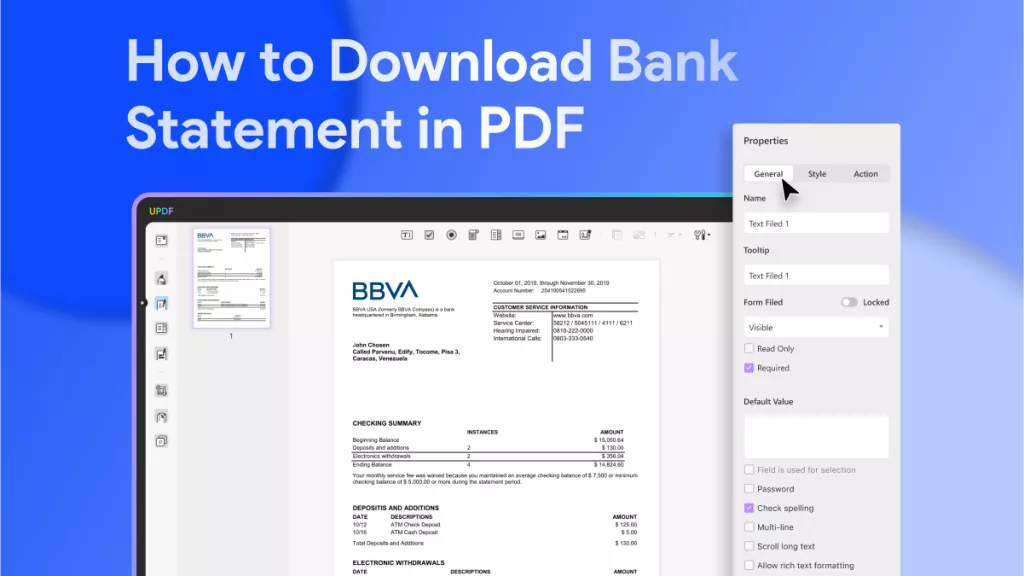
Sometimes the issue is the viewer, not the file. If you’re using a browser or a lightweight reader, switch to a full-featured one like Adobe Acrobat Reader, Foxit Reader, or even the built-in Microsoft Edge PDF viewer. If the file opens fine, no repair needed — just use that viewer going forward. If not, move on.
Step 3: Use an Online Free PDF Repair Tool
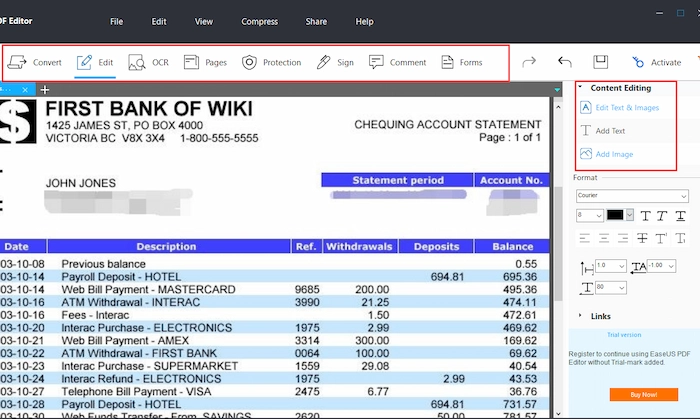
If the file still won’t open, try a free pdf repair tool online. Websites like PDF24 or Smallpdf offer free repair services. Upload your file, let it process, and download the fixed version. This works for many common corruption issues like incomplete downloads or minor file structure errors. Be cautious with sensitive bank statements — use a service that claims to auto-delete files after processing.
Step 4: Repair with qpdf (Command Line)
For stubborn corruption, qpdf is a powerful free tool. Download it from the official site, then open a terminal (Command Prompt on Windows, Terminal on Mac/Linux). Run this command: qpdf --linearize input.pdf output.pdf. Replace input.pdf with your file name and path. This rebuilds the PDF’s internal structure, often fixing expected a dict object pdf fix errors. This is our recommended method for repair pdf with qpdf.
Step 5: Repair with Mutool (Another Free Option)
If qpdf doesn’t work, try mutool from the MuPDF project. After installing, run: mutool clean input.pdf output.pdf. This command cleans and reconstructs the PDF stream. It’s especially good at fix pdf fonts and rendering issues. Many scan-based bank statements benefit from this approach.
Step 6: Re-Download or Request a Fresh Copy
If all repair attempts fail, the original file on the server might have been corrupted during download. Log into your online banking portal and re-download the statement. Alternatively, request a new copy via email — banks often send PDFs as recover pdf email attachment help. If you suspect a pdf viewer cannot open file due to permissions, try saving the attachment to your desktop first.
Common Pitfalls
- Using the wrong repair tool for the job. Online tools are great for minor issues, but for deep corruption, qpdf or mutool are more reliable. Don’t give up if one method fails — try another.
- Overwriting your only copy. Always work on a copy of the original PDF. If the repair makes things worse, you’ll still have the original to try a different method.
- Ignoring privacy risks. Bank statements contain sensitive info like account numbers and balances. Before uploading to any website, check their privacy policy. Better yet, use offline tools like qpdf or mutool for sensitive documents.
Where to Next
Now you’ve got your bank statement PDF back in shape. If you run into other PDF problems, you might need to recover pdf after disk error or fix an unreadable scan. Browse our other guides for more specific fixes. And remember: always keep a backup of important PDFs — it’ll save you from this headache in the future.




