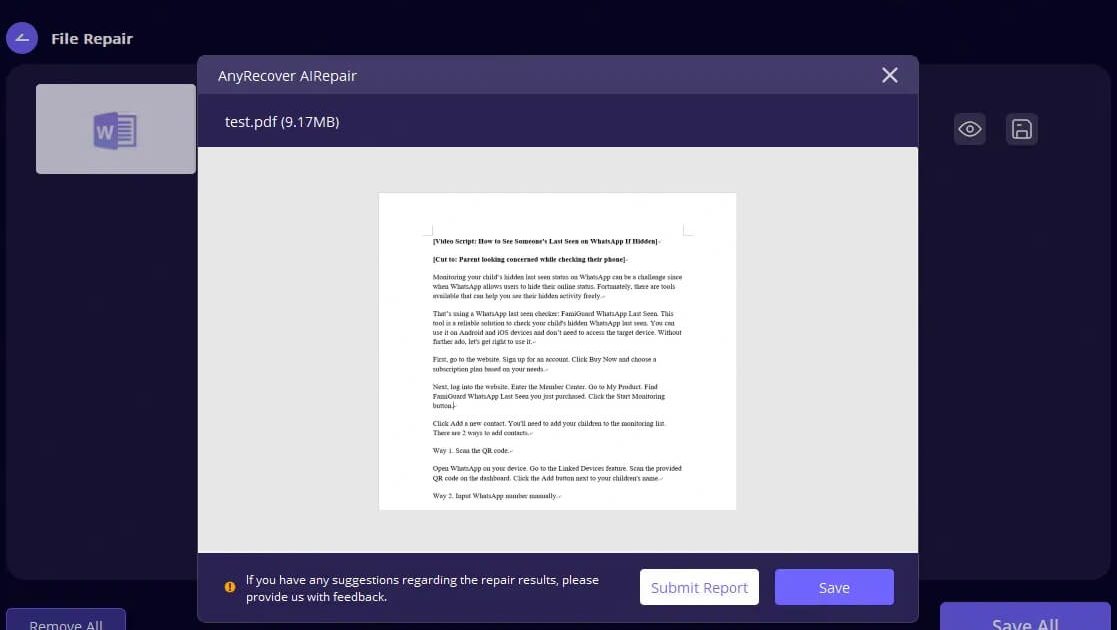
Ever opened a PDF only to see a wall of scrambled characters, blank pages, or a dreaded ‘file is damaged’ error? You’re not alone. Unreadable PDFs are a common headache, whether they come from a failed download, a disk error, or just time. This guide is for anyone who needs to salvage content from a PDF that refuses to display properly. By the end, you’ll have a toolbox of methods to turn that unreadable mess back into usable text and images — no expensive software required.
We’ll start with the quickest free fixes (online tools and browser tricks), then move to more powerful command-line utilities like qpdf and mutool. You’ll also learn how to spot subtle corruption before it becomes a crisis. Even if you’re not tech-savvy, the steps are broken down so you can follow along. Let’s make that PDF readable again.
What You’ll Need
- The unreadable PDF file (keep the original safe)
- A computer with internet access (for online tools)
- Patience — sometimes the fix is simple, sometimes it takes a few tries
- Optional: Command-line tools like qpdf or mutool (free, but require installation)
Step 1: Try the Quick Browser Fix
Before diving into heavy-duty repairs, see if the PDF is actually corrupted or just displaying oddly in your viewer. Open the file in a different browser or PDF viewer. Chrome, Firefox, and Edge all have built-in PDF viewers that sometimes handle glitchy files better than Adobe Reader. Drag the file into a new browser tab. If it renders fine, the issue is with your old viewer — just switch defaults or update the software.

Still unreadable? Try saving a copy of the PDF using your browser’s ‘Save as’ option. Sometimes a simple re-save clears up minor corruption. If that doesn’t work, move to the next step.
Step 2: Use an Online Repair Tool
Online PDF repair services are great for quick fixes. Many are free for small files. Upload your doomed PDF, let the server work its magic, and download the repaired version. I recommend using a trusted service that doesn’t store your files permanently. This method is especially handy if you’re not comfortable with command-line tools. For a list of reliable options, check out our comparison of free pdf repair tool guides.

After you download the repaired file, open it in your usual PDF viewer. If it’s still garbled, try a different online service — each one uses different algorithms. Keep the original file name handy so you don’t mix up versions.
Step 3: Run a Command-Line Repair with qpdf
For stubborn corruption, command-line tools like qpdf are incredibly effective. They let you rebuild the PDF structure from scratch. Here’s how to use qpdf to repair pdf with qpdf style:
- Download and install qpdf from its official website (available for Windows, macOS, Linux).
- Open your command prompt (Windows) or terminal (macOS/Linux).
- Type the following command: qpdf –linearize input.pdf output.pdf (replace ‘input.pdf’ with your file name).
- Press Enter. qpdf will try to linearize the PDF, which often fixes structural issues.
- If linearize fails, try: qpdf –repair input.pdf output.pdf

Open the output file. Still unreadable? You can also try the –check flag to detect corrupted pdf errors before repairing. That log helps you pinpoint the problem — like font issues or missing objects.
Step 4: Tackle Font and Text Issues
Sometimes a PDF looks unreadable because the fonts used aren’t embedded properly. You might see empty boxes, question marks, or jumbled letters. To repair pdf font error, you can use the open-source tool ‘mutool’ or Adobe Acrobat’s PDF Optimizer. Here’s a quick method: convert the PDF to an image format (PNG or JPG) using any online converter, then convert it back to PDF. This flattens the text into images, bypassing font issues. It’s not ideal for searchable text, but it gets the content visible.

If you need text selection and search, try extracting the text with a tool like ‘pdftotext’ (part of Xpdf). That often extracts readable text even when the PDF viewer shows garbage. Then you can rebuild the PDF from the extracted text and any images.
Common Pitfalls
Even with good instructions, things can go wrong. Here are the top three slip-ups and how to avoid them:
- Overwriting the original: Always work on a copy! Keep the original file untouched in case a repair method fails. You can always go back.
- Using too many online uploads: Some free online tools have file size limits or poor privacy policies. For sensitive documents, use offline tools like qpdf instead.
- Ignoring error messages: If a tool says ‘invalid xref table’ or ‘missing root object’, don’t just shrug. Search that error online — it often points to a specific fix. Use our guide to detect corrupted pdf for a head start.
Where to Next
You’ve just learned multiple ways to bring an unreadable PDF back to life. Often a combination of methods works best — try the browser fix first, then an online tool, and fall back to command-line utilities for the tough cases. If you’re still stuck, the problem might be deeper, like a damaged PDF signature or disk error. Check out our guides on how to fix pdf signature issues or recover pdf after disk error for more specialized help. And remember: regular backups are your best defense against corrupted files. Happy reading!




