So you’ve got a PDF that looks like a ransom note — weird symbols, blank boxes, or text that’s totally unreadable. That’s a font error, and it’s super common when fonts aren’t embedded properly or the file got corrupted. This guide is for anyone who’s staring at a messy PDF and just wants it readable again. By the end, you’ll have a clean PDF with the right fonts showing up, using free tools you probably already have.
We’ll walk through a few methods, from simple checks to more powerful fixes. Most of these steps work on Windows, Mac, or Linux, and you won’t need any expensive software. Let’s get that PDF looking like it should.
What You’ll Need
- Your problematic PDF file
- A computer (Windows, macOS, or Linux)
- An internet connection (for online tools)
- Adobe Acrobat Reader (free) or Adobe Acrobat Pro (trial works too)
- Optional: a PDF editor like LibreOffice Draw or a command-line tool like Mutool
Step 1: Diagnose the Font Error
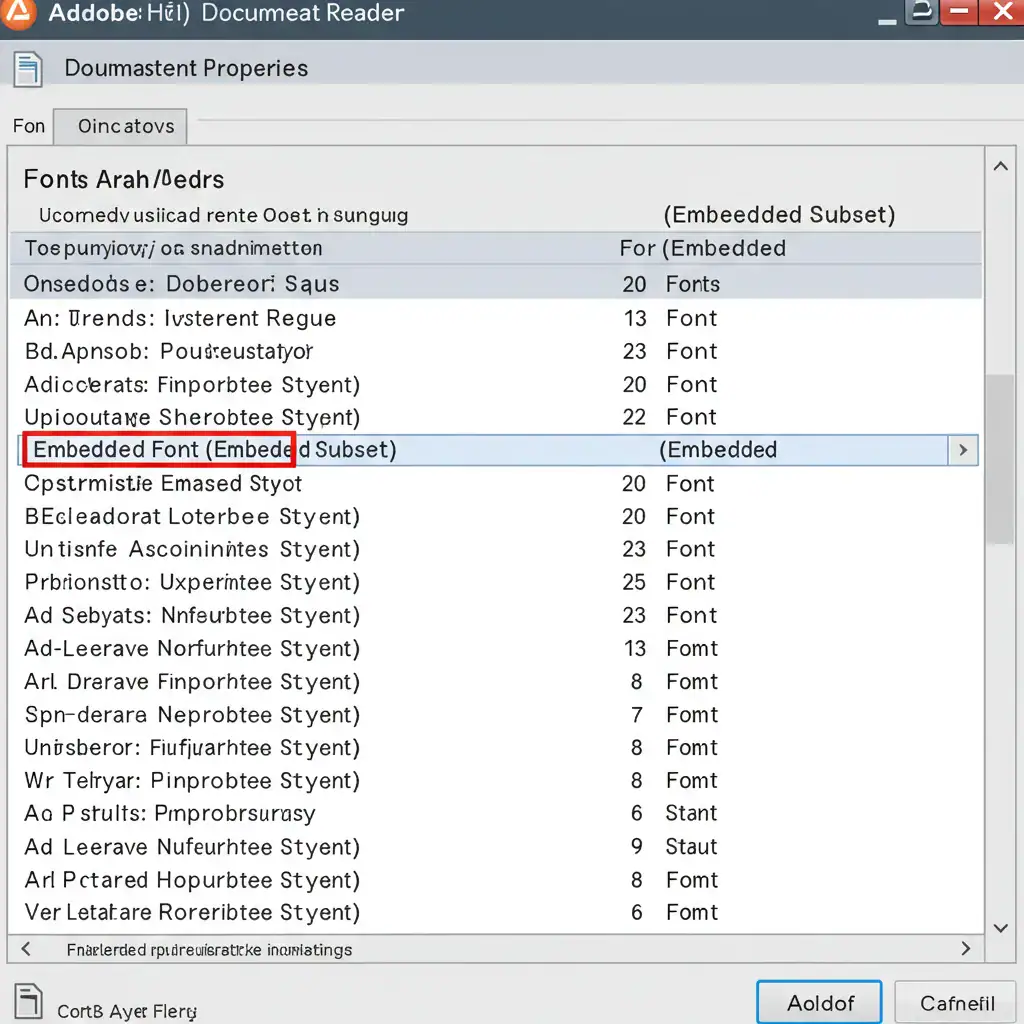
First, figure out what you’re dealing with. Open your PDF in Adobe Acrobat Reader and go to File > Properties > Fonts. If you see “Embedded Subset” or “Embedded” next to a font, that font is included. If it says “Not Embedded,” that’s likely the culprit. You can also use a tool like pdfinfo (part of Poppler) to check: run `pdfinfo -f 1 -l 1 yourfile.pdf` on the command line to see font details. Look for missing or substituted fonts. This step helps you pick the right fix.
If you’re not sure what you’re looking at, don’t worry — the next steps will work even if you skip this diagnosis. But knowing whether it’s a single missing font or a full corruption can save time.
Step 2: Re-Embed Fonts with Adobe Acrobat
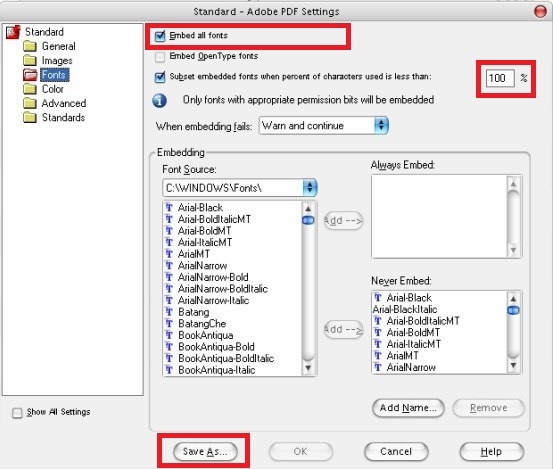
If the fonts show as “Not Embedded,” the easiest fix is to re-embed them. Adobe Acrobat Pro has a “PDF Optimizer” (File > Save As Other > Optimized PDF…). In the dialog, go to the “Fonts” section, select all fonts, and set “Embed all fonts” or “Subset all embedded fonts.” Then save. If you don’t have Acrobat Pro, you can use the free Adobe Acrobat online service or the Print to PDF trick: open the file, choose File > Print, select “Microsoft Print to PDF” (or “Save as PDF” on Mac), and print. This re-renders the text with your system fonts. For a deeper dive, check out our guide on how to fix pdf fonts.
Step 3: Use an Online Font Repair Tool
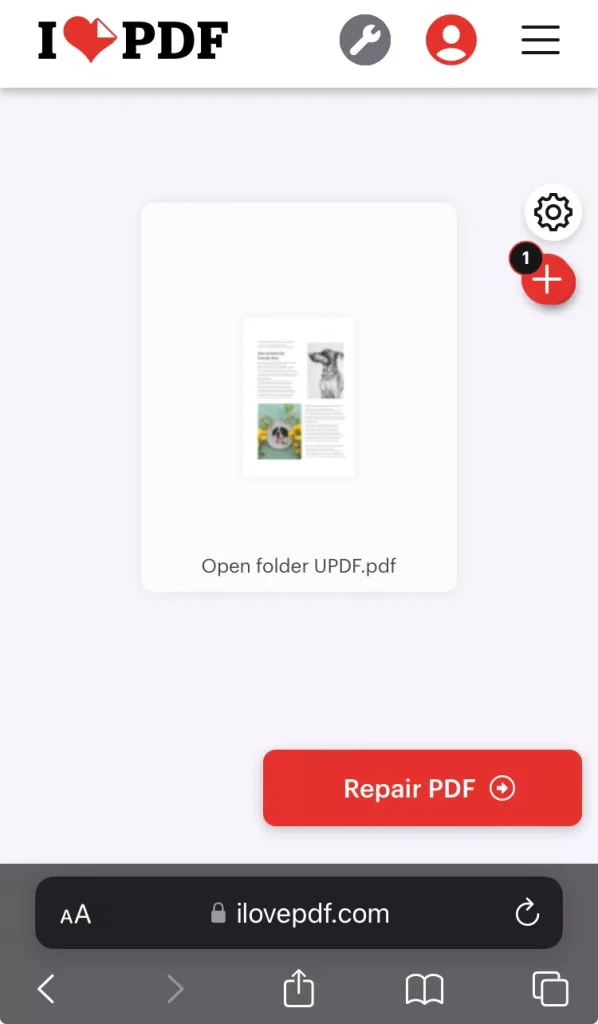
If you’d rather not install anything, a good online tool can fix font issues in minutes. Sites like iLovePDF, PDF2Go, or Smallpdf offer “Repair PDF” features that often re-embed missing fonts. Upload your file, let it process, and download the repaired version. Be careful with sensitive documents — use a trusted service. For a list of reliable free options, see our article on how to fix pdf online free.
Step 4: Convert to Another Format and Back
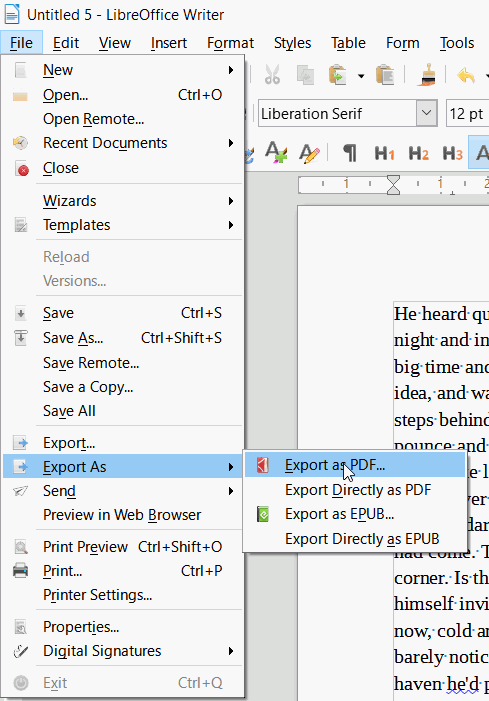
A weird but effective trick: convert your PDF to a different format (like Word or image) and then back to PDF. Open the PDF in Google Docs, save as .docx, then export as PDF. Or use LibreOffice Draw — it can open PDFs and re-export them with fresh fonts. This method basically rebuilds the file from scratch, so font errors often vanish. The downside: complex layouts may shift a bit.
Step 5: Use Mutool for a Deep Fix
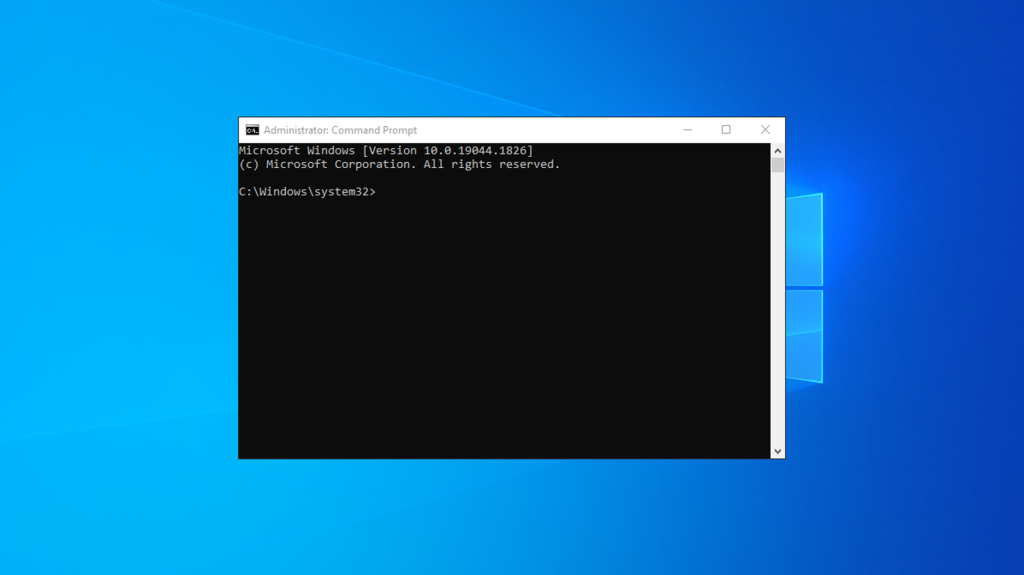
When nothing else works, turn to command-line tools. Mutool (part of MuPDF) is free and runs on Windows, Mac, and Linux. Install it, then run: `mutool clean -ggg input.pdf output.pdf`. The `-ggg` flag thoroughly cleans and re-embeds fonts. This can fix even heavily corrupted files. For a full walkthrough, see our guide on how to repair pdf with mutool.
Step 6: Extract Text and Rebuild
Last resort: extract the text (and images) from the corrupted PDF and create a brand new PDF. Use Adobe Acrobat’s “Export PDF” to Word, or a free tool like pdftotext to pull out the content. You lose formatting, but you keep the information. Then create a new PDF from that text. This is a life-saver when the original file is too far gone. Learn more in our guide on how to extract text from corrupted pdf.
Common Pitfalls
- Mistaking a regular corruption for a font error – run a diagnosis first.
- Using unreliable online tools that could leak sensitive files – stick with reputable services.
- Forgetting to back up the original PDF – always keep a copy before any fix.
Avoid these and you’ll save yourself a lot of frustration.
Where to Next?
Font issues are just one flavor of PDF problems. If your PDF is completely broken (won’t open or shows “expected a dict object”), check out our guide on pdf repair alternative for more methods. And if you’re regularly dealing with dodgy PDFs, learning to use tools like Mutool or pdfinfo is a game-changer. Happy repairing!




