So you’ve got a PDF that’s corrupted — maybe it won’t open, shows garbage text, or throws errors like “Expected a dict object.” You might think you need Adobe Acrobat to fix it, but there are plenty of free alternatives that get the job done. This guide is for anyone who wants to repair a PDF without spending a dime. By the end, you’ll have a working PDF, and you’ll know which free tool works best for your situation.
We’ll cover three main approaches: using open-source command-line tools, online services, and lightweight desktop apps. Each method is tested and works on Windows, macOS, or Linux. No sign-ups, no credit cards — just straightforward repair.
What You’ll Need
- Your corrupted PDF file (keep a backup copy)
- A computer with internet (for online methods) or terminal access (for command-line tools)
- Optional: Ghostscript or Mutool installed (we’ll walk through installation)
- Optional: A web browser for online repair services
Step 1: Try an Online Repair Service (Fastest Option)

If you want a quick fix without installing anything, online services are your best bet. Sites like iLovePDF, Smallpdf, or PDF24 offer free repair tools. Just upload your file, let them process it, and download the repaired copy. This works for mild corruption like missing fonts or minor structure issues. For more serious damage, move to Step 2 or 3. Check out our guide to fix PDF online free for a detailed walkthrough.
Step 2: Use Ghostscript (Open-Source Command Line)

Ghostscript is a powerful interpreter for PDF and PostScript. It can often regenerate a corrupted PDF by reinterpreting the file. First, install Ghostscript from its official site. Then open your terminal and run this command:
Replace “corrupted.pdf” with your file. The -o flag outputs the repaired PDF. If you get errors, try adding -dCompatibilityLevel=1.4. Ghostscript is great for fixing rendering issues and blank pages. For more complex cases, combine it with other tools like Mutool (see our repair pdf with mutool guide).
Step 3: Repair with Mutool (Lightweight and Fast)
Mutool is part of the MuPDF project and specializes in PDF repair. It can fix structural corruption, like missing cross-reference tables or broken objects. Install MuPDF (which includes Mutool) from the official site. Then run:
The -gggg flag gradually reduces the PDF version and cleans the file. Add -s to sanitize and remove hidden content. Mutool often succeeds where Ghostscript fails. For a detailed tutorial, see our PDF repair open source article.
Step 4: Extract Content with PDFtk or qpdf
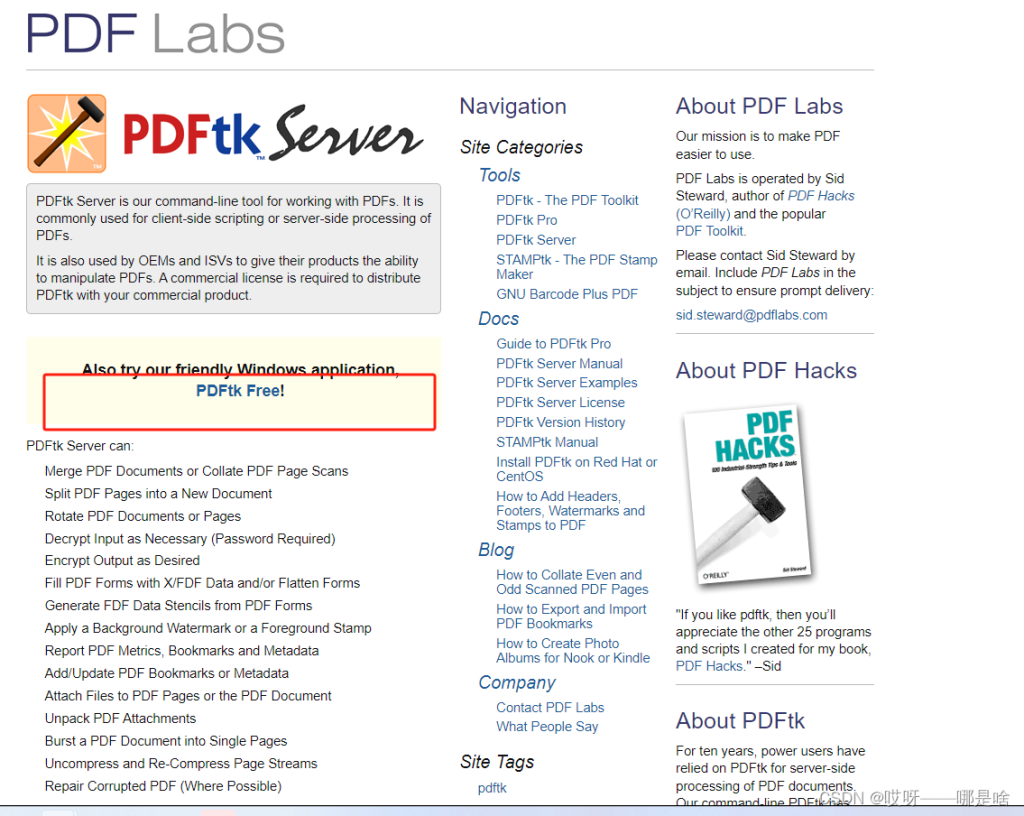
Sometimes the PDF is so damaged that repair tools can’t rebuild it. In that case, you can extract readable pages or content using PDFtk (PDF Toolkit) or qpdf. For PDFtk, use:
This flattens the file and can fix some issues. For qpdf, run:
qpdf linearizes the file and often resolves linearization problems. If you’re dealing with a broken PDF solution that won’t open, qpdf is a good first try.
Common Pitfalls
- **Not keeping a backup** – Always work on a copy. Some repair tools may overwrite or further damage the file.
- **Assuming one tool fits all** – Each tool handles different corruption types. If Ghostscript fails, try Mutool or an online service. Don’t give up after one attempt.
- **Ignoring error messages** – Tools often give clues about the corruption (e.g., “xref not found”). Look up the error to choose the right repair method. Our PDF won’t open repair guide covers common errors.
Where to Next
Once you’ve repaired your PDF, you might want to optimize it, extract text, or recover lost pages. Check out our guides on fix optimized PDF and extract text from corrupted PDF for more specialized tasks. And if your PDF is still acting up, remember that sometimes the original source file (Word, Excel) is easier to recreate than repair. Good luck!




