
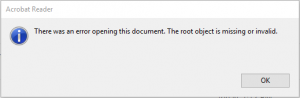
So your PDF won’t open, shows garbage, or throws errors left and right. Before you shell out cash for a commercial repair tool, know this: there are powerful open source utilities that can fix most corruption issues for free. Whether you’re a system admin, a student, or just someone who lost an important document, this guide is for you. By the end, you’ll have a working PDF repaired using command-line tools like qpdf, pdftk, and Ghostscript.
We’ll walk through diagnosing the damage, extracting recoverable data, and rebuilding the file. No fancy GUI—just real, tested commands that work on Windows, macOS, and Linux. Ready? Let’s bring your PDF back from the dead.
What You’ll Need
- A computer with an internet connection
- The corrupted PDF file
- Basic comfort in the command line (terminal or PowerShell)
- Installation of qpdf (available via package managers or qpdf.sourceforge.io)
- Installation of pdftk (pdftk.com or your OS package manager)
- Installation of Ghostscript (ghostscript.com or apt/brew)
Step 1: Diagnose the Damage with qpdf –check
First, figure out what’s wrong. Open your terminal and navigate to the folder with the broken PDF. Run this command:
qpdf will scan the file and report errors like missing cross‑reference tables, wrong offsets, or damaged streams. It also tries to recover what it can. If the output shows a clean bill of health but the file still doesn’t display right, the problem might be in the content streams. If qpdf crashes, the file is seriously damaged—move to Step 3 or 4.

Step 2: Quick Fix with qpdf –linearize
Many corruption issues are structural. qpdf can rewrite the PDF file structure with its linearize option:
This strips out junk and rebuilds a clean, linearized PDF. It doesn’t modify the content—just the internal organization. If you get a valid fixed.pdf, open it and check. If it still fails, try the next step.

Step 3: Decompress and Recompress with pdftk
pdftk repair pdf is another go‑to tool. It can decompress all streams and recompress them, fixing many errors along the way. Run:
Behind the scenes, pdftk rewrites the entire PDF. It often recovers content that qpdf couldn’t. If the file is missing text or images, pdftk might pull them back. For more stubborn cases, check out our guide on how to repair pdf and restore text.

Step 4: Rebuild from Scratch with Ghostscript
When nothing else works, Ghostscript can reinterpret the PDF and produce a brand‑new, valid file. Use this command:
Ghostscript processes every object, skips corrupt ones, and outputs a clean PDF. This is particularly effective for files with incomplete pages, missing fonts, or font encoding issues. If you’re dealing with text glitches, our article on fix pdf encoding covers additional tweaks.
Common Pitfalls
- Using the wrong tool for the issue. For example, if your PDF is encrypted, none of these commands will work without the password. Use a password remover first, or try a dedicated approach for encrypted PDFs.
- Overwriting the original file. Always work on a copy! If a command fails, you’ll still have the original to try another tool. Never do: qpdf –linearize broken.pdf broken.pdf.
- Missing dependencies. Some systems lack Ghostscript or pdftk by default. Install them via your package manager (apt, brew, chocolatey) or download from the official sites. Without them, you’ll get a “command not found” error.
Where to Next?
If these open source methods didn’t fully recover your file, don’t lose hope. You can try a different approach: use a free online service to fix pdf online free, or set up automated pdf repair for batch processing. For more hands‑on techniques, browse our other PDF repair guides. Good luck—your data is still in there!




