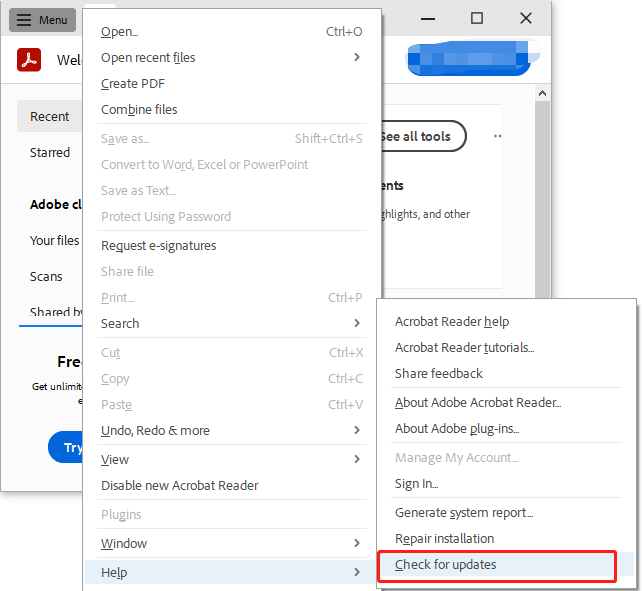
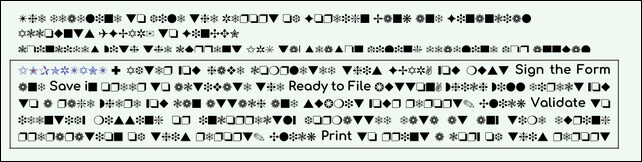
Ever opened a PDF only to see a mess of weird symbols, boxes, or random characters? That’s an encoding problem. It usually happens when the original document uses a font or character set that the PDF reader doesn’t understand, or when the file gets corrupted during conversion. This guide is for anyone who’s staring at unreadable text and wants it back to normal. By the end, you’ll have a clear plan to fix most PDF encoding issues—whether you’re on Windows, Mac, or prefer an online tool.
We’ll cover four practical methods: using a free online tool, tweaking Adobe Acrobat settings, extracting text with a command-line utility, and repairing the PDF’s internal encoding. No advanced skills needed—just follow the steps and you’ll be reading your document again in no time. If you’ve ever needed to restore text from a garbled mess, this is the place to start.
What You’ll Need
- The problematic PDF file
- A computer with internet access (for online tools)
- Optional: Adobe Acrobat Reader or Pro (trial works)
- Optional: pdftotext (part of Xpdf or Poppler) for command-line
Step 1: Identify the Encoding Issue
Before fixing, check if the problem is really encoding. Look for characters like ‘ÿ’, ‘ð’, or boxes instead of letters. Try copying the text and pasting into a text editor—if it shows correctly there, the PDF has a display issue (font missing). If it stays garbled, it’s an encoding problem. This step saves you from trying wrong fixes.
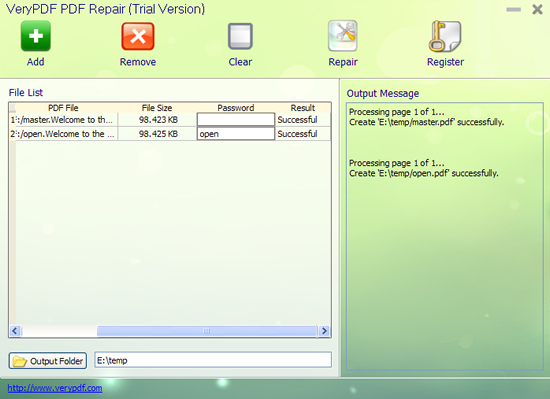
Step 2: Use an Online PDF Encoding Fixer
Online tools are the quickest fix. Go to a site like PDF24 or Smallpdf and upload your file. Look for options like ‘Repair’ or ‘Fix Encoding’. These tools re-encode the text and often fix garbled characters instantly. Download the repaired PDF and check if the text reads normally. This works best for simple encoding mismatches.
Step 3: Fix Encoding in Adobe Acrobat (Pro or Reader)
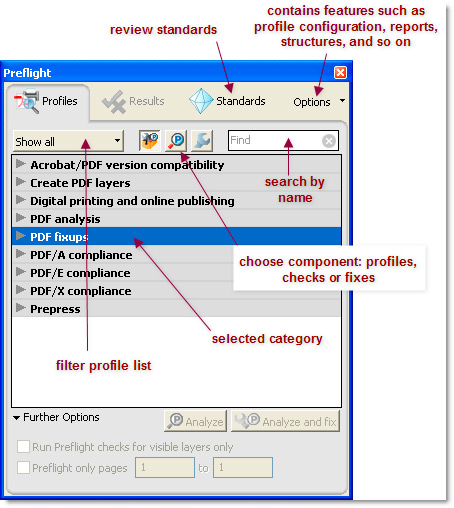
If you have Adobe Acrobat Pro, open the PDF, go to ‘View’ > ‘Tools’ > ‘Print Production’ > ‘Preflight’. Under ‘PDF fixups’, choose ‘Fix text encoding issues’. For Acrobat Reader, you can change font substitution: go to ‘Edit’ > ‘Preferences’ > ‘Content Editing’ > ‘Font Options’ and set a fallback font like Arial. This forces the PDF to re-map characters.
Step 4: Extract and Reconvert Text with pdftotext
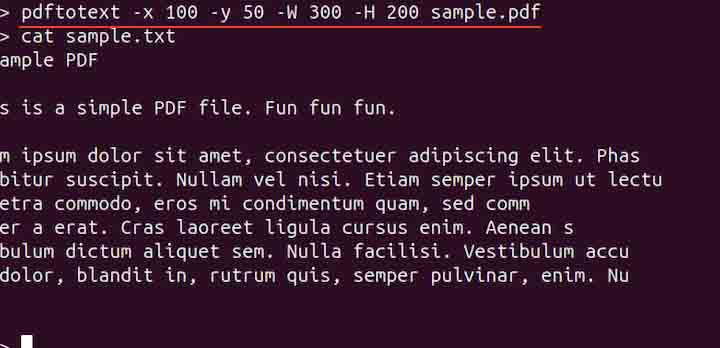
For stubborn cases, use the command-line tool pdftotext (free from Xpdf or Poppler). Open your terminal (Command Prompt on Windows, Terminal on Mac/Linux) and run: ‘pdftotext -enc UTF-8 broken.pdf output.txt’. This extracts text with UTF-8 encoding. If it’s still garbled, try other encodings like ‘Latin1’ or ‘ISO-8859-1’. Then use a text editor to save as a new PDF.
Common Pitfalls
- Mistaking a missing font for an encoding issue. If text copies correctly but displays weird, install the original font.
- Using the wrong encoding in pdftotext. Experiment with encodings until the text makes sense.
- Forgetting to backup. Always work on a copy—some repairs can further corrupt the file.
If none of these methods work, the PDF may be severely damaged. Try a dedicated repair tool or consider that the original file might be lost. But with these steps, you’ll fix nine out of ten encoding problems.
PDF Repair Tips
Where to Next
If you still can’t read your PDF, check out our guides on how to restore text from a damaged file or repair PDF characters specifically. We also have a full guide on fixing any garbled PDF. For batch repairs, see our batch PDF repair tutorial. Happy reading!




