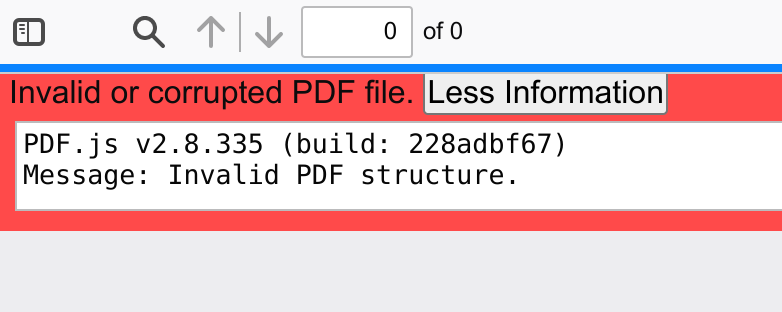
You’ve just tried to open a PDF and got hit with an ‘Invalid PDF’ or ‘This PDF file is corrupted’ message. Maybe the file looks like gibberish, or it won’t open at all. Don’t worry—this is a common problem, and in most cases, your data is still recoverable. This guide is for anyone who has a PDF that won’t open or displays errors. By the end, you’ll have a working PDF (or at least the text and images from it) using free tools you probably already have.
We’ll walk through the most effective methods: from simple tricks like renaming the file, to using online repair tools, to advanced recovery with command-line utilities. You don’t need to be a tech wizard—just follow each step in order. Even if the PDF looks completely broken, there’s a good chance we can fix it or extract the content. Let’s get that file back in shape!
What You’ll Need
- The invalid PDF file (keep a backup copy)
- A web browser (Chrome, Firefox, or Edge)
- Optional: Adobe Acrobat Reader (free) or any PDF viewer
- Optional: A PDF repair tool (we’ll suggest free options)
- Internet connection (for online repair services)

Step 1: Try Opening the PDF in a Different Viewer
Sometimes the issue isn’t the file itself—it’s the viewer. If you’re using a browser’s built-in PDF viewer, try opening it in Adobe Acrobat Reader, or vice versa. Also, try dragging the file into a web browser (Chrome, Firefox, Edge). Browsers have robust PDF engines that can handle minor corruption. If it opens, save a new copy (File > Save As) to ‘re-encode’ the file and fix the issue.

Step 2: Use an Online PDF Repair Tool
If changing viewers didn’t work, the file likely has structural damage. Online repair tools are the quickest fix. Upload your PDF to a trusted service like Smallpdf, iLovePDF, or Sejda (they repair free for files under a certain size). These tools rebuild the file structure and can often repair pdf and restore text even when the file seems dead.

After repair, download the fixed PDF. Check if it opens properly. If it does, you’re done! If not, move on to Step 3.
Step 3: Use Adobe Acrobat’s Built-In Repair (If You Have It)
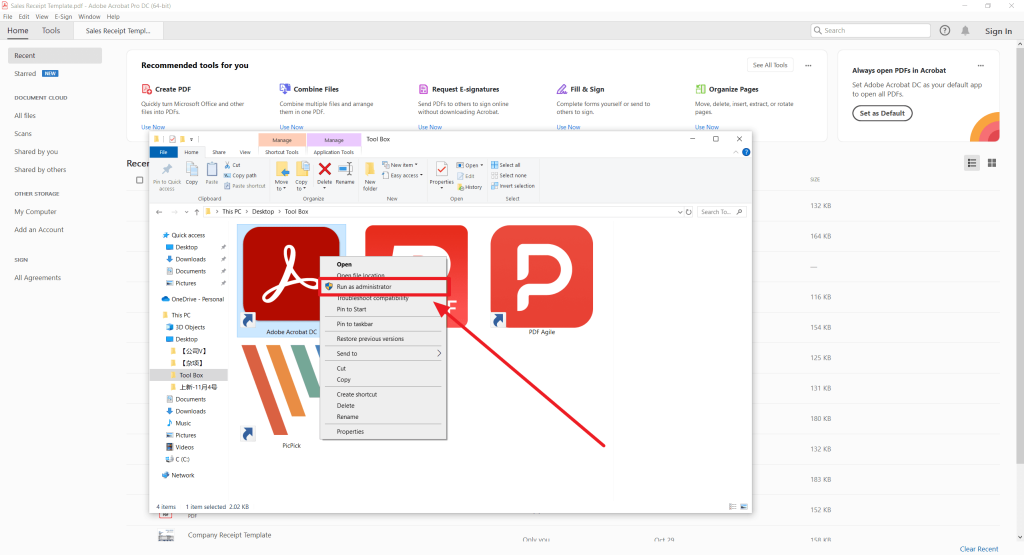
If you have access to Adobe Acrobat Pro (not just Reader), it has a powerful repair feature. Open Acrobat, go to Tools > Create PDF > New Document, then choose ‘From File’ and select your invalid PDF. Acrobat will attempt to rebuild the file. This method is especially good for fixing garbled text and layout issues. For a detailed walkthrough on how to fix garbled pdf, see our dedicated guide.
Step 4: Extract Content Using a Command-Line Tool (Advanced)
If the PDF is severely corrupted, you might need to extract raw data. One free tool is ‘pdftotext’ (part of Xpdf or Poppler). Install it, then run: pdftotext corrupted.pdf output.txt. This will pull out any readable text, even if the file structure is broken. Another tool is ‘pdfimages’ to extract embedded images. This is a reliable way to recover text from a damaged PDF or to repair pdf after file corruption when other methods fail.

Step 5: Batch Repair Multiple PDFs (If You Have Many)
If you’re dealing with a whole folder of invalid PDFs, it’s time to use a dedicated tool. Software like ‘Recoverit’ or ‘Stellar Repair for PDF’ can batch process files. You can also use the online batch pdf repair feature from services like iLovePDF (premium). This saves hours of clicking.
Common Pitfalls
- Overwriting the original file: Always work on a copy. If the repair goes wrong, you lose the original permanently.
- Using untrusted online tools: Some sites may upload your PDF to servers unencrypted. For sensitive documents, use desktop tools instead.
- Assuming it’s hopeless too soon: Even if a PDF shows as ‘invalid’, the data is often recoverable. Try multiple methods before giving up. For example, learn how to fix malformed pdf with additional steps.
Where to Next
Now that your PDF is fixed, you might want to prevent future corruption. Always save backups, avoid interrupting PDF saves, and use reliable software. If you still have issues, check out our other guides on repairing encrypted PDFs or fixing print issues. And if you batch repair often, consider a dedicated PDF repair app.




