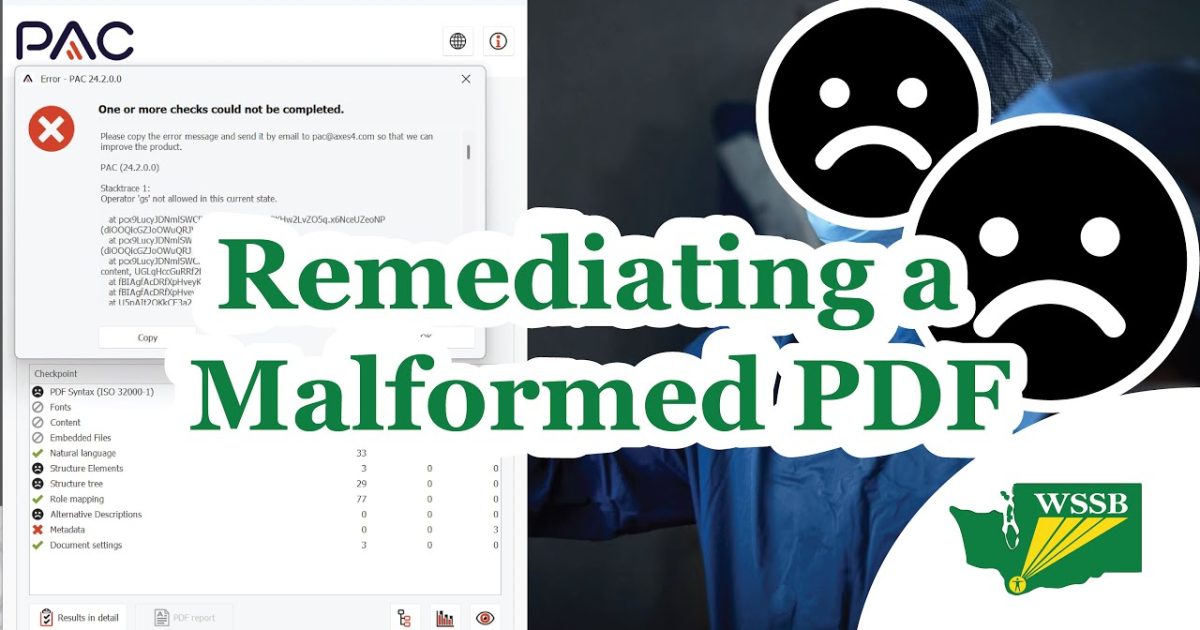
So you’ve got a PDF that won’t open, shows a bunch of gibberish, or throws error messages left and right. Don’t panic — it’s probably just malformed, not dead. This guide is for anyone who needs to get that file working again, whether you’re a student with a broken textbook or a professional with a corrupted invoice. By the end, you’ll have a clean, readable PDF that behaves like it should.
We’ll walk through five concrete methods, from super simple (re-downloading) to more hands-on (hex editing). No prior tech wizardry required — just follow along, and you’ll rescue your file in no time.
What You’ll Need
- Your malformed PDF file (keep a backup copy!)
- Adobe Acrobat Reader (free) or Adobe Acrobat Pro (trial)
- A stable internet connection for online tools
- Ghostscript (free command-line tool) — optional but powerful
- A hex editor like HxD or 010 Editor (only needed for advanced step)
Step 1: Diagnose the Problem
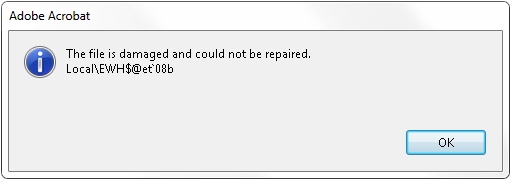
Before you fix anything, figure out what kind of malformed you’re dealing with. Try opening the file in different PDF readers: Adobe Acrobat, your browser, or even Word. Note the error — ‘file is damaged’, ‘could not extract data’, or just a blank screen. This will tell you if it’s a minor header issue or something deeper. If you need more help identifying the corruption, check out our guide on how to check pdf corruption.
Step 2: Quick Wins — Re-download or Open in Browser
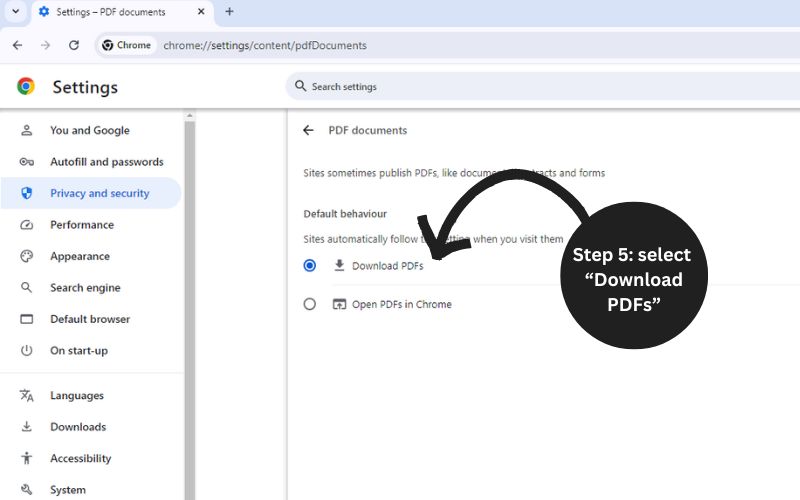
Sometimes a malformed PDF is just a bad download. Delete the file, clear your browser cache, and download it again from the original source. Alternatively, drag the PDF into a new browser tab — Chrome and Edge can often render broken PDFs that Acrobat chokes on. If the browser shows it fine, use Print → Save as PDF to create a fresh copy.
Step 3: Use Adobe Acrobat’s Built-in Repair
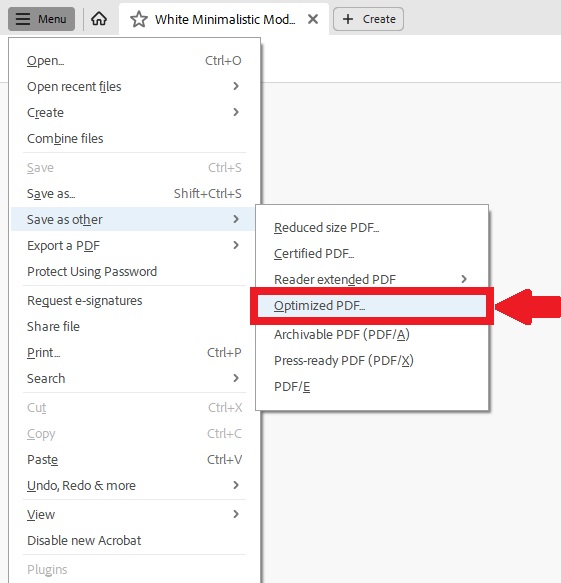
Adobe Acrobat (not just Reader) has a secret repair function. Open Acrobat, go to File → Open and select the malformed PDF. If it opens with errors, go to File → Save As Other → Optimized PDF. In the dialog, click ‘Audit space usage’ — this forces Acrobat to rebuild the PDF structure. Then save as a new file. Many common malformations vanish this way. For a fuller walkthrough on fixing document structure, see our guide on how to repair pdf document.
Step 4: Command Line Rescue with Ghostscript
Ghostscript is a free, powerful tool that can digest and output PDFs. Download and install it, then open a command prompt. Navigate to your file’s folder and run: gswin64c -sDEVICE=pdfwrite -dCompatibilityLevel=1.4 -dPDFSETTINGS=/default -dNOPAUSE -dQUIET -dBATCH -sOutputFile=repaired.pdf original.pdf. This reads the malformed PDF and writes out a clean version. Ghostscript repairs many structural issues. For more details on using this method, check our ghostscript repair pdf article.
Step 5: Online PDF Repair Tools
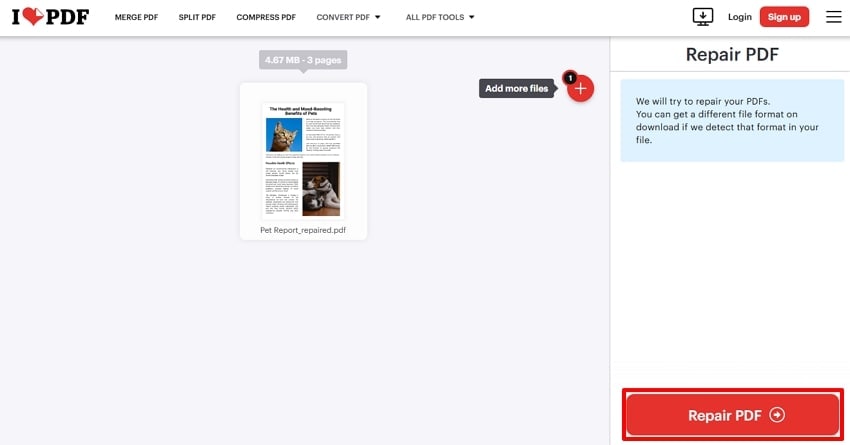
If you’d rather not mess with software, try a reputable online repair service like ilovepdf.com or smallpdf.com. Upload your file, let them process it, then download the fixed version. These tools are great for simple corruptions, but be cautious with sensitive documents. Some sites offer a quick preview so you can verify before saving. If the file is completely blank, try a specialized tool for a recover blank pdf.
Step 6: Manual Hex Editing (Advanced)
If nothing else works, you can fix a malformed PDF by hand using a hex editor. Open the PDF in a tool like HxD. Look for the first line — a valid PDF starts with ‘%PDF-1.x’ (e.g., %PDF-1.4). If that’s missing or garbled, type it in. Also check the tail: the file must end with ‘%%EOF’. Scroll to the very end, add that line if needed, and save. This fixes many header/footer corruptions. Be sure to keep backups. For more advanced recovery methods, see our pdf recovery software guide.
Common Pitfalls
- Overwriting the original before testing the repair — always keep a backup copy.
- Using sketchy online repair sites that may steal your data — only use trusted services.
- Giving up after the first failed method — often a simple re-download works if the file was just partially downloaded.
Where to Next
Hopefully your PDF is now back to life. If you still have issues, explore other fixes like repairing form fields, compressing oversized files, or fixing garbled text. The PDF Repair & Tools section has everything you need. Keep your files safe, and don’t forget to check for corruptions regularly.




