So your PDF won’t open, shows garbled text, or throws an error. Don’t panic. This guide is for anyone who’s ever had a corrupted PDF and wanted to cry. By the end, you’ll have a repaired file you can actually use. We’ll cover quick fixes, online tools, and command-line ninja moves.
You don’t need to be a tech wizard. I’ll walk you through every click. We’ll start with the easiest stuff and work our way up. If one method fails, the next one probably won’t. Ready? Let’s fix that PDF.
What You’ll Need
- A corrupted PDF file (obviously)
- A computer (Windows, Mac, or Linux)
- Adobe Acrobat Reader (free) or any PDF viewer
- Internet connection (for online tools)
- Ghostscript (optional, for advanced repair)
Step 1: Try a Different Viewer
Sometimes the problem isn’t the PDF, it’s the software. Before going all-in on repair, try opening the file in another PDF viewer. Adobe Acrobat Reader is the gold standard. If you have it, open the PDF there. Also try your browser (Chrome, Edge, Firefox all have built-in PDF viewers). If it opens, great — export a fresh copy from that viewer.
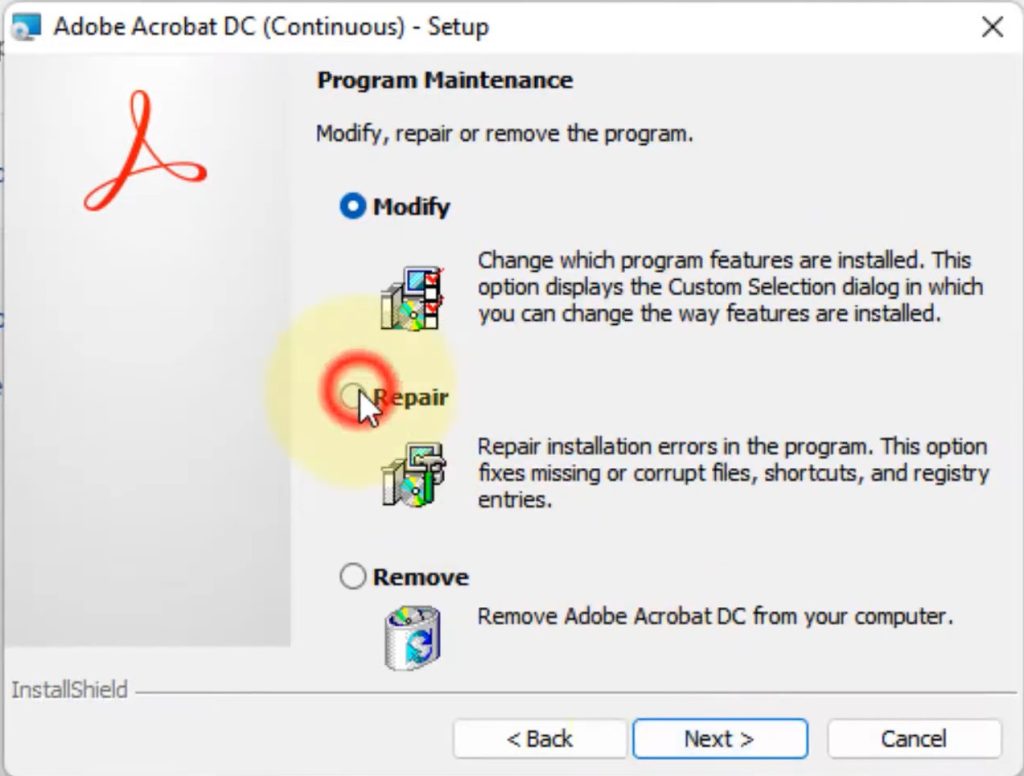
If the PDF still fails, move on. But this simple step saves you time more often than you’d think. For more on this approach, check out our guide on basic PDF repair.
Step 2: Use an Online Repair Service
Online tools are the next easiest option. Sites like Smallpdf, PDF2Go, or iLovePDF can fix many common corruption issues. Upload your file, let them work their magic, and download the repaired version. These services are free for the basic repair, but they have file size limits. If your PDF is huge, you might need the next step.
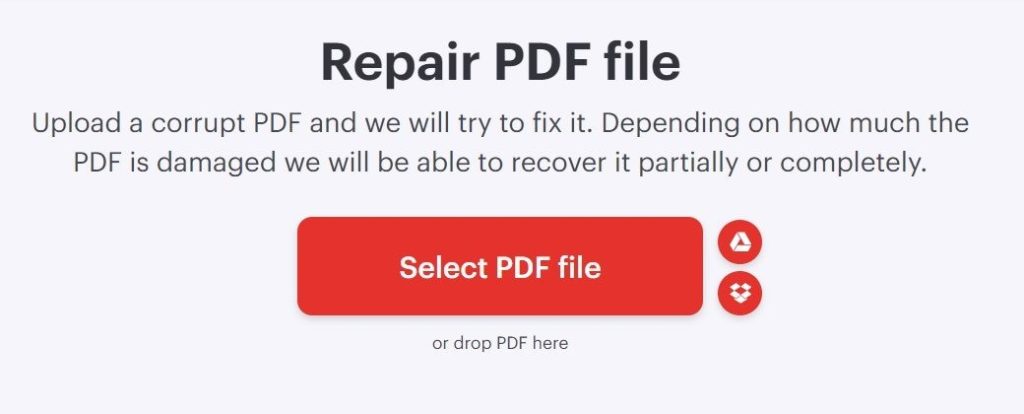
Some online tools also let you scan for errors before repairing. That can give you a clue about what’s wrong. Learn more about scanning for errors in our dedicated article.
Step 3: Repair with Ghostscript (Advanced)
When online tools fail, it’s time for Ghostscript. This command-line tool is like a Swiss Army knife for PDFs. Download and install it from its official site. Then open your terminal (Command Prompt on Windows, Terminal on Mac/Linux). Run a command like: gs -o repaired.pdf -sDEVICE=pdfwrite -dPDFSETTINGS=/prepress corrupted.pdf. This will try to regenerate the PDF from scratch, skipping damaged parts.
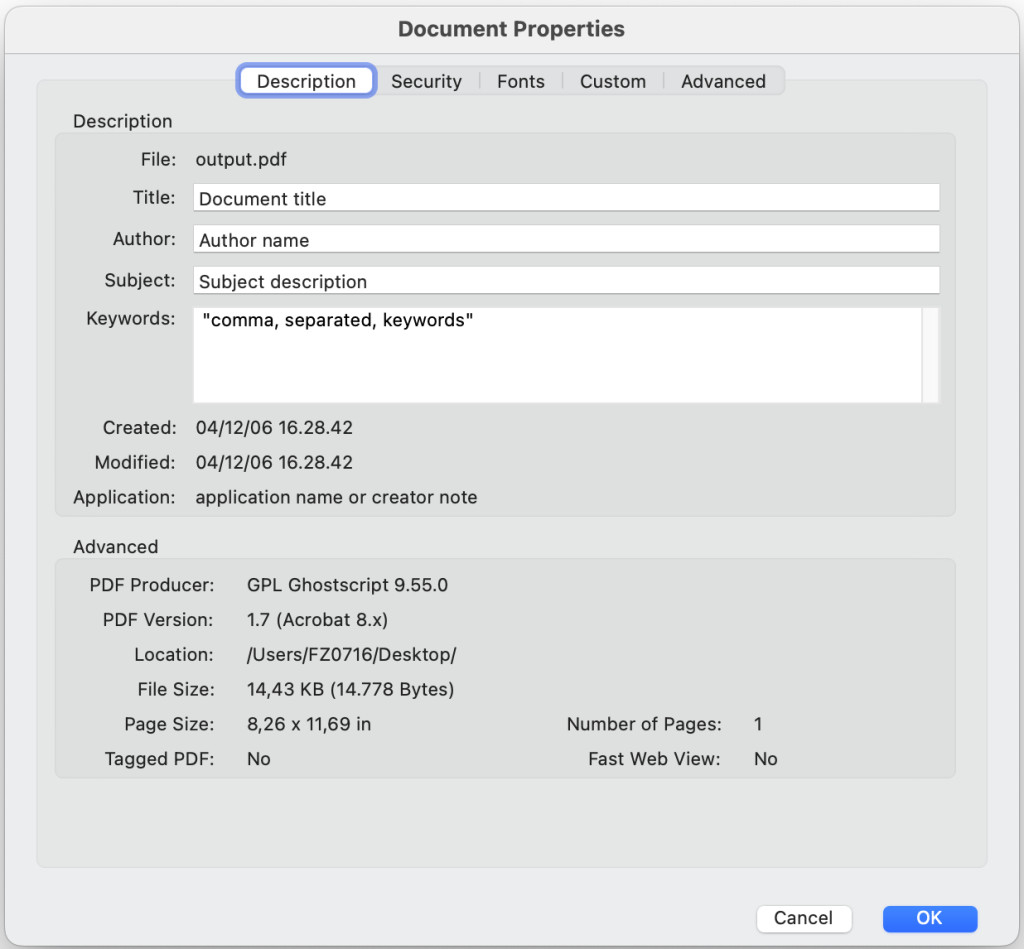
Ghostscript is powerful but can be tricky. If you get erros, double-check your syntax. For a full walkthrough, see our Ghostscript repair guide. Once you have repaired.pdf, open it and check if it worked. If not, the corruption might be deeper — like a broken xref table. We have a post on fixing the xref table that might help.
Common Pitfalls
- Not backing up the original file first. Always keep a copy before attempting repair, especially with command-line tools that can overwrite.
- Using sketchy online repair services. Stick to well-known sites to avoid malware or privacy leaks.
- Assuming the file is beyond repair. Even if it looks totally broken, try a different tool. Many PDFs have salvageable content.
Where to Next
You’ve got your PDF back. But if you want to prevent future headaches, learn about restoring a corrupted PDF proactively. And if you ever need to fix a specific issue like a damaged file after extraction, we’ve got you covered.




