
Ever had a PDF file that just won’t open or shows garbled text? It’s frustrating, especially when it’s something important like a contract or a thesis. This guide is for anyone who’s dealing with a corrupted PDF and needs a straightforward way to fix it. By the end, you’ll have a working PDF — or at least know exactly which tools to try next. No advanced tech skills required.
We’ll cover four methods: opening in a different viewer, using Adobe Acrobat Reader’s built-in repair, trying an online service, and finally using command-line tools like Ghostscript or Mutool. Each step builds on the previous one, so start with the easiest and work your way down. You’ll also learn how to scan a PDF for errors to prevent future corruption.
What You’ll Need
- The corrupted PDF file (make a backup copy before doing anything).
- An internet connection (for online repair services).
- Optional: Adobe Acrobat Reader (free) installed on your computer.
- Optional: Ghostscript or Mutool (free command-line tools) if you’re comfortable with the terminal.
Step 1: Try a Different PDF Viewer

Sometimes the problem isn’t the file itself but the program you’re using to open it. Before diving into repair tools, try opening the PDF in a different viewer. For example, if you normally use Chrome, try Adobe Acrobat Reader or even Microsoft Edge (which has a built-in PDF reader). If the PDF opens fine in another app, the original viewer might need a reset or update. If it’s still broken, move on to the next step.
Step 2: Use Adobe Acrobat Reader’s Repair Tool
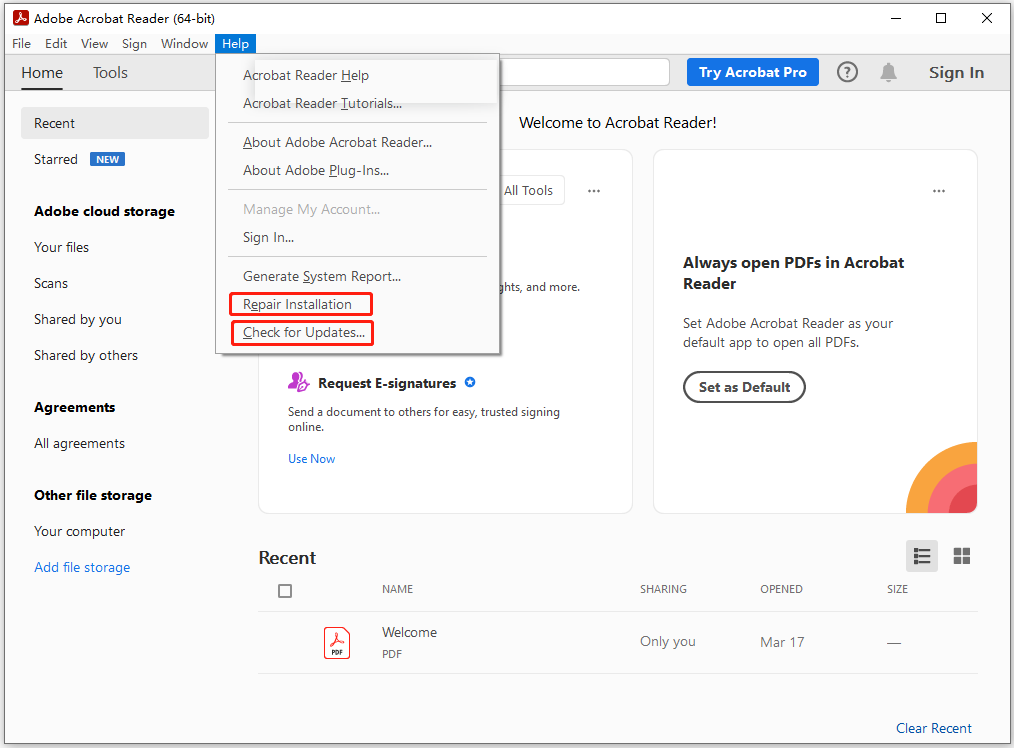
Adobe Acrobat Reader has a hidden gem: a built-in repair feature. Open the program, go to Help > Repair Installation. This fixes the Reader itself. But for the actual file, you can also try File > Open and select the corrupted PDF. If it opens with warnings, Reader may offer an option to repair it automatically. If that fails, you can use the Optimize Scanned PDF tool under Tools > Enhance Scans — it often recovers readable content. This method works well for many common corruption issues, similar to how you’d restore a corrupted PDF using Reader.
Step 3: Try an Online PDF Repair Service
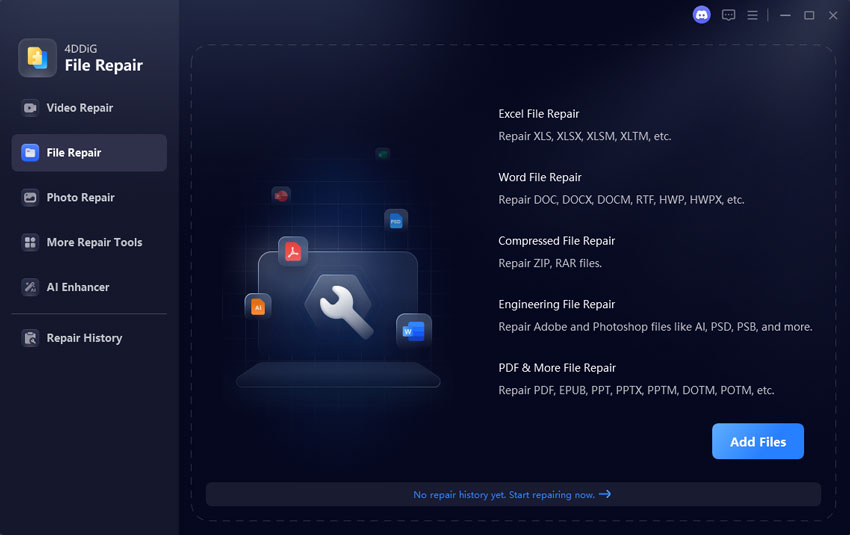
If local tools fail, online services can be a lifesaver — but only use them for non-sensitive files (avoid uploading confidential documents). Popular sites like iLovePDF, PDF2Go, or Smallpdf offer free repair options. Upload your file, let them process it, and download the result. Many of these services check for cross-reference table errors and fix them, which is exactly what you’d do if you manually fix PDF Xref table issues. Just be aware of file size limits and potential privacy concerns.
Step 4: Use Ghostscript (Command Line)

For stubborn corruption, Ghostscript is a powerful free tool that can reconstruct a PDF from scratch. First, download and install Ghostscript from the official site. Then open your command prompt (Windows) or terminal (Mac/Linux) and run this command: gs -o repaired.pdf -sDEVICE=pdfwrite -dPDFSETTINGS=/prepress input.pdf. Replace input.pdf with your corrupted file. This re-processes the PDF, often fixing structural errors. For a full guide, check out our dedicated article on how to repair PDF with Ghostscript. If that doesn’t work, you can also try Mutool (mutool clean input.pdf output.pdf) which is simpler but effective.
Common Pitfalls
- Using unreliable online services. Some sites may upload your PDF to shady servers or inject malware. Stick to well-known services and avoid uploading sensitive documents.
- Overwriting your original file. Always work on a copy. If a repair makes things worse, you can go back to the original.
- Ignoring error messages. PDF readers often give clues (e.g., “unknown compression” or “xref table missing”). Noting these helps you pick the right fix — for example, a missing xref table might need the Ghostscript method.
Where to Next
Now that you have a working PDF, check out our other guides: learn how to restore a corrupted PDF from backup, or how to fix PDF after extraction from a ZIP file. If you’re dealing with partial corruption, our article on how to fix PDF Xref table goes deeper. And always remember to regularly scan a PDF for errors to avoid future headaches.




