
Hey there! If you’ve ever opened a PDF and seen gibberish, missing pages, or an error message, you know the panic. This guide is for anyone who wants to catch corruption early—whether you’re a student, professional, or casual user. By the end, you’ll know how to check any PDF file for corruption using free tools and manual inspection, saving you from wasted time and lost data.
We’ll cover multiple methods to verify a PDF’s integrity, from simple visual checks to command-line diagnostics. No prior experience needed—just follow along and you’ll be able to tell if your PDF is healthy or heading for trouble.
What You’ll Need
- A PDF file you suspect might be corrupt
- A computer with internet access
- A PDF reader (Adobe Acrobat Reader, your browser, or a lightweight viewer like SumatraPDF)
- Optional but recommended: qpdf (free command-line tool) installed on your system (Windows/Mac/Linux)
That’s it! Let’s dive into the steps.
Step 1: Open the PDF in Multiple Readers
Sometimes corruption is reader-specific. Try opening your PDF in at least two different applications. For example, open it in Adobe Acrobat Reader, then drag it into a browser tab (Edge, Chrome, or Firefox). If it opens fine in one but not another, the file might be marginally corrupt but still usable. If all readers fail or show errors, corruption is likely. Note any error messages—they give clues about the type of corruption.

Step 2: Check the File Size
A corrupt PDF often has an abnormal file size. Right-click the file, go to Properties (Windows) or Get Info (Mac), and look at the size. Compare it to expected sizes: a typical text-only PDF might be a few kilobytes, while a document with images could be megabytes. If the file is 0 bytes, it’s definitely corrupt. If it’s unexpectedly huge (like several hundred MB for a text document), it may contain junk data. Extreme size discrepancy is a red flag.

Step 3: Use the Built-in `pdfinfo` Tool (Linux/Mac) or Online Checkers
If you’re on Linux or Mac, open a terminal and run `pdfinfo yourfile.pdf`. This command (part of the poppler-utils package) displays metadata like page count, version, and encryption. If it throws an error like “Error: Could not find file” or “Unexpected end-of-file”, your PDF is likely corrupt. On Windows, you can use online PDF checkers—upload your file to a trusted site like PDFTools Online to run a similar analysis. Free and quick.

Step 4: Run a Syntax Check with qpdf
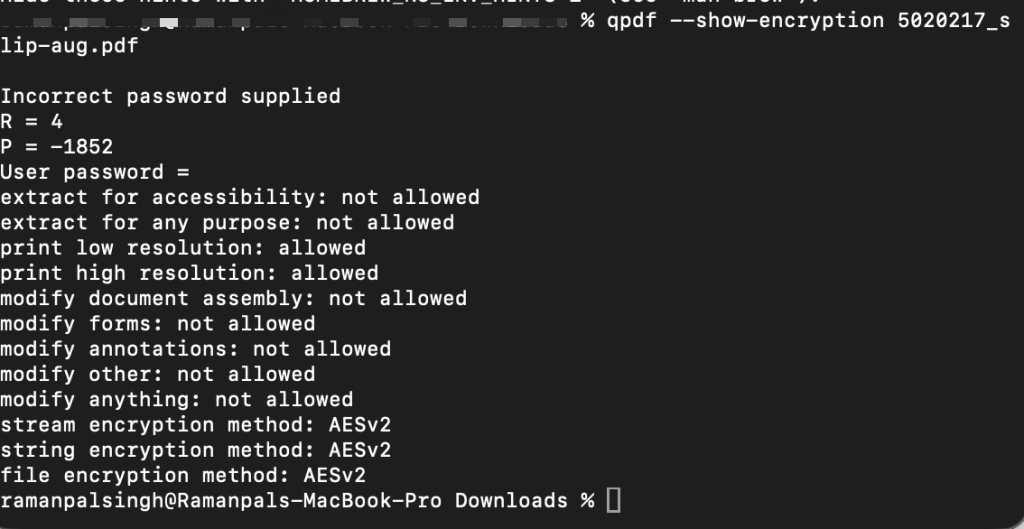
qpdf is a powerful, free command-line tool for PDF manipulation. Install it from qpdf.sourceforge.net. Then run: `qpdf –check yourfile.pdf`. It will scan the file’s internal structure, verifying the cross-reference table, stream lengths, and object integrity. Typical corruption messages include “warning: xref table not found” or “unexpected end of file”. If qpdf reports no errors, your PDF is structurally sound. This is the most thorough free method available.
Step 5: Check the PDF’s Linearization
Linearization (also called “fast web view”) optimizes PDF for streaming. A corrupt linearization can cause odd behavior in browsers. In Adobe Acrobat Pro, go to File > Properties > Description and look for “Optimized for Fast Web View.” If it says Yes, you can also use freeware like PDF Linearizer or qpdf’s `–linearize` command. A failing linearization check often points to corruption in the file’s structure.

Common Pitfalls
- Assuming a ‘cannot open’ error always means corruption. Sometimes it’s a password issue or a missing font. Always rule out simple causes first.
- Using only one reader. Some readers are more forgiving and may open a partially corrupted file, giving you a false sense of security. Test with at least two.
- Ignoring partial corruption. A PDF might open but have garbled text, missing images, or broken links. That’s still corruption. Our garbled pdf text fix guide can help with that.
Where to Next
Found corruption? Don’t panic. Check out our detailed guides: learn how to recover blank pdf using specialized tools, or find the best way to fix corrupted pdf for general repair. For issues with digital signatures or damaged xref tables, refer to our ghostscript repair pdf and fix pdf xref table tutorials. And if text is scrambled, the garbled pdf text fix guide has you covered. You’ve got this!




