You open a PDF you urgently need, and instead of seeing the document, you get an error message, garbled text, or nothing at all. Frustrating, right? This guide is for anyone—whether you’re a student, a professional, or just someone who needs that file back. By the end, you’ll have tried a sequence of practical, tested methods that cover the most common corruption scenarios. From quick fixes you can do in seconds to powerful recovery tools, we’ll walk through each step so you can get your PDF working again.
We’ll start with simple solutions that don’t require extra software, then move on to dedicated tools. Some methods work better on certain types of corruption (like a broken xref table or compression issues), so don’t skip steps even if you think you need a heavy-duty tool. Let’s fix that PDF.
What You’ll Need
- Your corrupted PDF file (make a backup copy first)
- A PDF viewer like Adobe Acrobat Reader, Foxit PDF Reader, or a web browser
- Internet access (for online tools and downloads)
- Optional: Adobe Acrobat Pro (trial or full version)
- Optional: Command-line tools like Ghostscript or Mutool
Step 1: Basic Checks and Simple Fixes
Before diving into advanced repairs, try these quick checks. Often corruption is minor or the file isn’t actually broken—just not opening in your usual viewer. First, try opening the PDF in a different program. Browsers like Chrome or Edge have built-in PDF viewers that handle some errors better. Also, try printing the PDF using a virtual printer (like Microsoft Print to PDF) — this re-creates the file from scratch, often bypassing corruption. Another trick: open the PDF in Adobe Acrobat Reader and go to File > Properties. If the info looks correct, the structure might be intact but the display is off. You can also try to save a copy (File > Save As) to refresh the file.
If none of that works, move on to step 2. But if you simply need to repair a PDF file with a damaged xref table, you might want to check out our guide on how to fix a PDF xref table after you’ve tried these basics.
Step 2: Use Adobe Acrobat Pro’s Built-in Repair
If you have access to Adobe Acrobat Pro (not just the free Reader), you can use its built-in repair feature. Open the corrupted PDF in Acrobat Pro. Then go to File > Save As > Optimized PDF. Uncheck all optimization options to keep the content unchanged, then click OK. This forces Acrobat to re-parse and rewrite the file structure, often fixing minor corruption. If that doesn’t work, try File > Export To > Image > PNG (or JPG) a few pages. If the pages render as images, you can then combine them back into a PDF using Acrobat’s Combine Files tool. This isn’t perfect for text-heavy docs (you’ll lose searchability), but it can save the content.
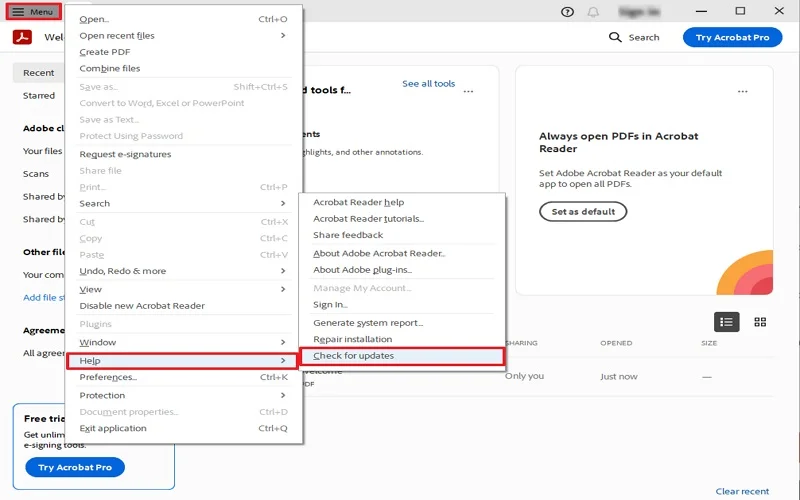
For a more detailed walkthrough on recovering a corrupted PDF using professional tools, see our guide on how to restore a corrupted PDF with Acrobat.
Step 3: Try Online PDF Repair Tools
Several free online services can repair a corrupted PDF without installing anything. Upload your file (from Step 1’s backup!) to sites like Smallpdf, iLovePDF, or PDF2Go. They’ll attempt to fix common issues like broken images or missing fonts. Be cautious with sensitive documents—use a tool that deletes files after processing. Usually the result is a downloadable, repaired PDF. These tools work well for mild corruption, but often reduce quality or remove interactive elements. If you’re on Windows and prefer a desktop alternative, you can also use dedicated software to repair PDF on Windows, which we cover next.
Step 4: Use PDF Recovery Software
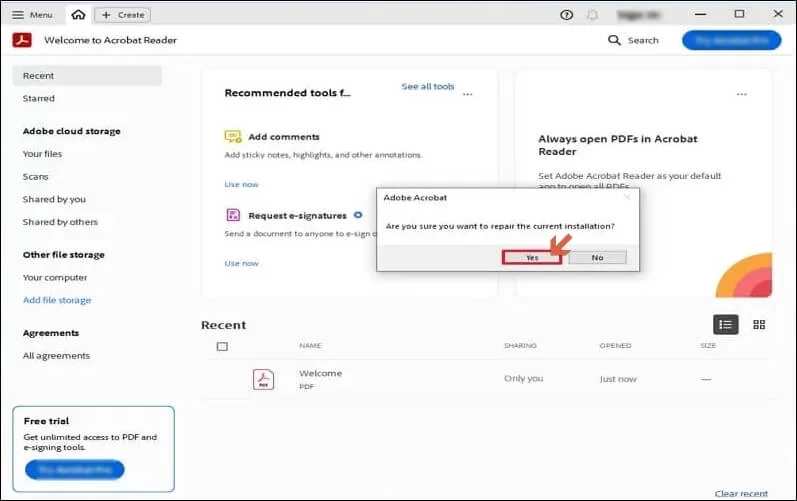
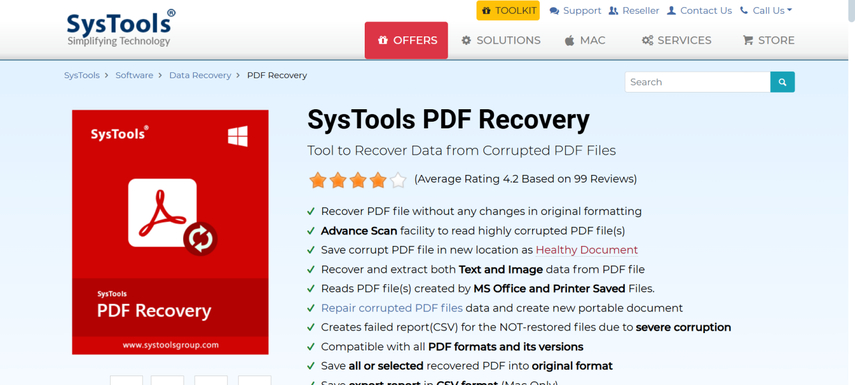
For more stubborn corruption, dedicated PDF recovery software is the next step. Tools like Recovery Toolbox for PDF, SysInfo PDF Repair, or Stellar Repair for PDF scan the file at a low level and attempt to reconstruct it. Many offer a free trial that lets you preview recovered content before paying. Download and install the software, point it to your corrupted file, and run the scan. Depending on the tool, you can save recovered text, images, or the entire document. This is especially effective for corruptions caused by incomplete downloads or disk errors. For a curated list and reviews of the best options, check our PDF recovery software guide.
Step 5: Command-Line Tools (Ghostscript / Mutool)
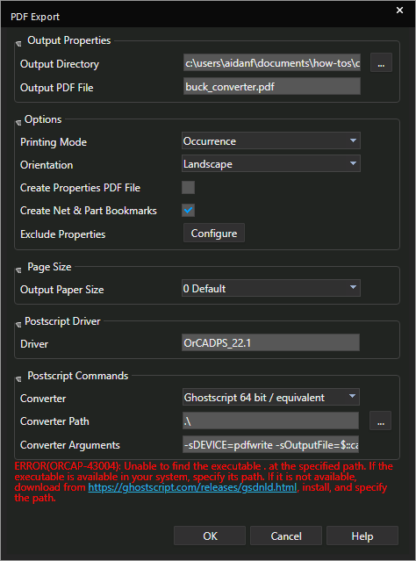
If you’re comfortable with the command line, Ghostscript and Mutool are powerful free tools that can fix severe corruption. For Ghostscript, open a terminal and run: gs -o output.pdf -sDEVICE=pdfwrite -dPDFSETTINGS=/default input.pdf. This re-processes the PDF, often fixing structural issues. Mutool (part of MuPDF) can also clean up: mutool clean input.pdf output.pdf. These tools are available for Windows, macOS, and Linux. They’re especially good at fixing corrupt xref tables and compression errors. If you need a step-by-step, we’ve got guides on ghostscript repair pdf and mutool repair pdf. And for Mac users, see our free PDF repair for Mac guide that includes these methods.
Common Pitfalls
- Not backing up the original corrupted file before trying repairs. If a tool damages the file further, you lose the chance to try another method.
- Using unreliable online tools that may upload your sensitive data to unknown servers or add watermarks. Stick to reputable services with clear privacy policies.
- Overlooking simple causes like file extension corruption (e.g., a .pdf file that’s actually a .docx renamed). Check the file type with a hex editor if needed.
Where to Next
You’ve now got a toolkit to fix most corrupted PDFs. If the file was particularly stubborn, consider recovering a 0KB PDF if the file size is zero, or try other niche fixes like fixing garbled PDF text or repairing PDF after zip extraction. For everyday maintenance, keep backups and use reliable PDF creation tools to avoid future corruption. Good luck, and may your PDFs always open!




