If you’re on Windows and a PDF file won’t open, shows garbled text, or throws an error, don’t panic. This guide is for anyone who needs to fix a corrupt PDF using free tools already on their PC or available online. By the end, you’ll have a working PDF that opens cleanly in any viewer.
We’ll start with the simplest method—using Adobe Acrobat Reader—then move to online repair services, and finally touch on command-line tools for stubborn cases. Along the way, I’ll point you to more detailed guides like how to restore a corrupted PDF or fix the PDF xref table if you need them.
What You’ll Need
- A Windows PC (Windows 10 or 11 works best)
- The corrupted PDF file
- Adobe Acrobat Reader (free, official download)
- An internet connection (for online repair tools)
- Optional: Ghostscript or Mutool (for advanced command-line repair)
Step 1: Use Adobe Acrobat Reader’s Print-to-PDF Trick
Even if your PDF won’t open properly, Adobe Acrobat Reader can sometimes salvage the content by re-exporting it. Here’s how:

First, open the corrupted PDF in Adobe Acrobat Reader. If it opens at all (even with errors), go to File > Print. In the printer dropdown, select “Microsoft Print to PDF”. Click Print. You’ll be prompted to save the new PDF. Give it a name and save it somewhere different from the original. This process re-packages the content into a fresh PDF, often fixing minor corruption. Test the new file by opening it. If it works, you’re done! This is the easiest way to repair a PDF document without any additional software.
Step 2: Try an Online PDF Repair Tool
If the print trick fails, an online service can often fix more severe corruption. These tools are free and require no installation. I recommend Smallpdf or iLovePDF. Go to their website, upload your file, and click “Repair”. After a few moments, download the fixed PDF. Note that for sensitive documents, you might want to skip this step due to privacy concerns. But for casual use, it’s a great way to repair a PDF file quickly.

Step 3: Use Command-Line Ghostscript (For Advanced Users)
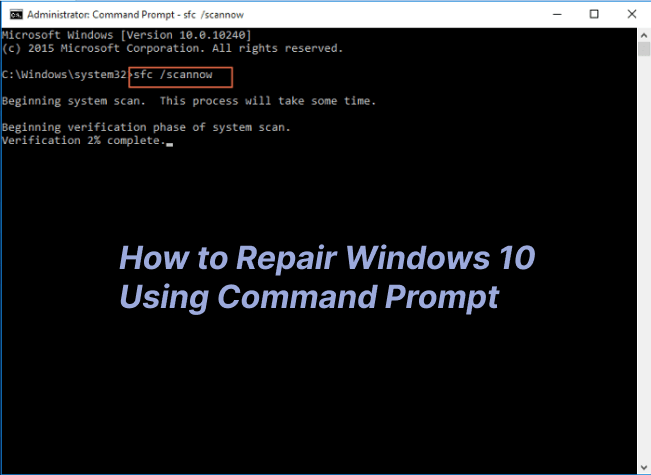
When online tools won’t work, you can turn to Ghostscript, a powerful command-line interpreter. Download and install Ghostscript from the official site. Open Command Prompt (Win+R, type cmd, press Enter). Navigate to the folder containing your corrupted PDF using the cd command. Then run this command:
Replace “corrupted.pdf” with your file’s name. This will produce a new file called repaired.pdf that should be clean. For a deeper dive, check out our guide on using Ghostscript to repair PDF.
Step 4: Try Mutool Clean Command (Alternative CLI)
Another great free tool is Mutool, part of the MuPDF project. It can clean and repair PDFs. Download MuPDF and extract the files. Open Command Prompt in the extracted folder. Run:
The -gg flag enables aggressive cleaning. This often fixes table-related errors. If you’re curious, you can learn more about how to use Mutool to repair PDFs in our dedicated article.
Common Pitfalls
- Relying on untrustworthy online tools that might steal your data. Stick to well-known services like Smallpdf or iLovePDF.
- Skipping the simple print-to-PDF fix. Many people jump to complex solutions when the Reader trick works in seconds.
- Assuming all corruption is fixable. Sometimes the file is beyond repair—especially if it’s a 0KB file or heavily damaged. In those cases, consider recovery from backups or using specialized recovery software.
Where to Next
If these methods didn’t work, your PDF might need a different approach. Check out our guides on how to restore a corrupted PDF using different techniques, or dive into fixing the PDF xref table if you suspect a structural issue. For Mac users, we also have a free PDF repair guide. Good luck, and don’t give up—most PDFs can be saved!




