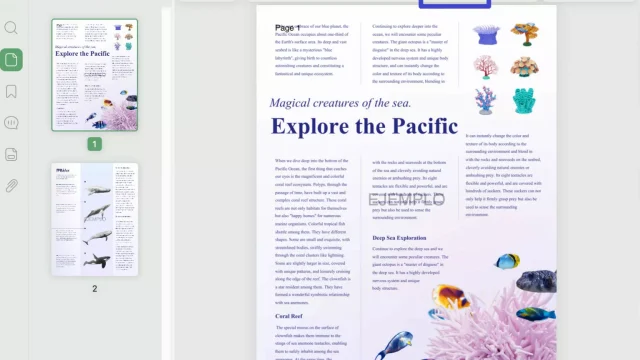
Ever opened a PDF only to find blurry text, blocky images, or weird color artifacts? That’s compression gone wrong. Maybe you saved a file with heavy compression to email it, or a tool like an online converter mangled it. This guide is for anyone struggling with a low-quality PDF—whether it’s a scanned document, a report, or a presentation. By the end, you’ll have a crisp, readable PDF and know how to avoid these issues in the future.
We’ll use free, tested methods: Ghostscript (a command-line powerhouse), Adobe Acrobat‘s built-in optimizer, and a reliable online tool. No paid software required. Let’s fix that PDF.
What You’ll Need
- Your compressed PDF file (the one you want to fix)
- A computer (Windows, Mac, or Linux)
- Ghostscript installed (free from ghostscript.com)
- Optional: Adobe Acrobat Pro (trial works) or a free online tool like iLovePDF
- Patience for large files
Step 1: Diagnose the Compression Issue
First, figure out what’s wrong. Open your PDF in a viewer like Adobe Acrobat Reader. Zoom in to 200%—if text looks jagged or images have blocky squares (called compression artifacts), your PDF has been over-compressed. Also check the file size: a 10-page document should be at least a few MB; if it’s under 500 KB, it’s likely too compressed. This step is crucial because you’ll need to decide whether to recompress images or completely regenerate the PDF.
Step 2: Recompress with Ghostscript (Command Line)
Ghostscript can output a PDF with custom compression settings. Open your terminal (Command Prompt on Windows, Terminal on Mac/Linux). Navigate to the folder with your PDF. Run this command to recompress using the best quality for text and reasonable compression for images:
gswin64c -sDEVICE=pdfwrite -dCompatibilityLevel=1.7 -dPDFSETTINGS=/prepress -dNOPAUSE -dQUIET -dBATCH -sOutputFile=output.pdf input.pdf
Windows; for Mac/Linux replace gswin64c with gs
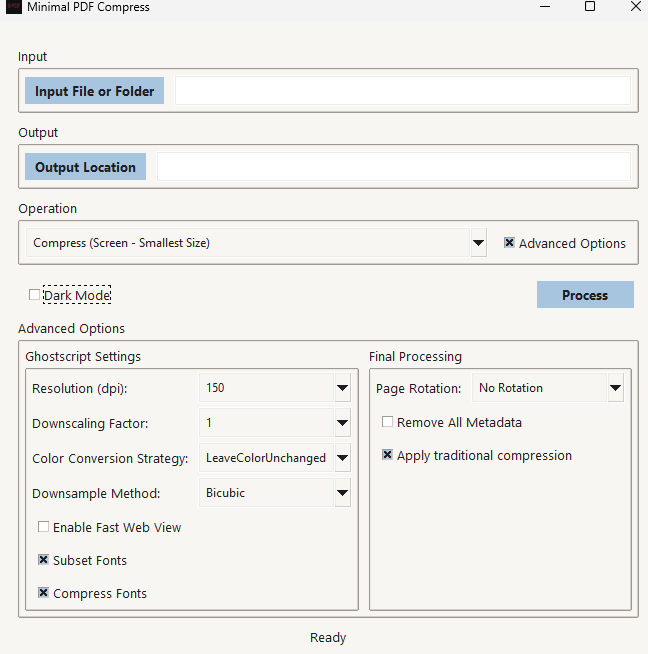
The /prepress setting preserves high resolution (300 dpi) and embeds fonts. If your PDF is still too large, try /ebook (150 dpi) or /screen (72 dpi). After running, open output.pdf—it should look much better. If not, try /default. Ghostscript also works to fix corrupted internal structures, similar to how you might recover damaged pdf using other methods.
Step 3: Use Adobe Acrobat Pro (Optimizer)
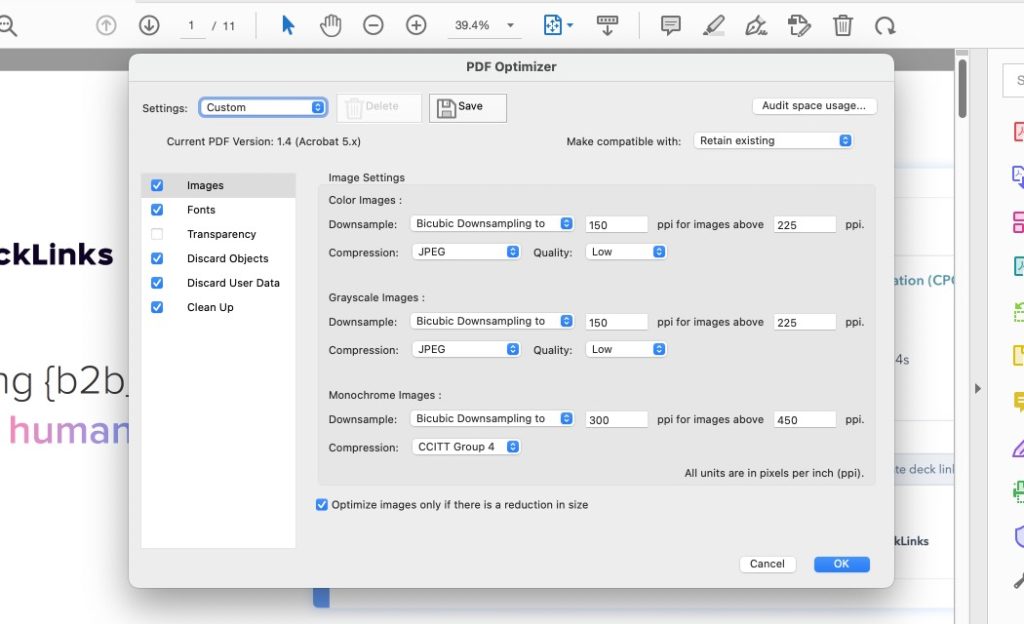
If you have Acrobat Pro, open your PDF and go to Tools > Optimize PDF. Click “Advanced Optimization.” Under Images, set downsampling to “Bicubic Downsampling” with a resolution of 300 dpi for color and grayscale, 600 for monochrome. For compression, choose JPEG2000 with a quality of “Maximum.” Click OK and save. This gives you fine control. If you don’t have Pro, the free trial works for 7 days. This method is ideal for any repair pdf document scenario where quality matters.
Step 4: Try an Online Tool (Quick Fix)
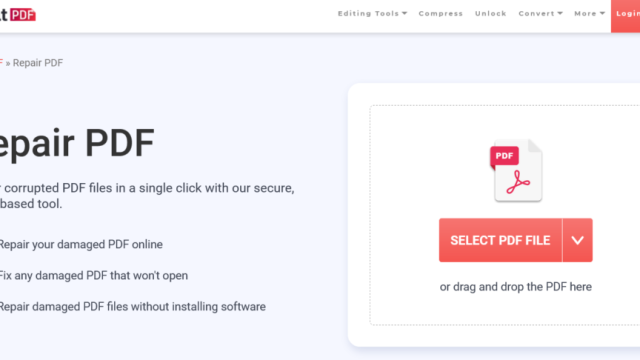
For a no-install solution, use iLovePDF’s “Compress PDF” tool—but choose the “Extreme Compression” option only if you want small size; for repair, pick “Recommended Compression.” Alternatively, use Smallpdf’s “Compress PDF” set to “Lossless.” These are great for simple fixes. However, be cautious: online tools can mangle text if fonts aren’t embedded. Always download and check the result. If you need to fix damaged pdf file from online conversion, these tools can help but aren’t perfect.

Common Pitfalls
- Overlooking font issues: If your PDF uses rare fonts, recompression may replace them with plain fonts, changing the look. Ghostscript’s /prepress embeds fonts, but verify after output.
- Loss of metadata: Some tools strip bookmarks, links, or forms. Ghostscript with default settings preserves them, but online tools often do not. Check your PDF’s interactive features.
- Too large output: Setting too high a resolution (e.g., /prepress on a PDF with 600 dpi images) can balloon file size. Balance quality and size by testing /ebook or custom settings.
Where to Next
Now you have a clean PDF. If you still see issues, your file might be corrupted, not just compressed. Try our guides to restore corrupted pdf or use other tools. For repeat problems, adjust your source application’s PDF export settings—avoid “Minimum Size” presets. Happy printing!