So you’ve got a PDF that was digitally signed – maybe a contract, an invoice, or an official document – but now it’s throwing a fit. The signature shows as invalid, expired, or just plain broken. Don’t panic. This guide is for anyone who needs to get that signature back in working order, or at least access the content. By the end, you’ll know how to diagnose common signature problems and repair them using free tools or Adobe Acrobat.
We’ll walk through checking the signature status, fixing certificate issues, and even recovering the underlying PDF if the signature corruption is just a symptom of a bigger file problem. No prior experience with digital signatures needed – just a willingness to follow along.
What You’ll Need
- The digitally signed PDF file
- Adobe Acrobat Reader (free) or Adobe Acrobat Pro (trial OK)
- Optional: Poppler utils (includes pdfsig) – install on Windows via MSYS2 or on Mac/Linux via brew/apt
- Optional: Ghostscript (for heavy-duty repair) – see our Ghostscript repair PDF guide
- Optional: The original certificate file (.cer/.p12) if you plan to re-sign
Step 1: Open the PDF and Check the Signature Panel
Launch Adobe Acrobat (Reader or Pro) and open your PDF. Look for the Signature Panel on the left side – it usually has a blue ribbon icon. Click it to see all signatures in the document. Each signature will show a status: Valid, Invalid, Unknown, or Signed but not validated. If you see a warning icon, that’s your starting point.

Step 2: Validate the Signature
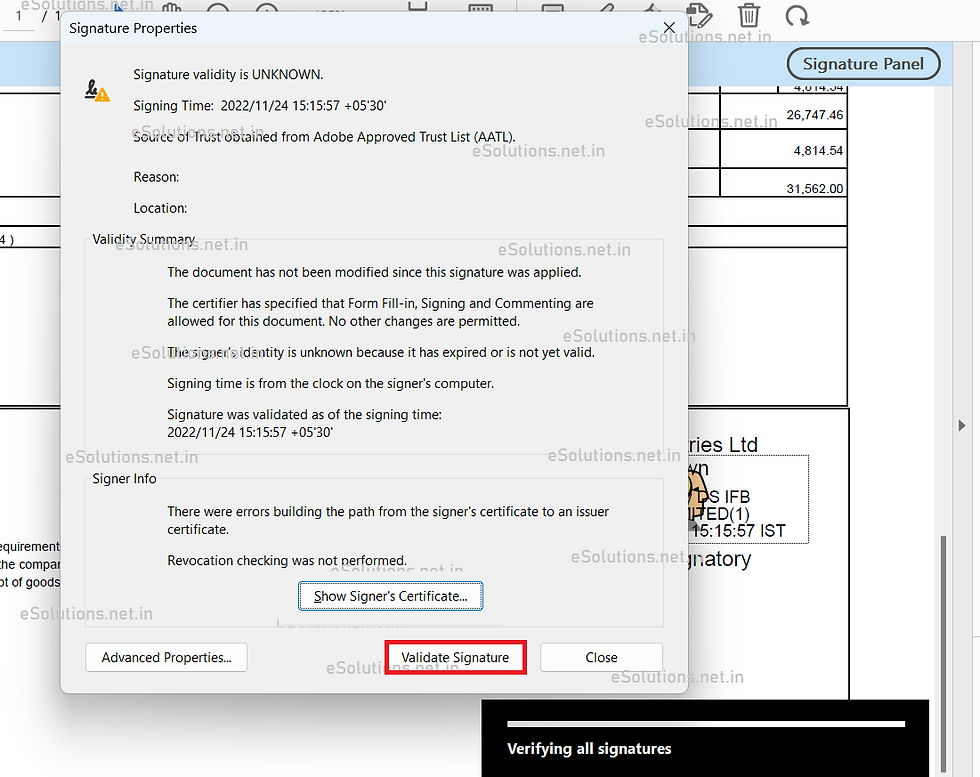
Right-click the signature (or click the gear icon) and select “Validate Signature”. Acrobat will check the certificate chain and timestamps. Often this alone updates the status to Valid if the certificate was just trust-unticked. If it remains Invalid, click “Signature Properties” to see details – like whether the certificate is expired or revoked. If the issue is a missing root certificate, you can manually trust it (but be cautious).

Step 3: Use Command-Line pdfsig to Diagnose
If Acrobat isn’t giving clear answers, open a terminal and run pdfsig (from Poppler). Command: pdfsig yourfile.pdf. This will list all signatures, their status, and detailed messages like “certificate expired” or “document modified after signing”. Capture this output – it tells you exactly why the signature is broken. For example, if the document was edited after signing, you’ll need to revert changes or re-sign.
Step 4: Fix Common Issues
Based on the diagnosis, here’s what to do:
– Expired certificate: If you have the private key, update the certificate and re-sign (follow your signing process). Otherwise, ask the signer to provide a new version.
– Document modified: Undo any edits, or re-sign after finalizing changes. If you can’t undo, try extracting the original signed version (if you have it) and merging with the edits carefully.
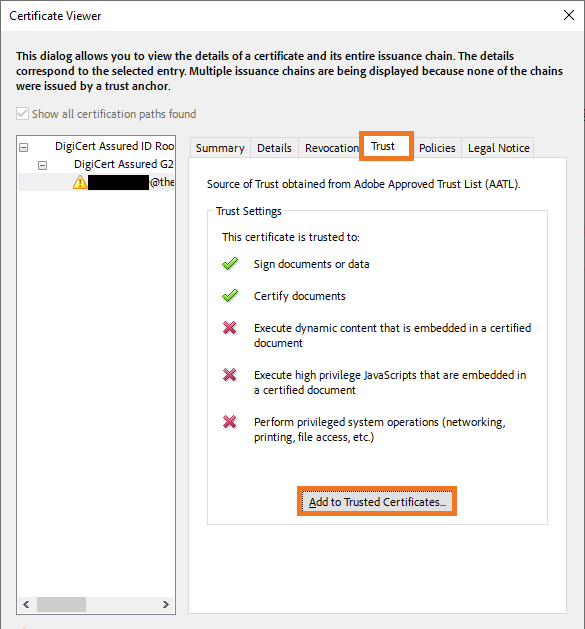
– Missing trust anchor: In Acrobat, go to Edit > Preferences > Signatures > Identities & Trusted Certificates, and add the missing root certificate.
– Corrupted signature field: Sometimes the PDF itself is damaged. Try a general repair first – use our techniques to scan PDF for errors or repair PDF document. After repair, validate again.
Step 5: Recover the PDF Content if Signature Can’t Be Fixed
If the signature is beyond repair (e.g., the signing certificate is destroyed), you might still need the content. In a casual context, you can print the document to another PDF (File > Print > Microsoft Print to PDF) – this flattens everything and removes the signature, but you lose verifiability. For better results, use Ghostscript to recompress the PDF, which often removes corrupted signature entries while keeping the content. Refer to our Ghostscript repair PDF guide for exact commands. Then treat the output as a regular PDF and potentially re-sign it if you have the authority.

Common Pitfalls
- Trusting every certificate: Adding an untrusted root certificate just to make the signature valid could be a security risk. Only trust certificates from known sources.
- Modifying a signed PDF accidentally: Even minor changes like adding a bookmark break the signature. Always work on a copy if you might need to preserve the original signed state.
- Assuming Online Validators are Magical: Some online tools claim to fix signed PDFs but often remove signatures without warning, breaking the validation chain. Stick to desktop tools for control.
Remember, if your PDF is also encrypted, you might need to fix encrypted PDF first before dealing with signatures.
Where to Next
Now that you’ve got your signed PDF in shape, consider learning more about verifying signatures on mobile devices or automating signature checks with scripts. And if you ever run into a completely broken PDF (not just a signature issue), our main repair PDF document guide is your go-to resource. Happy signing!




